

What to Do If Your CCTV Camera Isn’t Working
A fully operational surveillance system is a cornerstone of safety for homes and businesses across Singapore. When a security camera fails, it creates a vulnerable gap in your protection. This blind spot can have serious consequences.
This guide provides a clear, step-by-step path to diagnose and resolve common malfunctions. You will learn a logical troubleshooting process that starts with simple checks and moves to more advanced solutions.
Many surveillance problems have straightforward fixes. Issues often stem from power supply glitches or loose cable connections. Network configuration errors can also disrupt modern IP-based systems.
Taking prompt action is crucial. A non-functional unit leaves your property exposed. Systematic troubleshooting can often restore your security coverage without the immediate need for a costly technician.
Our instructions cover both traditional and newer digital surveillance setups common in the Singapore market. You can regain clear video monitoring and peace of mind.
Key Takeaways
- A malfunctioning security camera creates a critical blind spot in your surveillance.
- Most common issues are related to power, physical connections, or simple settings.
- A systematic approach to troubleshooting can solve many problems quickly.
- This guide covers solutions for both older and modern IP-based camera systems.
- Prompt diagnosis and action help maintain continuous security coverage.
- Many fixes can be performed without professional help, saving time and money.
First Response: Immediate Steps to Diagnose Your CCTV Camera
When your surveillance feed goes dark, quick and methodical diagnosis is your first line of defense. A significant majority of malfunctions have simple origins. Starting with basic checks often yields a fast solution.
Industry experts note that roughly 60% of video loss stems from loose physical connections. This makes inspecting cables and ports your most crucial initial action. A systematic approach isolates the problem efficiently.
Perform a Basic System Reboot
Electronic devices can enter a corrupted state. A full reboot clears temporary glitches and software hiccups. Always power down the entire system properly.
Turn off the DVR or NVR unit and all connected security cameras. Unplug them from their power sources. Wait for a full 60 seconds to allow residual charge to dissipate.
Restart the system in sequence. Plug in the recorder first, then each camera one by one. This orderly process helps the system recognize all components correctly. Many apparent failures resolve after this simple cycle.
Verify the Camera’s Power Indicator Light
Every modern security camera has a status LED. Locate this small light on the unit’s housing. A steady or blinking glow confirms it receives electricity.
No illumination points directly to a power supply issue. The adapter, cable, or wall outlet could be faulty. This quick visual test instantly narrows down the potential cause.
If the light is on but you see no video, the issue lies elsewhere. The transmission path for the signal becomes the next area to investigate.
Check the Monitor or Viewing App Connection
The viewing endpoint is another common failure point. For dedicated monitors, ensure the correct input source is selected. HDMI or VGA cables can work loose over time.
For mobile or computer viewing, open your surveillance app. Confirm you are logged in and connected to the same local network as your cctv camera system. Apps sometimes log out or lose their settings.
You can test the monitor by connecting a different device. Try viewing another camera on the same system through the app. If other feeds display correctly, the connection issue is isolated to one specific unit.
These immediate steps address the most frequent culprits. They solve temporary errors, minor configuration resets, and loose connections.
If your cctv camera remains offline after these checks, the cause is more specific. The following sections will guide you through deeper investigation of power systems, cable integrity, and network settings.
Identifying and Solving Power Supply Problems
A staggering majority of surveillance system failures trace back to one fundamental element: electricity. Industry data suggests approximately 85% of malfunctions link directly to power-related issues. This makes a thorough investigation of your system’s electrical pathway absolutely critical.
Insufficient or unstable power supply is the silent saboteur behind random reboots, black screens, and complete video loss. Your diagnostic journey must start here.
Testing the Power Outlet and Adapter
Begin with the simplest components. Plug a small lamp or phone charger into the same wall outlet. If the other device doesn’t work, you have found the root of your problem.
Next, examine the power adapter (often called a “wall wart”). Look for any visible signs of damage, like frayed wires, a cracked casing, or bent pins. In Singapore’s humid climate, check the connectors for corrosion—a common culprit.
For a definitive test, use a known-good replacement adapter with the correct voltage and amperage. This simple swap can instantly restore your camera power. If you have a multimeter, you can check the adapter’s output voltage matches its label.
Inspecting for Faulty or Loose Power Cables
The physical cable carrying electricity is a frequent failure point. Trace the entire length from the outlet to the camera. Look for cuts, severe kinks, or chew marks from pests.
Ensure both ends are firmly seated. A loose connection at the camera’s weatherproof housing or at the power brick can interrupt the supply. Gently unplug and reconnect these cables to ensure a solid contact.
For PoE (Power over Ethernet) systems, the network cable delivers both data and power. A faulty Ethernet cable or a failing port on your PoE switch can cause the same symptoms as a bad power adapter.
Understanding Power Requirements for Your System
Using an under-spec power supply is a major issue. If your adapter provides 0.5A but your camera needs 1A, it will starve for electricity. This often causes intermittent failures.
Voltage drop over long cable runs is another hidden challenge. For analog systems running on DC power, using a cable longer than recommended can sap voltage before it reaches the unit. The solution is to use a shorter, thicker-gauge (lower AWG number) cable.
For PoE cameras, standard Ethernet cable runs should not exceed 100 meters. Beyond this, power delivery becomes unreliable. A dedicated, higher-wattage PoE switch can provide a more robust power supply for multiple cameras.
Avoid mounting cameras directly on metal surfaces without insulation. This can create short circuits during rain, leading to damaging power spikes.
For long-term reliability, consider protective hardware. An Uninterruptible Power Supply (UPS) guards against blackouts. A quality surge protector is essential in Singapore to shield your investment from lightning-induced spikes.
Inspecting Physical Connections and Cables
Physical inspection of wiring is a non-negotiable step in diagnosing surveillance failures. Industry data reveals loose connections cause over 60% of all video loss. Furthermore, about a quarter of serious problems stem directly from faulty cables and wires. A methodical hands-on check is therefore mandatory.
This process involves securing connectors, hunting for physical damage, and evaluating cable integrity. Neglecting this can leave your system vulnerable.
Securing Loose BNC, Ethernet, and Video Cables
Begin with a systematic checklist. Trace every wire from the recorder to each unit.
For analog systems, check both ends of each BNC connector. Ensure they are finger-tight and secure. A loose connector is a prime suspect for a snowy or absent picture.
In modern IP-based surveillance, verify every Ethernet cable is fully inserted into the RJ45 port. You should hear a distinct click. Don’t forget the cables linking your DVR/NVR to the monitor—ensure VGA or HDMI connections are snug.
For wireless units with external antennas, confirm those hardware connections are also tight.
Looking for Damage, Wear, and Corrosion
Visually inspect the entire length of each cable. Look for cuts, severe kinks, or insulation cracks. Rodent chew marks are a common culprit in outdoor installations.
In Singapore’s humid climate, pay special attention to metal contacts. Green or white corrosion on BNC or RJ45 connectors disrupts the electrical signal. Check for bent pins inside ports.
Water ingress is a major threat. Look for swelling or discoloration on cable jackets near connectors. This damage often leads to intermittent video loss that worsens with rain.
The Impact of Cable Length and Quality on Signal
Using the wrong cable type or excessive length degrades performance. For Ethernet runs, the maximum reliable distance is 100 meters. Beyond this, power and data signals weaken, causing dropouts.
Poor-quality, thin coaxial cables for analog systems result in a flickering, grainy feed. Always use certified, shielded cables for optimal integrity.
Investing in quality Cat5e or Cat6 cables for IP systems and robust, shielded coaxial for analog setups prevents a host of future problems. It is a foundational step for a reliable system.
A simple isolation test is to temporarily replace a suspect cable with a known-working short one. If the video loss stops, you’ve found the fault.
For long-term reliability, manage outdoor runs properly. Use conduit or waterproof junction boxes. Create drip loops to stop water from tracking along the cable into the unit.
Resolving Network and Connectivity Issues
For IP and WiFi security cameras, a robust network connection is as vital as electrical power. When this digital pathway fails, live viewing and recording stop. Industry analysis shows weak WiFi or low bandwidth causes roughly 35% of all video loss in modern systems.
These issues are specific to network-reliant units. Troubleshooting requires a different approach than checking physical cables. You must examine wireless signals, internet protocol settings, and data flow.
A methodical process can identify and fix most common network problems. This restores reliable access to your surveillance feeds.
Fixing Weak WiFi Signal and Interference
A poor wireless signal is a primary culprit for choppy or lost video. Distance and physical barriers greatly reduce strength. Thick concrete walls, metal structures, and even appliances can cause major interference.
Diagnose this first. Use a smartphone WiFi analyzer app at the camera’s mount location. Check the signal strength reading. Common household devices like microwaves, cordless phones, and baby monitors can also disrupt the connection.
Solutions for a weak signal are straightforward. Reposition your router or the camera to reduce distance and obstacles. For extensive properties, a WiFi extender or a mesh network system creates a stronger, unified wireless blanket.
For a more stable link, consider a Powerline adapter. This device uses your home’s electrical wiring to create a wired-like network connection. It is an excellent solution for areas with persistent WiFi dead zones.
Checking for IP Address Conflicts
An IP address conflict can make a camera unreachable on your network. This happens when two devices are assigned the same numerical address. Your router gets confused and cannot route data correctly.
To check, find your camera’s current IP address. Use your NVR’s device search tool or the manufacturer’s configuration software. Then, compare this address to those assigned to other computers, phones, and smart devices on your local network.
Ensure every device has a unique address. Most home routers handle this automatically with DHCP. If you find a duplicate, you can manually assign a new, unused IP to your camera through its settings page.
Before deep configuration, test basic connectivity. Open your computer’s command prompt and “ping” the camera’s IP address. A successful reply confirms the device is online and reachable through the network.
Ensuring Sufficient Bandwidth for Your Cameras
Multiple high-resolution cameras can saturate a home network. Each stream consumes bandwidth. If your router or internet plan cannot handle the total load, video loss and lag occur.
Calculate your system’s approximate needs. A typical 4MP camera streaming at high quality may use around 8 Mbps of bandwidth. Four such cameras would need a constant 32 Mbps just for surveillance data.
If your overall internet speed or router’s processing power is lower than your cameras’ combined demand, you will experience problems. Upgrading your internet plan or router is the best long-term fix.
A temporary solution is to reduce the stream resolution or frame rate in each camera’s software settings. This lowers bandwidth use and can restore smooth performance.
Also, verify critical router settings. For remote viewing, ensure UPnP (Universal Plug and Play) is enabled. Some systems require specific port forwarding rules; check your manual.
For cellular security cameras, ensure the SIM card is properly inserted and has an active data plan. No signal bars on the camera’s status display usually indicates a SIM or carrier issue.
What to Do If CCTV Camera Is Not Working: Image and Video Feed Failures
Image and video feed failures present a distinct challenge, as the unit may be powered but not communicating. These issues fall into three main categories: a complete blackout, a poor-quality stream, or intermittent dropouts. Each type points to a different part of the signal chain.
Diagnosis requires checking the transmission path from the lens to your screen. A systematic approach isolates the fault efficiently.
Addressing a Completely Black or Blank Screen
First, confirm the security camera has power. A lit status LED means the issue is signal transmission. For analog systems, inspect the BNC connector at both the camera and DVR. Ensure it is finger-tight.
For IP cameras, check the Ethernet cable is fully seated in the RJ45 port. Try plugging the unit into a different port on your NVR or network switch. This rules out a faulty port.
Also, verify the correct input source is selected on your viewing monitor. A common oversight is having the HDMI input set to the wrong device.
Compatibility can cause video failure. An NVR designed for 4MP may not decode a 5MP stream, resulting in a black screen. Check your recorder’s supported resolution list.
A single vertical or horizontal line on the display often indicates a hardware fault in the image sensor. This typically requires professional repair or replacement.
Fixing a Frozen, Lagging, or Pixelated Video Feed
Choppy or blocky video usually stems from data bottlenecks. For IP systems, insufficient network bandwidth is a prime suspect. Multiple high-resolution streams can overwhelm a router.
Inside your DVR or NVR, a failing hard drive can cause recording stutter. An overloaded processor may also struggle to encode footage in real time.
A quick diagnostic step is to lower the recording resolution or frame rate in the camera settings. If the feed smoothens, you have identified a bandwidth or processing problem.
Upgrading your network equipment or recorder may be necessary for long-term reliability. For older DVRs, replacing the internal hard drive can restore smooth performance.
Always view the feed directly on the recorder’s interface. This rules out issues with a secondary monitor or a laggy mobile app.
Troubleshooting Intermittent Video Loss
A camera that flickers on and off suffers from intermittent video loss. This is often due to a marginal power supply. A failing adapter may provide just enough voltage to boot, then drop out.
A slightly loose cable connection can also cause this. Wind or vibration might break the contact momentarily. Inspect all connectors and cables for a secure fit.
For wireless units, network packet loss from interference creates dropouts. Move the router or security camera to improve signal strength. Avoid placing them near other electronics.
The most reliable test is systematic isolation. Connect the suspect camera directly to the recorder using a short, new cable. If the video loss stops, the fault lies in your permanent wiring or network infrastructure.
This method confirms whether the cctv unit itself is functional. It saves significant diagnostic time and effort.
Fixing Poor Image Quality and Focus Problems
Blurry or distorted footage can render even the most advanced security camera virtually useless for identification. When your feed is active but unclear, your system’s effectiveness drops sharply. This section shifts focus from “no video” to “bad video,” which is equally detrimental to security.
Common culprits include a dirty lens, incorrect software adjustments, or poor positioning. Addressing these restores critical visual detail.
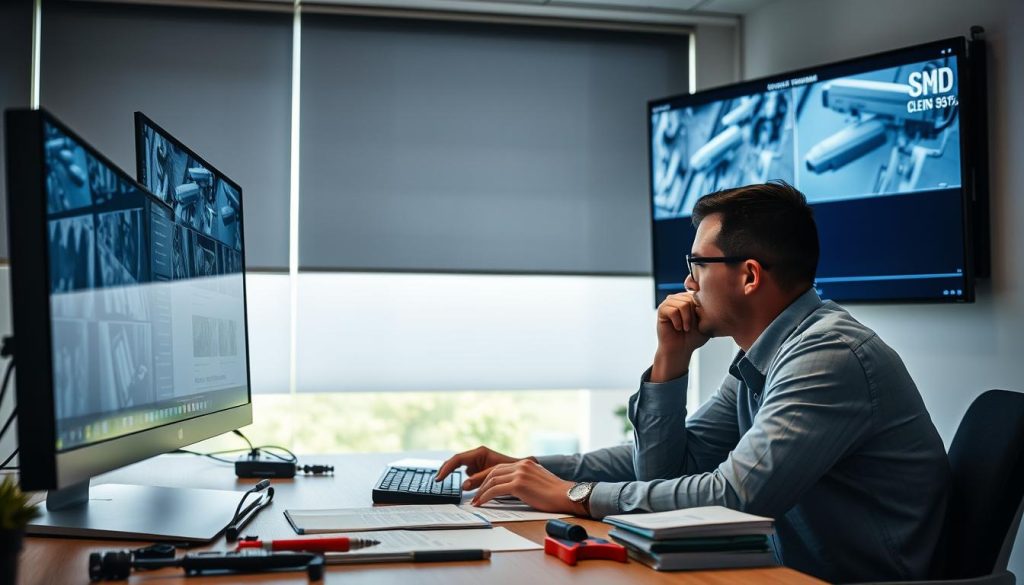
Cleaning the Camera Lens and Housing
Dirt, dust, and spider webs are primary enemies of clear surveillance. In Singapore’s humid environment, water spots and mold can also form. These obstructions scatter light and degrade the image.
Use a soft, lint-free microfiber cloth for cleaning. For stubborn grime, apply a tiny amount of lens cleaner to the cloth—never spray directly on the glass. Gently wipe the lens in a circular motion from the center outward.
Also, clean the housing to remove debris that could later fall onto the lens. Check for scratches during this process. Deep scratches often require professional lens replacement.
Adjusting Camera Settings for Clarity
Incorrect software settings are a major cause of poor performance. Access your camera’s configuration via the DVR/NVR menu or its web interface. Key adjustments directly impact image quality.
For varifocal lens models, manually adjust the focus. Use the live feed on a high-resolution monitor. Zoom in digitally on a specific target area, then turn the focus ring until the image is perfectly sharp.
Other critical settings include brightness, contrast, sharpness, and color saturation. For scenes with high contrast—like a bright doorway against a dark interior—enable Wide Dynamic Range (WDR). This feature balances light levels to reveal detail in both shadows and highlights.
Always adjust settings during the time of day and lighting conditions you wish to optimize. A setting that looks perfect at noon may be terrible at night.
Repositioning to Avoid Glare and Obstructions
Environmental factors constantly challenge image clarity. Direct sunlight hitting the lens causes flare and washes out the picture. Reposition the unit to avoid the sun’s path, or use a sunshade if available.
Mounting on vibrating surfaces, like near industrial fans or aircon units, induces motion blur. Relocate the camera to a more stable structure.
Regularly check for new obstructions. Growing tree branches, new signage, or accumulated debris can block the field of view. Trim vegetation and clear the area to maintain an unobstructed line of sight.
Persistent blurriness after thorough cleaning and refocusing may indicate a faulty lens assembly or image sensor. This hardware issue typically requires professional repair or replacement.
For consistent surveillance performance, conduct image quality checks at different times of day and in various weather conditions. This ensures your system delivers reliable vision around the clock.
Restoring Night Vision and Infrared Functionality
When infrared functionality degrades, your surveillance system loses its eyes in the dark. This creates a severe gap in your security coverage during the most vulnerable hours.
Two primary night vision problems occur. The first is poor or limited visibility, where the image is dim and grainy. The second is more critical: the feed goes completely black when the IR should activate.
Restoring this capability is essential for round-the-clock monitoring. A systematic check of hardware and settings can often resolve these issues.
Confirming IR LED Operation and Settings
First, verify the infrared LEDs are working. These small bulbs surround the lens and emit invisible light.
To test them, cover the camera’s light sensor with your finger. You can also move the unit to a dark room. Look closely at the lens housing for a faint red glow from the LED array.
No glow indicates failed LEDs or disabled settings. Access your camera configuration via the DVR/NVR menu or mobile app.
Find the “Night Vision” or “IR Mode” option. Ensure it is set to “Auto” or “On.” A simple software toggle is a common fix for video loss after sunset.
Cleaning the IR Sensor and Cut Filter
Dirt, spider webs, or condensation on the IR LEDs drastically reduce their range. They can also cause bright hotspots in the image.
Use a soft, dry microfiber cloth for careful cleaning. Gently wipe the protective glass dome in front of the LEDs. Avoid scratching the surface.
Modern units have an internal “IR cut filter.” This mechanism switches between color day mode and monochrome night vision.
A stuck filter causes specific problems. You might see a black & white picture during the day. At night, it can cause a total black screen.
Tapping the camera housing gently might free a temporarily stuck filter. Persistent failure usually requires professional service to replace the component.
Solving Problems with Video Going Black at Night
A feed that turns black after dark is a frequent complaint. This is often a transition failure.
The camera cannot handle the shift to IR mode. A faulty cut filter or extreme low light beyond the sensor’s capability are likely causes.
Several solutions exist for this specific video loss. Adding an external white light or IR illuminator provides more ambient light. This assists the sensor.
Reducing the “Night Vision Delay” setting in the software can help. A shorter delay makes the transition from day to night mode faster and more reliable.
Also, check for external IR interference. Other nearby security camera units or certain light sources can confuse the light sensor.
Updating your cctv camera firmware can resolve bugs affecting the IR circuit. For persistent hardware faults like a stuck filter, seeking professional troubleshooting for nighttime CCTV issues in is the most reliable path to a permanent fix.
Addressing Firmware, Software, and Configuration Errors
Persistent glitches that resist physical fixes often point to problems in the system’s digital core. When power, cables, and network connections check out, the culprit may lie in the code that runs your equipment.
Firmware and configuration software are the brains behind your hardware. Outdated or corrupted versions lead directly to connectivity drops and video loss. Addressing these digital layers is essential for stable security.
The Critical Importance of Keeping Firmware Updated
Firmware is the internal operating system of your cameras and DVR. It controls everything from image processing to network protocols. An old version can contain bugs that cause random disconnections.
These bugs might disable features or create security vulnerabilities. Manufacturers regularly release updates to patch these flaws and enhance performance.
Always download firmware files only from the manufacturer’s official website. Using files from third-party sources risks “bricking” your device, rendering it permanently unusable.
How to Safely Update Your CCTV Camera Firmware
Follow a careful sequence for this critical task. First, log into your camera or DVR web interface. Check the current firmware version listed in the settings menu.
Download the correct update file for your exact model. For standalone IP cameras, you typically upload this file directly through the device’s configuration page.
For NVRs, you might load the file via a USB drive. The system will guide you through the upload steps. Allow the process to complete without interruption.
A failed update can render the device completely dead. Ensure stable power and network connectivity throughout the entire procedure. Do not power off the unit.
Software issues also affect viewing apps on phones and PCs. If live view fails, ensure the app is updated. Clearing its cache or doing a fresh reinstall can resolve playback problems.
Resetting to Factory Defaults as a Last Resort
When all else fails, a factory reset clears all corrupted settings and misconfigurations. This is the nuclear option. It wipes custom recording schedules, motion zones, and network passwords.
The process usually involves a small pinhole button on the device. Use a paperclip to press and hold it for about 10 seconds. The unit will reboot with original defaults.
Document your system’s configuration before a reset. Note IP addresses, recording modes, and any special settings. This makes reconfiguration much faster afterward.
After the reset, you must re-add the device to your security network. This is a good time to implement best practices for passwords and network security. Your system should then operate with fresh, stable performance.
Ensuring Long-Term Reliability for Your Security System
Long-term peace of mind with your surveillance depends on consistent, simple maintenance habits. Shift from reactive fixes to a proactive routine. This prevents most common problems before they cause video loss.
Implement a quick monthly check. Visually inspect all cameras for dirt or damage. Verify recording is active on each channel. Gently clean lenses with a soft cloth.
Schedule an annual deeper review. Tighten all cable connections and test backup power supplies. Update device firmware for optimal performance and security.
For complex issues or high installations, seek professional help. A well-maintained system is a critical defense for any property. The troubleshooting steps you’ve learned empower you to maintain clear, reliable security coverage.
FAQ
My security camera has no power light. What should I check first?
First, verify the electrical outlet is working by plugging in another device. Next, inspect the power adapter and cable for damage. Ensure all connections from the wall to the camera are secure. A faulty adapter is a common cause of power loss.
Why is my surveillance feed completely black or blank?
A black screen often points to a power or signal issue. Check the camera’s infrared LEDs; if they’re off, it’s likely a power supply problem. For network models, confirm the IP address is correct and the network cable is firmly connected to the router and camera.
How can I fix a lagging or pixelated video stream?
This is typically a bandwidth or signal strength problem. For WiFi cameras, reduce distance from the router and remove physical obstructions. Ensure your network isn’t overloaded. Wired systems require checking Ethernet cables for damage and confirming your DVR or NVR has adequate processing power.
My camera’s night vision stopped working. How do I restore it?
Begin by cleaning the camera lens and the infrared sensor cover, as dirt blocks IR light. Access the camera settings via its software to confirm night mode is enabled. If the video feed goes black at night, the IR cut filter may be stuck, which might require professional repair.
Could outdated firmware cause my system to malfunction?
Yes, outdated firmware is a frequent source of glitches, including connectivity drops and performance issues. Regularly check the manufacturer’s website for updates. Always follow their specific instructions for updating to avoid bricking your hardware.
When should I consider a factory reset on my security cameras?
Use a factory reset as a last resort after exhausting other troubleshooting steps. It will erase all custom settings, including network configurations and recording schedules. This step can resolve deep-seated software conflicts but requires you to set up the entire system again.


