

What does a green light on a camera mean? Explained
Modern photography relies on visual cues to keep users informed. A glowing indicator often signals whether a device is active. Among these signals, one color stands out as a universal sign of functionality.
This status light serves two critical purposes. First, it confirms the device is powered and ready for use. Second, it acts as a privacy safeguard, alerting users when recording begins. Many professional and consumer models, like the DSC-2100, use this system.
Smartphone manufacturers have adopted similar visual alerts. Android 12 introduced a small dot to indicate active camera use. Understanding these signals helps photographers avoid missed shots while maintaining control over their privacy.
Key Takeaways
- Status indicators confirm device functionality
- Visual alerts serve as privacy notifications
- Professional cameras often use steady illumination
- Smartphones display dynamic indicators
- Recognizing signals prevents missed opportunities
Understanding Camera Status Indicators
Visual indicators transform technical data into simple color messages. These tiny LEDs communicate power states, connection quality, and operational readiness at a glance. Unlike dense menus, they offer instant feedback, critical for both amateurs and professionals.
The Language of Camera Lights
Manufacturers follow a universal color code for consistency:
- Green: Active recording or live streaming
- Red: Standby mode or battery warning
- Amber: Storage or connection issues
Modern systems, like Samsung’s Galaxy cameras, add flashing patterns to signal specific errors. For example, rapid blinking may indicate overheating.
Why Visual Signals Matter
Professionals rely on light patterns to troubleshoot during shoots. A solid green light confirms the device is ready, while intermittent flashes may suggest SD card errors. Brands like Canon and Nikon use distinct patterns for faster diagnostics.
Security is another key factor. Persistent illumination prevents unauthorized surveillance, a feature highlighted in expert guides. This transparency builds trust in both consumer and professional gear.
What Does a Green Light on a Camera Mean?
Cameras communicate through light patterns that reveal their operational state. These visual cues help photographers verify functionality without navigating complex menus. From DSLRs to security systems, the principles remain consistent across devices.
Power and Operational Status
Three distinct states indicate a device’s readiness:
- No illumination: Complete power off or disconnected state
- Steady glow: System powered and in standby mode
- Flashing pattern: Active recording or data transmission
Canon’s EOS series demonstrates this clearly. A solid indicator confirms battery charge, while intermittent flashes during file transfers warn against card removal. Professionals check these signals before critical shoots.
Connection Verification
Networked devices use light behavior to confirm links:
- IP cameras show rapid blinking during firmware updates
- Webcams maintain steady illumination when properly connected via USB
- Bluetooth-enabled models pulse during pairing mode
Sony’s monitoring systems add color variations. A blue flash indicates Wi-Fi connection, while green confirms successful pairing. These visual cues prevent connectivity guesswork.
When indicators fail to activate:
- Check power supply connections
- Verify cable integrity for wired devices
- Reset network settings on wireless models
- Consult device manuals for specific blink codes
Android’s camera access notifications provide secondary confirmation. The green dot in the status bar appears whenever apps use camera functions, creating a digital parallel to hardware indicators.
Different Types of Camera Light Indicators
LED lights on cameras function like traffic signals for photographers. These visual indicators provide instant feedback about device operations without checking menus. From professional DSLRs to smartphone cameras, color patterns follow universal conventions.
Red vs. green: Decoding the colors
Camera manufacturers use standardized color coding for consistency across models. Logitech webcams demonstrate this clearly through their status lights:
- Red illumination: Device powered but inactive (standby mode)
- Green glow: Active recording or live streaming session
- Blue pulse: Bluetooth pairing mode engaged
GoPro action cameras add complexity with hybrid signals. A flashing red-green pattern often indicates low battery, while solid amber warns about storage issues. Samsung’s Galaxy cameras adjust brightness based on status urgency – brighter lights denote critical alerts.
Solid vs. flashing: What the patterns mean
Light behavior provides additional operational details beyond color. The duration between flashes often carries specific meanings:
- Steady light: Normal operation (recording or streaming)
- Slow blink (1/sec): Buffering or connection establishing
- Rapid flash (3+/sec): Error condition or warning
Canon DSLRs use precise blink sequences for troubleshooting. Three red flashes followed by two green indicates memory card errors. Nikon models combine colors and patterns – alternating red-green flashes signal overheating in their Z series.
Modern systems like Android’s camera access notifications mirror these hardware indicators. The digital green dot appears whenever apps access the camera, creating consistency across physical and software interfaces.
Camera Connection Status Explained
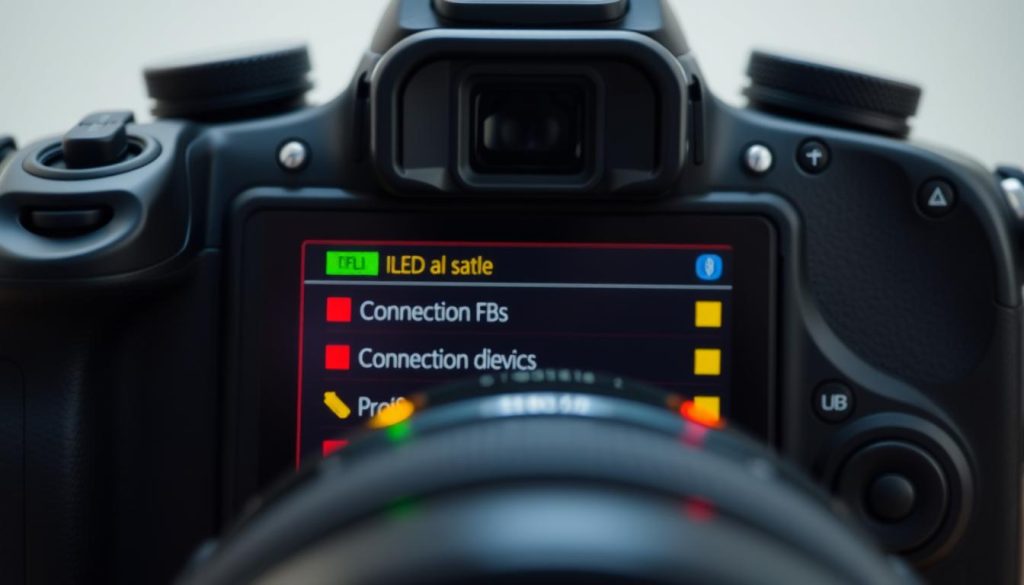
Camera connectivity relies on visual signals to confirm operational status instantly. Whether wired or wireless, these indicators eliminate guesswork during critical moments. Professionals and casual users alike depend on their reliability.
Interpreting Solid Green Connections
A steady glow typically signifies a stable link. For example:
- USB-C cameras maintain solid illumination when properly connected to a host device
- Wi-Fi-enabled models display unwavering green to confirm strong signal strength
- Smart security systems use persistent light during cloud synchronization
Samsung SmartThings cameras extend this logic—their solid indicator means real-time data uploads to paired devices.
Understanding Flashing Green Activity
Intermittent patterns reveal dynamic processes:
- Slow pulses (1/sec): Data transfer in progress, common in IP cameras
- Rapid flashes: Hotspot connections establishing links to smartphones
- Irregular blinking: Often signals failed cloud sync attempts
Android’s green dot mirrors this behavior—it flickers when apps access the camera during live streaming.
Troubleshooting Tip: If flashing persists without data transfer:
- Restart the camera and router
- Verify internet bandwidth meets minimum requirements
- Check for firmware updates
Privacy Implications of Camera Lights
Privacy protection begins with simple yet powerful visual cues on our devices. These indicators create transparency about when recording occurs, preventing unauthorized surveillance. Many jurisdictions now mandate such features through strict privacy laws.
The Role of Mandatory Indicators
Singapore’s Personal Data Protection Act requires clear signals when devices use camera functions. Similar regulations exist in California’s Consumer Privacy Act and the EU’s GDPR. These laws ensure users always know when their image might be captured.
Professional surveillance systems take this further. Many include physical shutters that block lenses when inactive. This dual-layer protection combines with status lights for comprehensive privacy assurance.
Smartphone Privacy Innovations
Android 12 introduced a game-changing feature – the green dot that appears when apps access cameras. Tapping this indicator reveals which application is currently using the device. Samsung enhanced this with color-coded alerts in their One UI interface.
To check camera-accessing apps on Samsung devices:
- Swipe down the notification panel
- Tap the persistent green dot
- Review the list of active applications
- Toggle permissions in Settings if needed
iOS implements similar protections through orange indicators. Both systems now log apps use camera history in their privacy dashboards for later review.
Physical vs. Software Protections
Some manufacturers add hardware solutions like sliding lens covers. These physical barriers provide absolute privacy when closed. However, software indicators offer dynamic monitoring of unexpected access attempts.
Security experts recommend combining both approaches. A physical shutter guarantees offline protection, while the green dot monitors digital access. This dual-system approach addresses most privacy concerns effectively.
For optimal security:
- Regularly audit app permissions
- Monitor indicator light behavior
- Consider add-on lens covers for sensitive environments
- Update device firmware frequently
Troubleshooting Camera Light Issues
When status lights malfunction, users lose critical operational feedback. These problems range from simple power issues to complex firmware conflicts. Systematic diagnosis helps restore normal indicator function quickly.
Diagnosing Missing Indicators
Begin with basic checks when the status light fails to activate:
- Verify power connections and battery charge
- Inspect cables for damage on wired devices
- Test different USB ports for webcam connections
Samsung devices require additional checks. If the green dot disappears:
- Open Camera settings and toggle permissions
- Clear the camera app cache in Device Care
- Check for system updates in Software Update
“Always start troubleshooting with physical connections before investigating software issues.”
Fixing Unstable Light Behavior
Erratic flashing often indicates firmware problems. Update camera software through manufacturer settings menus. For DSLRs:
- Download the latest firmware version
- Transfer to formatted memory card
- Initiate update via camera menu
USB-powered devices may show intermittent lights due to insufficient power. Try these steps:
- Connect directly to computer USB ports (avoid hubs)
- Use powered USB-C adapters for stable current
- Check port settings in Device Manager (Windows)
For persistent issues in Singapore, visit authorized support centers:
- Canon Service Center (Tai Seng)
- Samsung Plaza Singapura
- Sony Wisma Atria
Mastering Your Camera’s Visual Language
Understanding status indicators transforms your photographic experience. These visual cues offer instant feedback about device operations and privacy status. Professionals and hobbyists alike benefit from recognizing patterns quickly.
Singapore’s PDPA regulations ensure cameras provide clear signals during use. Regular privacy audits should include checking indicator behavior. Modern systems now integrate hardware and software alerts for comprehensive control.
Stay ahead by:
- Documenting device-specific light patterns
- Sharing knowledge in photography communities
- Testing new firmware for enhanced indicator features
Balancing functionality and security creates a seamless experience. As technology evolves, so will these critical visual communication methods.
FAQ
Why does my camera show a green light?
A solid green indicator typically means the camera is active and functioning properly. It confirms power status or successful connection to a device.
How do smartphone camera indicators work?
Modern smartphones like Samsung Galaxy models display a green dot when apps access the camera. This visual alert enhances privacy by showing when recording occurs.
What’s the difference between solid and flashing green lights?
Solid green usually indicates stable operation, while flashing may signal data transfer, low battery, or connection attempts. Check your device manual for specific patterns.
Should I worry if the green light stays on?
Persistent illumination during normal use is expected. If it remains on unexpectedly, check active apps in your settings menu or restart your device.
How can I control which apps access my camera?
Navigate to Privacy settings on your device. Both Android and iOS provide app permission lists where you can grant or revoke camera access.
What does a missing green light indicate?
Absence could mean disabled status indicators, hardware issues, or inactive camera functions. Try restarting your device or checking system settings first.
Are camera lights required by privacy laws?
Many regions mandate visual indicators when cameras record. The green dot on smartphones fulfills this requirement, alerting users to active camera use.


