
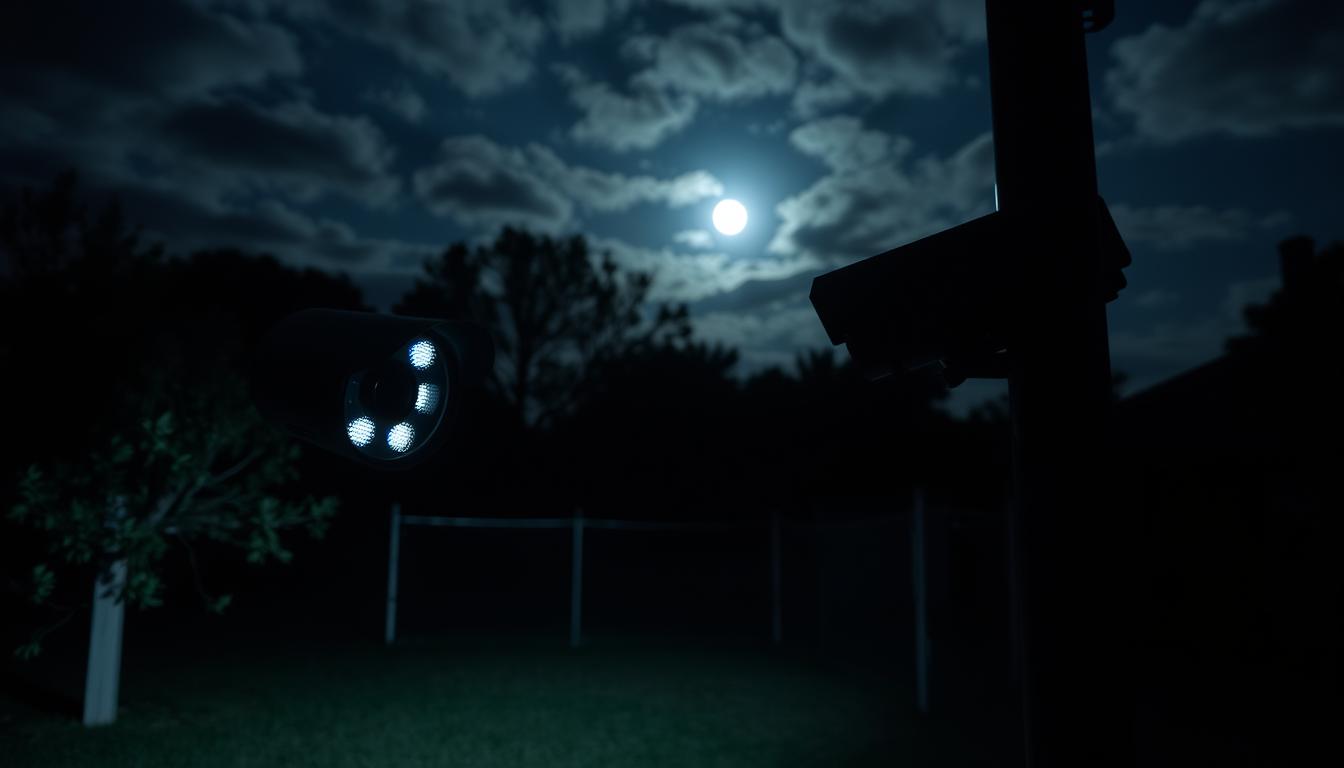
Is My CCTV On or Off at Night?
A security camera that is secretly inactive leaves your property completely vulnerable. This is especially true after dark, when the risk of intrusion often increases. Many property owners are unsure whether their surveillance system is actively recording or sitting idle.
You cannot afford to assume your equipment is working. A device that is off provides zero protection against theft, vandalism, or accidents. Cameras can fail due to power loss, loose connections, software issues, or even tampering.
This guide provides clear, actionable steps to verify your camera’s status. We will walk you through simple visual checks, app monitoring, and technical tests. Our goal is to help you ensure your security investment delivers reliable, uninterrupted coverage.
Key Takeaways
- An inactive surveillance camera offers no security during critical nighttime hours.
- Regular status checks are essential for a reliable security system.
- This guide outlines immediate visual inspections and deeper technical verifications.
- Learn to identify power, connectivity, and motion detection issues.
- Proactive maintenance prevents unexpected downtime and security gaps.
- Gain confidence that your property is monitored around the clock.
Why You Can’t Afford to Guess About Your Nighttime CCTV
When night falls, the operational status of your CCTV system shifts from a technical detail to a critical line of defense. A non-functional unit creates a dangerous security blind spot. Your property becomes vulnerable to break-ins, vandalism, and other criminal activities.
The financial stakes are high. Without recorded footage, insurance claims can become complicated disputes. Many policies require proof of active surveillance systems. A lack of evidence might even void certain coverage terms.
For business owners, the implications extend further. Operational cameras are often mandated by industry regulations and safety standards. Maintaining them is key to meeting compliance and managing legal liabilities.
The core promise of any home security investment is peace of mind. This psychological benefit vanishes if you cannot confirm the system is working. True assurance comes from verification, not assumption.
Data shows many camera failures stem from preventable issues. Power outages, network drops, or simple setup errors are common culprits. These problems often go unnoticed until it’s too late.
Vigilance is the price of security.
Proactive status checks are not paranoia. They are a responsible part of owning a security system. This habit transforms a passive installation into an active, reliable shield.
Regular monitoring helps you catch downtime early. You avoid unexpected blind spots and ensure your surveillance is ready when needed most. The following guides provide essential tools for this task.
They will help you mitigate these risks and ensure your property is protected around the clock. Don’t let a silent camera defeat your entire security strategy.
How Do I Know If My CCTV Is On or Off at Night? Simple Visual Checks
Your eyes are the most immediate tool for verifying CCTV operation after dark. Before using any software, perform these basic visual inspections. They provide instant clues about your system’s status.
These methods require no technical skill. You can often confirm activity with a quick glance. This is your first line of defense against unexpected downtime.
Looking for the Power and Status LED Lights
Most modern cameras feature small LED indicators. These lights are usually near the lens. They provide clear signs of power and activity.
A solid green or blue light typically means normal operation. The camera is on and functioning correctly. A blinking LED often signals a boot-up sequence.
It may also indicate a network connection attempt. Some units blink during firmware updates. Refer to your model’s manual for specific color codes.
Remember, many systems let you disable these LEDs. This setting is for discreet surveillance. A missing light does not always mean the camera is off.
Spotting the Infrared (IR) Night Vision Glow
Active night vision often produces a faint red glow. This comes from infrared lights around the lens. Look for it in a darkened room.
This soft glow is a reliable indicator. It means the cctv camera has switched to low-light mode. The IR LEDs are illuminating the scene.
Be aware of advanced “no-glow” cameras. They use a 940nm wavelength invisible to humans. For these models, this visual check will not work.
For standard units, the red glow is a sure vision of activity. It confirms the night vision circuit is engaged. This is one of the simplest ways to verify function.
Observing Physical Movement in PTZ Cameras
Pan-Tilt-Zoom cameras often move during startup. They may perform a calibration sweep. This is a clear visual confirmation of power.
Listen for a faint whirring or mechanical sound. Motorized units make noise when adjusting position. You might see the cctv camera lens pan across its range.
This check only applies to motorized cameras. Fixed dome or bullet models will not move. For PTZ units, movement is a key operational sign.
If you suspect an issue, power cycle the device. Watch for the initialization sequence. This physical test quickly rules out major motor failures.
Using Your Monitoring App or Software for Live Confirmation
Digital verification through your monitoring platform provides the most definitive proof of a camera’s operational state. Moving beyond physical clues, this method leverages the smart features of modern IP security cameras. Your dedicated app or software acts as a direct command center.
It offers real-time insight no visual inspection can match. This process confirms both power and network functionality in one step. It bridges the gap between simple observation and technical diagnostics.
A successful connection here means your cctv is actively guarding your property. You gain immediate peace of mind from anywhere.
Checking the Live Feed on Your Smartphone or Computer
Open your manufacturer’s monitoring application on your phone or computer. Common platforms include Reolink, EZVIZ, or your NVR’s dedicated interface. Navigate to the live view section for your specific camera.
A clear, real-time video stream with smooth motion is the ultimate confirmation. It means the device is powered, connected, and functioning correctly. You are seeing exactly what the lens captures.
If the feed is black, frozen, or shows an error, don’t panic. This indicates a problem but not necessarily a power failure. A black screen could mean a network dropout or a software glitch.
A frozen image often points to bandwidth issues. An error message usually specifies the fault. For detailed steps on checking your CCTV on your phone, refer to our specialized guide.
Seeing is believing, especially in security.
This live check is the most reliable user-level test. It eliminates guesswork about your system’s current activity.
Verifying the Camera’s Online Status in the Device List
Every professional monitoring app includes a device management section. Navigate to this list, which shows all cameras connected to your system. Look for explicit status indicators next to each device name.
Labels like “Online,” “Recording,” “Offline,” or “Idle” provide a instant health check. An “Online” status confirms the camera is communicating with the network. “Recording” shows it is actively saving footage, often to a cloud or local drive.
This method is crucial for systems with multiple units. You can assess the entire cctv array from a single dashboard in seconds. It is far faster than opening each live feed individually.
Some high-end security cameras are designed with no outward LEDs for discretion. For these models, the software status check is your only clear confirmation of operation. It is a powerful, non-intrusive verification tool.
Regularly reviewing this list forms a proactive maintenance habit. You catch offline cameras before a security gap becomes critical.
Conducting Technical Tests on Power and Connectivity
When simple checks fail, a deeper dive into power and network infrastructure reveals the true health of your security setup. Visual inspections and app status are excellent first steps. If they yield no clear answer, technical verification is your next move.
This process isolates the root cause. It determines whether the problem lies with the camera itself or its supporting system. You will examine the two most common failure points: electricity and data transmission.
A methodical approach saves time and frustration. It transforms uncertainty into a clear diagnostic path. Let’s start with the fundamental requirement for all electronics: a reliable power supply.
Verifying the Power Supply: Plugs, Batteries, and Solar
Every cctv camera needs consistent energy to function. The method varies by model. A systematic check of the power source often solves the mystery.
Begin by identifying your camera type. Each has a specific verification process.
- Wired Cameras: Ensure the power adapter is firmly plugged into a working outlet. Test the outlet by plugging in a lamp. For outdoor units, inspect cables for weather damage.
- PoE (Power over Ethernet) Cameras: Verify the Ethernet cable is securely connected at both ends—the camera and the network switch. This single cable delivers both data and power.
- Wireless Battery Cameras: Open the manufacturer’s app. Navigate to the device settings to view the battery level. A critically low charge can force the camera into sleep mode.
- Solar-Powered Cameras: Confirm the solar panel is clean, unobstructed, and correctly angled. Check the app for a charging status indicator. Debris or poor positioning inhibits energy collection.
These steps address the most frequent issues. A loose plug or a drained battery is a simple fix. It restores your security without complex tools.
Testing Network and Wi-Fi Connectivity for IP Cameras
For modern IP cameras, a stable data connection is as vital as electricity. A weak or lost network link can make a perfectly powered camera appear completely offline. This test confirms communication.
Start with your router. Check its status lights to ensure your internet service is active. Then, connect another device, like a smartphone, to the same Wi-Fi network. If that device also fails to get online, the problem is a general outage.
If your internet is fine, the issue may be with the camera’s specific connection. Use a free network scanning tool like Fing on your phone. Run a scan of your local network to see if the camera’s IP address appears in the list of online devices.
Finding it there means the camera has network connectivity. The problem could be in the app setup or cloud service. Not finding it points to a Wi-Fi dropout or incorrect camera configuration.
For wireless cameras, signal strength matters. Walls and distance degrade Wi-Fi. Consider a Wi-Fi extender if the signal is consistently weak. This technical verification empowers you to move beyond guesswork.
You systematically eliminate infrastructure problems. This ensures your security system has the solid foundation it needs for reliable, real-time monitoring.
How to Test Motion Detection and Recording Functionality
A camera can have power and a live feed yet still fail at its primary job: creating a record of security incidents. This final verification step moves beyond basic status checks. It confirms your entire system is ready to document evidence.
Testing these functions is essential for complete peace of mind. You ensure your security cameras are not just watching, but actively preserving history.
Triggering Motion to Check for Alerts and Event History
Deliberately create a motion event to test the system’s responsiveness. Walk through the camera’s field of view. This action should trigger the detection algorithms.
Immediately check your connected devices for confirmation. Look for a push notification on your smartphone. Also, check your email for an alert from the camera system.
Open your monitoring app or software. Navigate to the “Events” or “Activity Log” section. You should see a new entry with a timestamp matching your test.
The absence of an alert signals a configuration issue. Motion settings might be disabled. Sensitivity calibration could be incorrect.
A silent alert is a failed test; your system must speak when it sees.
This process validates the detection pipeline. It proves your cctv camera is not just on, but actively sensing its environment.
Reviewing Playback Footage to Confirm Recording
Finding an alert is good. Confirming stored video is definitive. You must verify the event was captured and saved.
Access your system’s playback interface. The method depends on your storage type.
- DVR/NVR Systems: Use the connected monitor. Navigate to the playback menu. Select the correct date and time of your test.
- MicroSD Card Cameras: Open the app. Find the “Playback” or “Storage” tab. Browse for the clip from your test period.
- Cloud-Based Cameras: Check the “Events” tab in your software. The triggered alert should link directly to the recorded footage.
Play the video to ensure it shows clear recording of your movement. This confirms the entire camera recording process is functional.
If no footage is found, troubleshoot common failures. Check for available storage space on the hard drive or SD card. Verify that recording schedules are enabled for that time.
Also, ensure the correct detection zones are active in your settings. This two-part test provides complete assurance. Your cameras will document incidents when they matter most.
Common Reasons Your CCTV Might Appear Off (But Isn’t)
Your CCTV system might show all the signs of being inactive, yet still be fully operational behind the scenes. Several common issues can trick you into thinking a camera is powered down. Understanding these nuances is key to accurate troubleshooting.
Panicking over a seemingly dead unit often leads to unnecessary replacements. Many symptoms point to simple, fixable problems. Learning to identify them builds your diagnostic confidence.

Disabled LED Indicators for Discreet Surveillance
Many modern cctv cameras feature a “stealth mode” in their settings. This function deliberately turns off the status light. It is designed for covert surveillance where visible indicators are unwanted.
A missing LED glow does not confirm a power failure. You must check your monitoring app to verify the setting. Navigate to the device settings menu and look for “LED,” “Status Light,” or “Stealth Mode.”
If this option is enabled, your camera is likely on but hiding its presence. You can temporarily disable the setting for a quick visual check. This simple verification prevents misdiagnosis.
Network Outages vs. Camera Power Failures
A critical distinction exists between a network dropout and a true power loss. Your camera may be fully powered but unable to send its feed online. This is a connectivity issue, not a hardware failure.
Diagnose this by checking other devices on the same Wi-Fi. If they also lose internet, the problem is a general network outage. Your security hardware is probably fine.
Simultaneously, perform a local power check. Look for the infrared night vision glow or listen for PTZ motor sounds. These signs confirm the device has electricity, even if the app shows it offline.
Connectivity is not the same as capability; a camera can see even when you can’t see it.
This separation guides you to the right solutions. You’ll focus on restarting your router instead of replacing the camera.
Firmware Glitches and Temporary Freezes
Outdated or corrupted firmware is a frequent culprit. It can cause your system to freeze or become unresponsive. The camera might stop updating its feed or accepting commands.
This state easily mimics a complete shutdown. The fix is often straightforward. A simple power cycle—unplugging the device for 30 seconds—can reset the software and restore function.
Prevent these issues by enabling automatic updates in your camera’s app. Regular firmware updates patch bugs and improve stability. They keep your surveillance network running smoothly.
Other common mimics include physical obstructions. A dirty lens, spider web, or snow buildup blocks the view but not the camera’s operation. Also, a full storage drive halts recording but may not affect the live feed.
Recognizing these scenarios directs you to the correct fix. You avoid panic and needless hardware swaps. Your troubleshooting becomes efficient and effective.
Step-by-Step Troubleshooting for a Non-Responsive Camera
When your CCTV unit fails to show any signs of life, a structured troubleshooting approach is your best tool. Panic leads to hasty decisions. A logical sequence of solutions isolates the problem efficiently.
This guide provides a clear escalation path. Start with simple, non-invasive methods. Progress to more involved steps only if needed.
Following this order saves time and prevents unnecessary hardware replacement. It helps you restore your security cameras quickly.
Basic Restart: Power Cycling Your Camera and Router
The universal first fix is a complete power cycle. This clears temporary software glitches and re-establishes connections. It is the most effective initial step.
Begin with the cctv camera itself. Unplug its power adapter from the outlet for a full 30 seconds. For battery models, remove the battery for the same duration.
Simultaneously, restart your internet router. Unplug it from the wall for 30 seconds as well. This ensures a clean network restart for IP cameras.
After the wait, restore power to both devices. Allow several minutes for the camera to boot and reconnect. This simple process resolves many common freezes.
A fresh start often clears the most stubborn electronic hiccups.
Inspecting and Securing All Physical Connections
Loose or damaged cables are a leading cause of failure. A hands-on inspection is crucial, especially for outdoor home systems.
Check every physical link. Ensure power adapters are firmly plugged into working outlets. Verify Ethernet or coaxial cables are secure at both ends.
Examine wires for fraying, cuts, or chew marks from pests. For outdoor units, confirm weatherproof seals are intact. Moisture corrosion can break a connection.
Gently reseat each plug to ensure a proper fit. A seemingly connected cable can be slightly loose. This meticulous check addresses a huge percentage of apparent failures.
Resetting to Factory Settings as a Last Resort
If basic steps fail, a factory reset is your final software solution. This erases all custom configurations and returns the camera to its original state.
Warning: This will delete your Wi-Fi passwords, motion zones, and other setup preferences. Have your initial installation details ready for reconfiguration.
The process varies by brand. It typically involves locating a small reset button on the device. Use a paperclip to press and hold it for 10-15 seconds.
You will see lights flash, indicating the reset. Afterward, you must set up the cctv camera again as if it were new. This can clear corrupted firmware or deep settings errors.
If the unit remains dead after a factory reset, a hardware failure is likely. At this point, contact the manufacturer’s support for warranty service or consider a replacement. This structured approach gives you confidence in your diagnosis.
Proactive Maintenance to Prevent Nighttime CCTV Failures
Shifting from reactive fixes to preventive care ensures your security remains vigilant after dark. A well-maintained system dramatically reduces the risk of unexpected blackouts. This approach saves time and protects your property consistently.
Proactive habits address small issues before they become major failures. They build resilience into your entire home surveillance network. Let’s explore three key maintenance pillars.
Establishing a Regular Camera Status Check Routine
Consistency is the foundation of reliability. Schedule a brief weekly or monthly verification for all your cameras. Use a calendar reminder to make this a non-negotiable habit.
Create a simple checklist for each security cameras unit. This turns a complex task into a quick, repeatable process. Your list should include three core actions.
- Visual Indicator Scan: Confirm power and status LEDs are lit as expected.
- Live Feed Access: Open your monitoring app to verify a clear, real-time stream.
- Motion Test: Trigger a detection event to ensure alerts and recordings function.
This routine takes minutes but provides immense confidence. You catch connectivity drops or power issues early. Your system stays ready for any nighttime event.
Keeping Firmware and Software Updated
Manufacturers release updates to patch vulnerabilities and improve performance. Outdated software is a leading cause of glitches and freezes. Regular updates are a crucial health check.
Enable automatic update notifications in your camera’s app or NVR interface. Most modern systems offer this option in the settings menu. You’ll receive alerts when new firmware is available.
The installation process is usually simple. Ensure your cameras remain powered and connected to the network during the update. Do not interrupt the process.
An updated system is a secure system; neglect here invites instability.
Updated firmware can resolve known bugs that cause false offline statuses. It also enhances detection algorithms and night vision clarity. Treat updates as essential, not optional.
Ensuring Adequate Power and Storage Capacity
Resource depletion silently disables cctv cameras. The two most common culprits are dead batteries and full drives. Proactive management prevents these silent failures.
For power, adopt these practices based on your setup:
- Battery Units: Check charge levels monthly via the app. Plan replacements before they critically drain.
- Solar Panels: Clean surfaces seasonally to maintain efficiency. Ensure panels are free from shade or debris.
- Wired Systems: Inspect outdoor cables for weather damage annually. Consider a UPS for backup during outages.
For storage, manage your recording media proactively. A full hard drive or cloud plan stops new recordings instantly.
Review storage health quarterly. Adjust video quality or recording schedules to extend capacity. Delete old, unnecessary footage to free up space.
These solutions ensure your cameras always have the resources to operate. They eliminate surprises and maintain uninterrupted coverage.
Adopting these maintenance habits transforms your investment. Your surveillance becomes a reliably maintained asset, not a set-and-forget device. This proactive stance is the ultimate defense against nighttime failure.
Maintaining Uninterrupted Security Around the Clock
Mastering the verification of your CCTV cameras transforms uncertainty into actionable control over your property’s safety. This guide provides a complete toolkit for security confidence.
You now know the key methods. Perform visual checks for LED and IR indicators. Use your monitoring app for live confirmation. Conduct technical power and network tests. Validate motion detection and recording.
Understanding common reasons a camera might appear off empowers accurate diagnosis. The step-by-step troubleshooting protocol ensures no solutions are overlooked. Transition to a proactive maintenance mindset with regular checks and updates.
Integrate these verification routines into your regular practices. Bookmark this guide as a reference. You are in full command of your system’s operational readiness.
This ensures reliable, uninterrupted surveillance for genuine peace of mind. Your property remains protected exactly when it matters most.
FAQ
What are the easiest visual signs that my security camera is active after dark?
Look for small LED lights on the camera body. A solid or blinking power light usually means it’s on. Many models also emit a faint red glow from their infrared LEDs when night vision activates, visible in very dark conditions. PTZ cameras might move during scheduled patrols or self-checks.
Can I use my phone to verify the camera is working at night?
Yes. Open your monitoring app, like Reolink or Arlo, and check the live feed. A functioning stream confirms it’s on. Also, look at the device list within the software; an “Online” status means the camera is connected and powered.
How can I test if my system is actually recording footage overnight?
A> Walk in front of the lens to trigger motion detection. You should get a push alert on your phone. Then, review the playback or event history in your app or NVR software. Finding recent video clips confirms recording is active.
Why might my surveillance system seem off even when it’s functioning?
Some users disable status LEDs for discreet monitoring, hiding the usual lights. A network outage can block remote access, but the camera may still be recording locally. Occasionally, a firmware glitch can cause a temporary freeze that a reboot often fixes.
What’s the first thing to try if the camera isn’t responding?
Perform a basic restart. Unplug the camera’s power adapter and your internet router, wait 30 seconds, and plug them back in. This power cycle resolves many common connectivity and software issues.
What routine maintenance prevents nighttime security failures?
Establish a weekly check of app alerts and live view. Ensure your camera’s firmware and mobile app are always updated to the latest versions. Regularly verify that power sources are secure and that storage space on your recorder or cloud plan is not full.


