
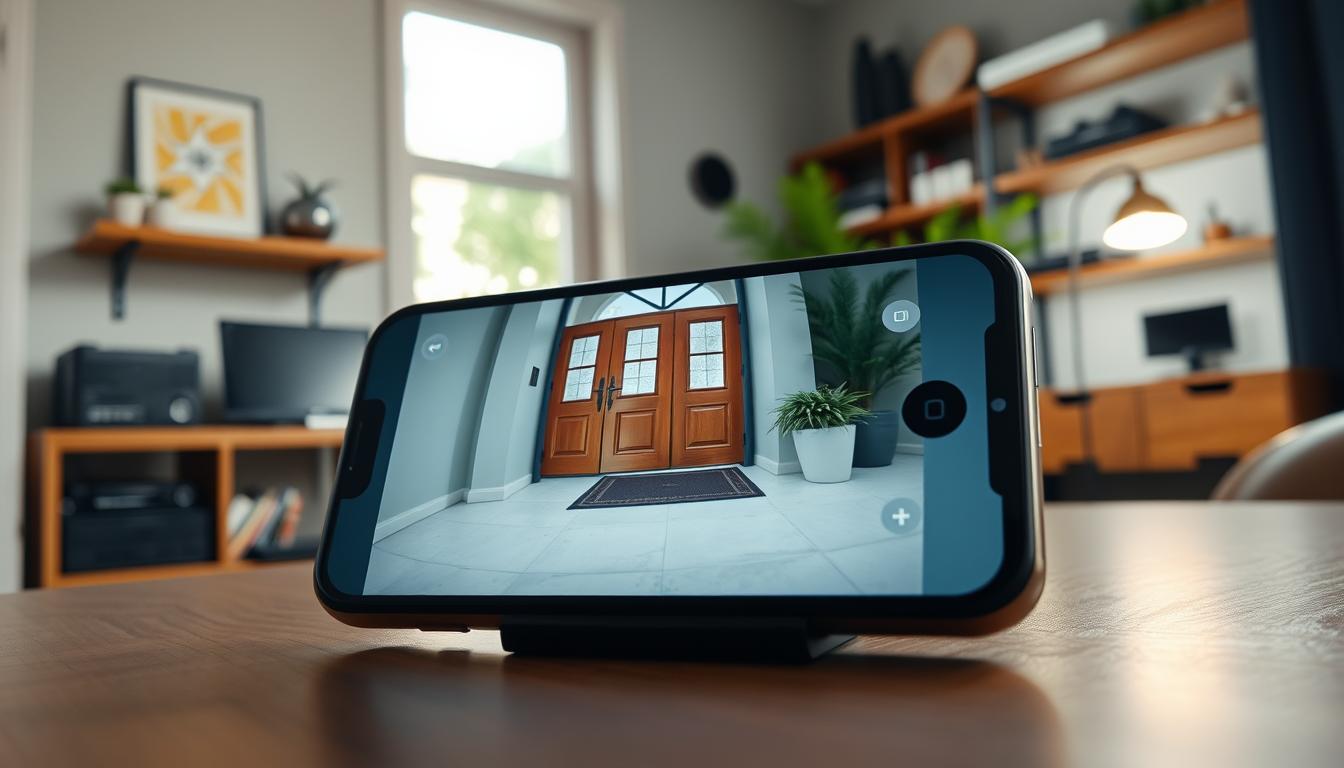
How to Get Your Security Cameras Working on Your Phone
The ability to view your property from anywhere is no longer a luxury. In Asia, over 65% of homeowners with surveillance systems now prefer mobile connectivity. This trend is strong in Singapore, where remote access offers unmatched convenience and peace of mind.
This guide provides a clear, step-by-step process for residents here. It will help you access your CCTV feed directly on your smartphone.
Mobile access transforms your security setup. You gain real-time monitoring and instant alerts. Before starting, ensure you have a compatible camera system and a stable internet connection.
We will cover the entire setup, from downloading the correct mobile app to final configuration. The guide also addresses common local network issues and explores advanced features like cloud storage.
Key Takeaways
- Mobile connectivity for surveillance systems is a growing standard, especially in Singapore.
- Remote access provides significant benefits like live monitoring and immediate notifications.
- A successful setup requires compatible equipment and a reliable internet connection.
- The process involves a dedicated mobile application for pairing and configuration.
- This guide offers localized troubleshooting advice for common connection problems.
- Advanced features, such as two-way audio, can further enhance your system’s functionality.
- Following a structured process ensures a reliable and effective mobile surveillance solution.
The Core Benefits of Mobile Security Camera Access
Connecting your surveillance system to a mobile device unlocks a suite of powerful advantages that go beyond simple recording. This integration provides real-time awareness, proactive alerts, and total control from any location.
These features work together to create a robust, modern security solution for your home.
Real-Time Monitoring and Peace of Mind
Your smartphone becomes a live surveillance monitor with real-time video access. You can watch events unfold as they happen, whether you’re at the office or overseas.
This constant visual connection offers significant peace of mind. You can verify the safety of your property instantly. High-definition feeds from cameras like the Reolink E1 Outdoor Pro make this visual verification clear and reliable.
Knowing I can look in at any moment provides a sense of security that’s hard to match.
Instant Alert Notifications for Motion and Sound
Modern systems send push notifications directly to your phone for detected motion or sound. This turns your security setup from passive recording to active warning.
You can customize these smart alerts to minimize false alarms. Setting specific detection zones ensures you’re only notified about relevant activity near doors or windows.
This allows for a swift response to potential security events.
Remote Accessibility From Anywhere
Your CCTV system is no longer tied to a single monitor at home. Remote access lets you view live feeds and manage settings from anywhere with an internet connection.
This flexibility is powered by Wi-Fi, mobile data, or a LAN connection. It means your property protection travels with you.
Together, these core benefits establish a proactive security environment. You stay informed and in control, significantly enhancing your property’s protection through your phone.
What You Need Before You Start: Prerequisites for Singapore
Proper preparation is key to seamlessly linking your CCTV system to your smartphone. Gathering the right items beforehand prevents mid-setup frustrations. This is especially true in Singapore, where local network standards and environmental factors can influence performance.
Having everything ready streamlines the entire process. It ensures a reliable connection from day one.
A Compatible IP Camera or CCTV System
Your foundation is a modern security camera or system that supports mobile app integration. Not all older models offer this feature. Popular brands in Singapore include Hikvision, Reolink, and VIGI.
Verify your specific model is designed for remote access. The camera must connect to your local network via Wi-Fi or an Ethernet cable. This connection transmits the video feed to your mobile devices.
For residents here, ensure the equipment supports local frequency bands. Professional services like CCTV Maintenance (+65 60135960) can provide compatibility advice.
Stable Wi-Fi Internet Connection and Router
A robust and stable internet connection is non-negotiable. Weak Wi-Fi signal is a primary cause of failed connections and laggy video. Your router needs to provide strong coverage where the camera is installed.
Position your router centrally or use extenders for better reach. Utilizing a dual-band router (2.4GHz and 5GHz) can significantly improve network performance. A stable setup is the backbone of clear, real-time monitoring.
Your Smartphone and Necessary Login Credentials
You will need your smartphone, either iOS or Android. Ensure it has the latest operating system updates and sufficient storage for the security app. The official manufacturer application is required for the setup.
Have your login credentials ready. This includes the camera’s default or custom username and password. You may also need the device’s serial number or local IP address for manual configuration.
With these elements prepared, you can proceed confidently to the next step. This preparation minimizes errors and leads to a successful mobile CCTV solution.
How Do I Get My Security Cameras to Work on My Phone? The Step-by-Step Process
The journey from a boxed camera to a live feed on your mobile involves a few foundational actions. These initial phases build the hardware and network bridge required for remote viewing.
Following this logical sequence ensures a smooth transition to a fully functional mobile security solution.
Step 1: Install the Official Manufacturer’s Mobile App
Your smartphone becomes the command center through the official mobile app. Download this application from the Apple App Store or Google Play Store.
Search for your brand’s specific tool, like the Reolink App or VIGI App. This software is essential for managing your entire camera system remotely.
Step 2: Power On and Physically Set Up Your Camera
Next, provide power to your surveillance device and choose its permanent location. Mount the unit securely, ensuring a clear, unobstructed field of view.
A proper physical setup is crucial for effective monitoring. Point the lens toward the area you need to watch most.
Step 3: Ensure Your Camera is Connected to Your Local Network
This critical step establishes the data pathway. Connect your camera to your home network using an Ethernet cable or by joining your Wi-Fi.
A stable network connection allows video to travel from the device to your phone via the internet. It is the backbone of remote access for your CCTV.
Completing these three steps prepares everything for the software pairing process. You are now ready to add your device to the app and configure settings.
Downloading and Setting Up Your Camera’s Mobile App
The official mobile app serves as the gateway, allowing you to manage, view, and configure your security cameras from anywhere. This software transforms your smartphone into a dedicated control panel for your entire CCTV system.
Getting the right application installed and secured is a foundational step. It ensures a safe and reliable connection for your remote monitoring.
Identifying the Correct App for Your Brand
Using the manufacturer’s official application is paramount for security and compatibility. Third-party apps can pose significant risks to your network and personal data.
To find the right tool, open the Apple App Store or Google Play Store on your phone. Search using your camera brand name followed by “app”. Examples include “Reolink App” or “VIGI App”.
Always read the app description and user reviews. This confirms compatibility with your specific model and gauges its reliability for daily use.
Sticking with the official app gave me confidence that my feed was secure and the features worked as intended.
Installing the App and Creating a Secure Account
Installing the camera app is straightforward. Tap ‘Install’ and grant the necessary permissions for notifications and network access. These permissions are essential for the app to function correctly.
The next critical phase is to create account credentials within the application. Use a unique email address and a strong, complex password. This protects your surveillance system from unauthorized access.
Many applications now offer two-factor authentication (2FA). Enabling this adds a vital extra layer of security to your account.
This verified account becomes your central hub. From here, you manage all connected cameras, adjust settings, and review recorded footage with peace of mind.
The Two Main Connection Methods: QR Code vs. Wi-Fi Setup
Modern security systems offer two primary pathways to establish a remote viewing link. Your choice between them often depends on your camera model and personal preference for setup style.
Both techniques are designed to register your device with your account. They also link it to your local network for stable access.
Fast-Track Pairing: Using the QR Code
QR code pairing represents the modern, streamlined approach. This method uses unique codes printed on the camera body or its packaging.
You simply open the manufacturer’s app on your phone. Then, you use your phone’s camera to scan the provided code. The application reads the encoded data and automates the entire network configuration.
This process is highly secure. Each code is unique to the specific security camera. It minimizes user error by handling complex settings in the background.
For users in Singapore, this fast-track method is ideal for a quick and hassle-free start. It gets your CCTV system online within minutes.
Traditional and Reliable: The Wi-Fi Connection Process
The traditional Wi-Fi connection process offers manual control. It is the go-to method for cameras without a QR code or for users who prefer direct input.
This process requires your phone to be connected to the same Wi-Fi network you want the camera to join. You then manually select your home network from a list within the app.
Next, you enter your Wi-Fi password to grant the security camera access. It is crucial to ensure your router and devices support the correct frequency band.
Many modern cameras, like the Reolink Argus Track, support both 2.4GHz and 5GHz bands. Choosing the right band can improve signal strength and video stability.
This manual step can be more reliable in areas with complex networks or multiple Wi-Fi signals. It gives you direct control over the connection parameters for your CCTV.
Whether you scan a code or enter credentials, the end goal is identical. Your cameras phone link is established, enabling full remote monitoring and management.
Pairing and Adding Your Camera to the App
With your camera powered and the app installed, the next critical action is to formally add the device to your account. This process creates the essential link between your physical security hardware and your mobile phone.
It is a guided procedure within the software. Following it accurately ensures a stable and secure pipeline for your live video feed.
Following the In-App Prompts for Device Discovery
Begin by logging into your account within the manufacturer’s application. The main screen typically features a prominent “+” icon or an “Add Device” button.
Tapping this initiates the discovery wizard. The app will then search for new cameras on your local network.
This intuitive guidance simplifies what could be a technical step. You are led through each phase without confusion.
The app walked me through everything. I just pressed next when prompted, and it found my new camera right away.
Entering Your Network Credentials or Scanning the Code
You will then choose your preferred connection method. The two main paths are scanning a QR code or manual Wi-Fi entry.
For QR code pairing, locate the unique label on the camera or its box. Ensure good lighting and hold your phone steady. The app scans the code to auto-configure the network settings.
If selecting manual Wi-Fi setup, you must enter your home network password carefully. An incorrect password is a common reason for failure.
After submitting credentials, allow a minute for the camera to connect. It registers with the cloud service during this time.
Verifying a Successful Connection and Live Feed
A successful connection is confirmed visually. The app interface will update, showing a thumbnail or full-screen live video feed from your CCTV.
Do not finalize the setup yet. First, test basic functions to ensure everything works.
Try panning or tilting the lens if your model supports it. Check the audio for clear sound transmission. This verification proves the cameras phone link is fully operational.
Your security system is now active. You have achieved remote access security to your property through a reliable mobile connection.
Configuring Essential Camera Settings for Optimal Use
Once your camera is connected, the real power lies in customizing its behavior to match your specific lifestyle and security concerns. The default configurations are a generic starting point. Fine-tuning the settings transforms basic monitoring into an intelligent, efficient surveillance asset.
This personalization maximizes the effectiveness of your entire system. It reduces false alarms and ensures you capture critical events clearly.
Setting Up Motion Detection Zones and Alerts
Intelligent motion detection is a core security camera feature. Configuring specific zones within the camera’s view is a crucial step. You can draw boxes around high-priority areas like your front gate.
This tells the app to ignore movement in unimportant zones, such as a busy public sidewalk. The result is a significant reduction in false notifications.
You should also fine-tune the alert sensitivity. Lower settings help minimize triggers from small pets or swaying plants. This tailoring ensures your phone only buzzes for genuinely relevant activity.
Drawing a zone over my driveway stopped all the alerts from passing cars. Now I only get notified when someone actually approaches my door.
Adjusting Video Quality and Night Vision Settings
Your video quality settings require a balance. Higher resolution provides crystal-clear detail but consumes more data and bandwidth. For smoother streaming on a slower network connection, a slightly lower resolution may be better.
Night vision configuration is equally important. Most CCTV devices use infrared (IR) LEDs. You can often adjust the IR intensity to suit your environment’s ambient light.
Some advanced models offer color night vision. This feature uses supplemental lighting to provide full-color footage after dark. Choosing the right mode ensures your security coverage remains effective 24/7.
Configuring Recording Schedules and Modes
Efficient storage management begins with recording schedules. You can set your cameras to record only during specified times. A common schedule is to record when you are away from home, conserving storage space.
You also need to choose a recording mode. Continuous recording captures everything, which is comprehensive but storage-intensive. Event-triggered recording saves footage only when motion is detected.
This latter mode is far more efficient for limited local storage or cloud storage plans. Proper configuration of these settings tailors your CCTV surveillance to work intelligently for you. It focuses resources on what truly matters for your peace of mind.
Troubleshooting Common Connection Problems in Singapore
Singapore’s unique urban environment can introduce specific obstacles to your camera’s wireless performance. Thick concrete walls and dense electronic interference are common culprits. A methodical approach to diagnosing these issues quickly restores your vital security link.
When your connection falters, don’t panic. Most problems have straightforward solutions you can implement yourself. This guide walks you through the most frequent network and hardware issues faced locally.
Diagnosing and Fixing Weak Wi-Fi Signal Issues
A poor signal is the top reason for choppy video or a lost feed. Your security camera needs a strong, stable link to your router.
First, diagnose the strength. Check the signal indicator within your camera’s app or your router’s admin interface. If it’s weak, physical barriers are often to blame.
Simple fixes can make a big difference. Reposition your router to a more central location. Ensure your camera isn’t placed inside a metal cabinet.
For persistent problems, consider hardware upgrades. Wi-Fi extenders or a mesh system can blanket your entire home in a strong network. This is a reliable step for larger HDB flats or landed properties.
Resolving “Camera Offline” or App Connectivity Errors
Seeing an “Offline” status for your device is frustrating. The first and most effective remedy is a power cycle.
Unplug both your camera and your home router for 30 seconds. Then, plug the router back in, wait a minute, and restore power to the camera. This often clears temporary glitches.
If the app itself is crashing or failing to connect, the problem may be software-related. Regularly check for updates in the App Store or Google Play. An outdated app can cause compatibility issues.
Power cycling my router and camera fixed the offline status immediately. It’s always my first move now.
Also, try clearing your phone’s app cache. This removes temporary data that might be corrupt. If errors persist, a quick reinstall of the security application can help.
Addressing Power Supply and Network Configuration Problems
Intermittent operation often points to power problems. Check that all adapters are firmly plugged in. Test the electrical outlet with another device.
For critical CCTV setups, an Uninterruptible Power Supply (UPS) is wise. It protects against surges and provides backup during brief outages.
Configuration errors are another common source of trouble. Ensure your camera and phone are on the same local network. An IP address conflict can be resolved by restarting your router or resetting the camera.
Electronic interference can also disrupt your Wi-Fi. Microwaves and cordless phones operate on similar frequencies. Access your router’s settings and switch to a less congested channel.
For complex or persistent issues, professional support is valuable. A local expert can verify your CCTV is working on your and diagnose hidden setup or internet problems. Services like CCTV Maintenance (+65 60135960) offer specialized help for Singapore’s infrastructure.
Enhancing Your Setup: Advanced Features and Cloud Storage
Beyond live viewing, modern surveillance systems offer interactive tools that enhance control and convenience. Configuring these advanced features transforms your basic monitoring into a comprehensive smart security network.
These options provide greater flexibility and protection for your property. They maximize the return on your investment in CCTV technology.

Enabling Two-Way Audio for Communication
Many modern security cameras include a built-in speaker and microphone. Activating two-way audio turns your device into a powerful intercom.
This feature allows direct communication through the camera. You can speak to delivery personnel at your door. It also lets you deter unwanted visitors or soothe a pet remotely.
Using the speaker to tell a delivery guy where to leave the package saved me a missed delivery. It feels like I’m right there.
Enabling this function is usually found in the app’s sound or device settings. Ensure your phone’s microphone permissions are granted for full functionality.
Sharing Camera Access with Family Members
Your security doesn’t have to be a solo effort. Most manufacturer mobile apps allow you to share view access securely.
This process is typically managed under a “Shared Access” or “Family” section within the application. You can invite others via their email addresses.
They receive a link to view the live camera feeds on their own devices. This method keeps your main account password private. It simplifies monitoring for everyone in the household.
Each user can often set their own notification preferences. This shared approach creates a collaborative security network around your home.
Exploring Cloud Storage Options for Video Backup
Local storage like SD cards can be vulnerable to theft or damage. Cloud storage provides a secure, off-site backup for your video recordings.
Major brands like Arlo and Ring offer these services. Your footage is uploaded to encrypted servers over the internet.
Many providers include a free rolling storage tier. This often covers a few days of event-triggered recordings. Paid plans extend retention periods and support more cameras.
Cloud integration frequently unlocks smart features. AI-based person or vehicle detection can categorize alerts. This makes reviewing footage much more efficient.
When selecting a plan, consider cost, encryption standards, and the provider’s reputation for data privacy. A reliable cloud service acts as a critical safety net for your CCTV system.
Utilizing these advanced capabilities creates a more integrated and responsive smart home ecosystem. Your property protection becomes more robust and user-friendly.
Maintaining Your Mobile Security System
A reliable mobile surveillance system requires consistent attention and proactive care. Your initial setup is just the first step. Ongoing maintenance ensures your security cameras deliver clear video and instant alerts for years.
This routine prevents minor issues from becoming major failures. It protects your investment and your peace of mind.
The Importance of Regular Firmware and App Updates
Your camera runs on internal software called firmware. Manufacturers release updates to patch security vulnerabilities and improve stability. Installing these updates is a critical defense against digital threats.
These patches often add new features or optimize performance. Checking for updates monthly is a smart habit. The process is usually done through the manufacturer’s app.
Your mobile apps also need regular updates. New versions fix bugs and ensure compatibility with the latest phone operating systems. An outdated app can cause connectivity errors or crash.
I set my apps to update automatically. It keeps everything running smoothly and I never miss a new feature.
Enable automatic updates in your phone’s store settings. This simple action keeps your entire CCTV ecosystem current and secure.
Performing Routine System Checks and Battery Management
Schedule a monthly check of your entire system. Log into your security application and verify all cameras are online. Ensure each one provides a clear, unobstructed video feed.
Physically inspect your devices. Clean the lenses gently to remove dust or spider webs. Check that mounts are still tight and weatherproof seals are intact.
For wireless security cameras, battery management is essential. Monitor levels within the app and establish a recharging routine. Proactive management prevents your camera from going offline unexpectedly.
Also, review your home network performance. Test your Wi-Fi signal strength at each camera location. Consider if new electronics are causing interference with your router.
Your internet plan must handle the data load from multiple systems. Streaming high-definition video consumes significant bandwidth. An upgraded plan may be necessary as you add more devices.
These consistent checks form a protective shield for your property. They ensure your mobile CCTV solution remains a dependable guardian against security issues.
Taking Control: Your Complete Mobile Surveillance Solution
The fusion of advanced camera technology with everyday smartphones has redefined personal and property protection. By following this guide, you have transformed your phone into a powerful command center. This achieves seamless remote monitoring for your home.
Future trends point toward smarter features like AI motion recognition and cloud analytics. Seamless smart system integration is the next step. Choosing compatible equipment, like VIGI security cameras, ensures reliable surveillance.
The key to long-term success lies in your structured setup and regular maintenance. Should you encounter challenges, professional resources are available. In Singapore, contact CCTV Maintenance at +65 60135960 for tailored advice.
Take a moment to appreciate the peace of mind you’ve gained. Your complete mobile security solution is now active. It provides robust protection that adapts to your lifestyle.
FAQ
What equipment do I need to view my cameras on my mobile device?
You need a compatible IP camera or CCTV system, a stable Wi-Fi internet connection with a router, and your smartphone. Ensure you have the camera’s login credentials and power adapter ready. Brands like Arlo, Eufy, and Ring offer specific apps for this purpose.
How do I find the correct mobile app for my security system?
Search your phone’s app store using the manufacturer’s name and “security” or “camera.” For example, look for “Arlo Secure,” “Google Home,” or “Reolink.” Downloading the official app ensures compatibility and access to all features for remote monitoring.
My camera won’t connect to the app. What are the first things to check?
First, verify your Wi-Fi signal strength at the camera’s location. Ensure the device is powered on and check for any network configuration issues, like incorrect password entry. Restarting your router and camera often resolves common “offline” errors in Singaporean homes.
What are the main methods for connecting a camera to my phone?
Most systems use two primary methods. The fastest is scanning a QR code on the camera with your phone’s app. The traditional method involves manually connecting the device to your home network through the app’s Wi-Fi setup process.
Can I get alerts on my phone when the camera detects motion?
A> Yes. After setup, access the app’s settings to configure motion detection. You can define specific zones for activity monitoring and adjust sensitivity. This triggers instant push notifications to your mobile device for real-time surveillance.
Is cloud storage necessary for mobile access?
Cloud storage is not strictly necessary for live viewing, but it is essential for reviewing recorded video clips remotely. Services like Nest Aware or Arlo Smart provide backup for motion-triggered events, accessible anytime through your camera’s mobile application.
How can I share camera access with other family members?
Within your camera’s app account settings, look for a “Share Access” or “Add User” feature. You can typically invite others via email, granting them limited or full control to view the live video feeds on their own phones without sharing your main login.
Why is it important to keep my camera’s firmware updated?
Regular firmware and app updates are crucial for security patches, bug fixes, and new features. These updates protect your system from vulnerabilities and ensure smooth operation. Enable automatic updates in your app settings for the best maintenance.


