
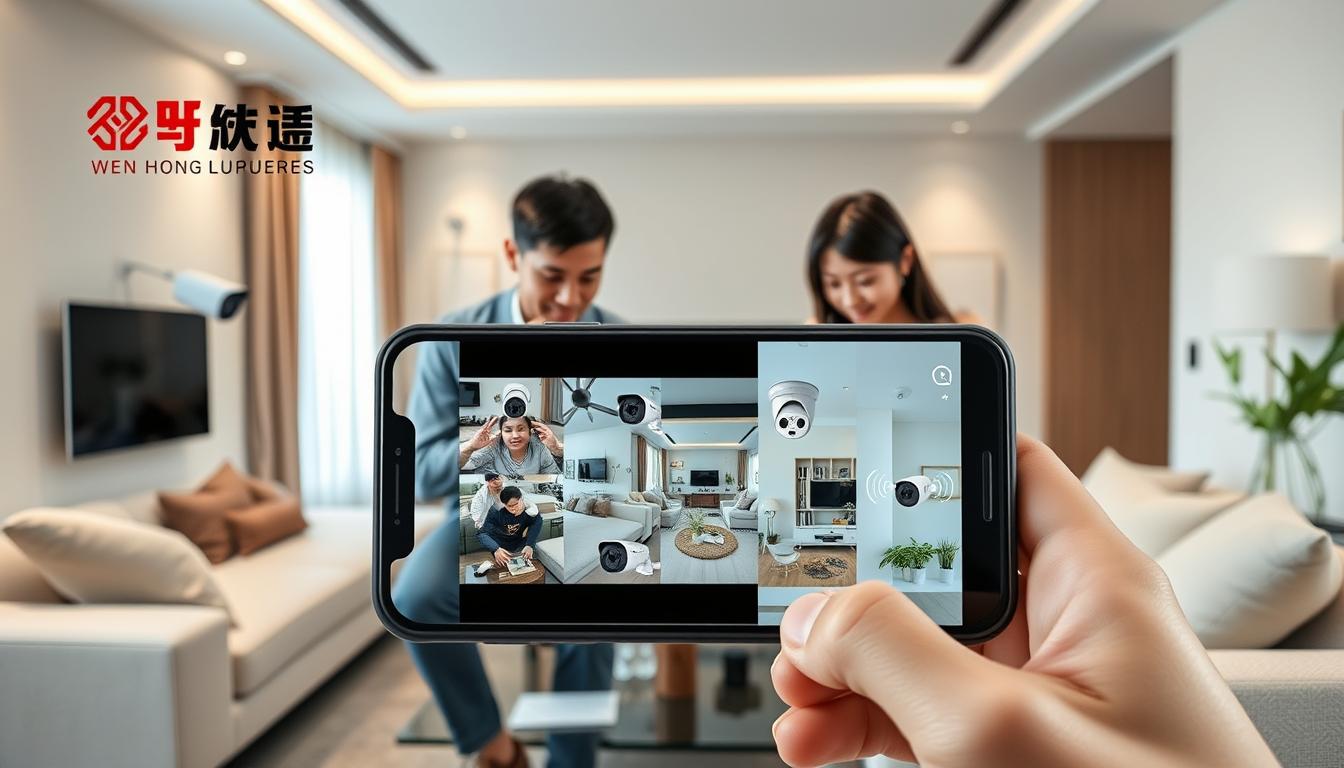
Connect Security Cameras to Your Phone Easily
Ever wondered how to link security cameras to your phone in under 10 minutes? Today, thanks to tech advancements, it’s super easy. You can now watch over your space from your phone, giving you peace of mind wherever you are. This guide will show you how to connect your cameras, the benefits, tools, and best practices for a great experience.
Discover how to boost your security with apps like AlfredCamera and QR codes. You’ll see how to set up your security system quickly. Let’s get started!
Key Takeaways
- Connecting security cameras to your smartphone can take less than 10 minutes.
- Apps like AlfredCamera enable the use of old devices as security cameras on both iOS and Android.
- Leading brands like Google Nest, Wyze, Reolink, and Ring provide dedicated apps for mobile access.
- QR codes serve as a secure method for easily pairing security cameras with devices.
- Common issues for connectivity failures often stem from poor Wi-Fi signals or network mismatches.
- Utilizing brand-affiliated apps instead of third-party apps ensures a higher level of security.
- Regularly adjusting notification settings can enhance your security camera’s effectiveness.
If you’re interested in exploring the latest CCTV solutions and offers, don’t hesitate to contact Wen Hong today at +65 60135960!
Understanding the Benefits of Connecting Security Cameras to Your Phone
Connecting security cameras to smartphones offers many benefits. It makes managing security easier and more effective. Features like real-time monitoring and mobile access improve how these systems work.
Modern security cameras come with easy-to-use apps. This makes setting them up simple, even for those who aren’t tech-savvy. This ease has made these systems popular among many people.
Smartphones can show CCTV footage in high detail. This is key for spotting people and checking for security issues. Users can watch events live and react quickly to threats.
Good connectivity is key for CCTV benefits. When cameras and phones are connected to strong networks, video streams smoothly. Being able to use mobile data adds flexibility, letting users monitor anywhere.
Smartphone-connected systems send alerts for important events like motion or sound. These alerts keep users updated in real-time. Features like remote camera checks, two-way audio, and cloud storage access make monitoring better.
Cloud services offer secure storage and easy access to recordings. This means users don’t have to rely on physical storage. It shows how benefits of CCTV grow with mobile tech.
In short, linking security cameras to phones makes managing security easier. It ensures users can watch and act on security issues in real-time. For more on CCTV solutions, call Wen Hong at +65 60135960. Discover the latest options and equipment for your needs.
Choosing the Right Security Camera App for Your Device
In 2024, picking the right app is key to linking your security cameras to your phone. It’s best to use apps from trusted brands like Google Nest, Wyze, Reolink, and Ring. This ensures a smooth connection and monitoring experience. The best app will help you stay safe and feel more secure.
When choosing an app, look for features like real-time monitoring, motion alerts, and two-way audio. These help keep you updated on any unusual activity. Many people like the option to record and store footage, either locally or in the cloud. Cloud storage is popular for its easy access.
Always download the official camera apps. Check the camera’s packaging or manual to find the right app. Look for apps like Manything, IP Webcam, and Alfred on the App Store or Google Play Store. These apps are known for being easy to use and effective. Using these apps, you can turn old phones into useful security cameras.
If you’re looking into new CCTV solutions, contact Wen Hong today at +65 60135960. They can show you the latest offers and advancements in security camera tech.
How do I get my security cameras to work on my phone?
Connecting security cameras to your phone is now easier thanks to new tech. Knowing how to do it makes the setup smooth and quick. Here’s a guide to help you get started.
Step-by-Step Instructions for Successful Connection
- First, download the camera app and create an account to keep your data safe.
- Then, tap the plus (+) sign or choose ‘Add a Camera’ in the app to start.
- Next, follow the app’s instructions, which usually involve scanning a QR code with your phone’s camera.
- Make sure both your camera and phone are on the same Wi-Fi network for easy pairing.
Common Features to Look for in Mobile Apps
When picking a mobile camera app, look for key features. These make using the app better. Here are some important ones:
- Live streaming lets you watch what’s happening in real time.
- Motion detection alerts tell you about any unusual activity.
- Multi-user access lets you share camera views with others.
- Cloud storage keeps your video recordings safe.
A simple app design makes it easier to use. And remote access lets you manage your cameras from anywhere.
If you need help with your security system, call Wen Hong today at +65 60135960. Learn about the latest CCTV solutions and special offers.
Preparation: What You Need Before Connecting Your Camera
Before you connect your security camera to your phone, some prep work is needed. Make sure your Wi-Fi is stable and your camera and phone are on the same network. This step helps avoid problems later.
Checking WiFi Connectivity and Compatibility
First, check your Wi-Fi connection’s stability. Make sure your camera can connect to Wi-Fi. Some older models might need a wired connection. Place your camera close to the router for a strong signal.
Dual-band options like Reolink’s Argus 4 Pro and RLC-811WA work on both 2.4 GHz and 5 GHz. This reduces interference and keeps performance steady. Here’s a quick checklist:
- Confirm that your camera supports Wi-Fi connectivity.
- Verify that your Wi-Fi router is functioning correctly.
- Ensure that both the camera and smartphone are connected to the same Wi-Fi network.
- Check if your camera features like Reolink’s Color Night Vision or 4K capabilities are compatible with your network settings.
Downloading the Appropriate App
Next, download the app for your camera brand. Most brands have apps for easy access to features. Be careful not to download from untrusted sources. The Reolink app is a good choice, as it supports many cameras and saves mobile data.
- Visit the official app store on your smartphone.
- Search for the app associated with your camera brand.
- Download the app ensuring it’s from a trusted developer.
- Install the app by following on-screen instructions.
By doing these steps, you’re ready to connect your security cameras to your phone. For more help or to learn about new CCTV solutions, call Wen Hong at +65 60135960 today.
Setting Up the Security Camera and App
Setting up your security camera needs focus on app setup and physical connections. Knowing these steps helps ensure your devices and app work well together. This part gives you the key first steps to follow.
Initial App Configuration Steps
Start by opening the security camera app after downloading it. The first thing is to set up your camera preferences. You also need to give the app the right permissions to work right.
This lets you get notifications and watch live feeds without problems. Just follow the app’s instructions to set everything up right.
QR Code Pairing Explained
QR code pairing is a quick way to connect your phone and camera. The camera shows a QR code when you’re ready. Scanning this code links your devices securely.
Get the most out of your camera by using its advanced features. You can set up activity zones and motion detection. These options let you customize your alerts to fit your needs.
For more help or to check out new security cameras, call Wen Hong at +65 60135960.
Troubleshooting Mobile Security Camera Setup
Setting up a mobile security camera can sometimes be tricky. Users often face connectivity problems, like weak Wi-Fi signals or app issues. Knowing common problems and how to fix them is key for setting up your security camera right.
Common Connectivity Issues
Many people struggle to connect their security cameras to their phones. The main problems include:
- Poor Wi-Fi signal strength, often due to distance from the router.
- Physical obstructions like walls and furniture that can degrade the signal.
- Interference from other electronic devices operating on the same frequency.
- Network congestion, which is common in homes with many devices.
- Outdated router firmware or misconfigurations affecting performance.
Recent data shows many users face connectivity problems. This makes it clear we need good ways to fix these issues.
Solutions to Improve App Performance
To make your security camera app work better, try these steps:
- Move the camera closer to the router for a stronger Wi-Fi signal.
- Use Wi-Fi range extenders to cover more space.
- Turn off devices you don’t use to reduce network load.
- Restarting the router can fix small connectivity problems.
- Keep the app updated for better performance and bug fixes.
It’s also important to keep your camera’s firmware up to date. Using reliable brands like Reolink can help avoid many problems. If you’re stuck, don’t hesitate to ask for help from a professional.
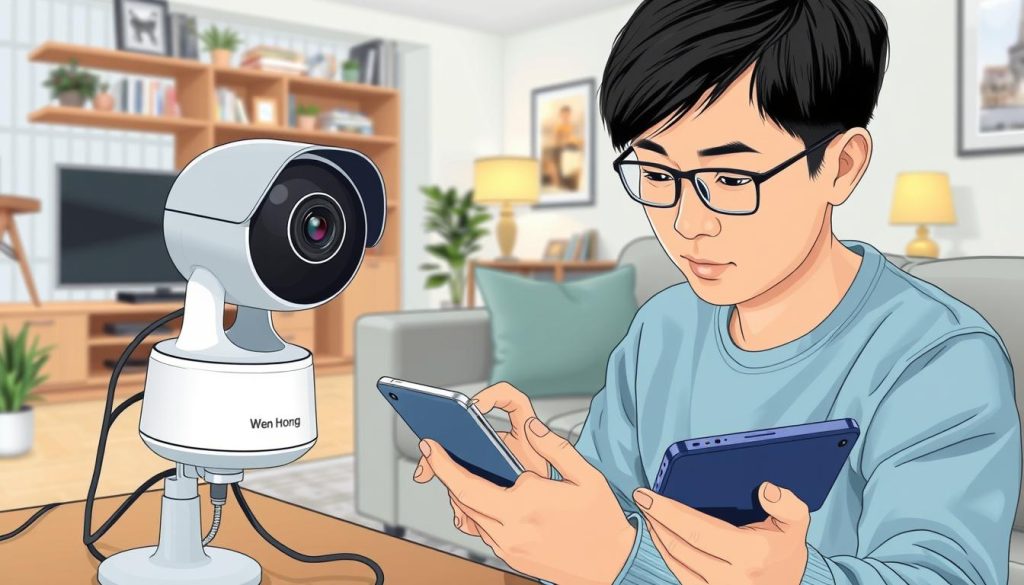
If you’re having trouble or want to check out new CCTV options, call Wen Hong today at +65 60135960. They offer expert advice and help.
Tips for Optimal Phone Camera App Configuration
Setting up your phone camera app right can really improve your security monitoring. Adjusting camera notification settings and managing alerts helps you stay on top of important events. This way, you get timely updates on any unusual activity around your place.
Adjusting Notification Settings
Getting the right camera notification settings can give you peace of mind. You can pick from real-time alerts to scheduled updates. You can also choose to get sound or vibration alerts, based on what you like. This makes sure you don’t miss anything important.
Configuring Motion Detection and Other Features
Setting up motion detection is key to better camera use. By picking specific areas for motion detection, you cut down on false alerts. This lets you focus on what really matters. Plus, you can set camera schedules and add smart features like digital zoom and voice control for a more detailed view.
| Feature | Benefit |
|---|---|
| Custom Notification Settings | Stay informed about critical events. |
| Motion Detection Zones | Minimize false alerts. |
| Digital Zoom | Enhance viewing quality. |
| Voice Assistant Integration | Convenient hands-free control. |
For personalized advice on CCTV solutions, contact Wen Hong today at +65 60135960. Discover the latest offers and advancements in security tech.
Maintaining Your Security Camera and App
Keeping your security camera and app in top shape is key. New tech and app features mean you need to stay on top of updates and privacy. Here are some tips to keep your surveillance systems working well.
Regular Updates for Security and Performance
Staying updated is critical in security tech. Makers often push out app security updates to fix bugs and boost performance. Make sure to update your camera and app regularly to avoid security risks. Check the manufacturer’s site for the latest updates and features.
Best Practices for Data Privacy
Protecting your data is very important. Here are some tips to keep your privacy safe while using security cameras:
- Don’t use default passwords; make strong, unique ones for all accounts.
- Check app permissions often to make sure only the right people can access.
- Think carefully about what data you share through the app. Only give permissions needed for it to work.
- Look into data management services for security camera support.
Following these tips can help lower risks and keep your security camera system strong. These steps will help protect your important footage and personal info.
Exploring Advanced Features for Enhanced Security
In today’s world, safety is key. Advanced features in security camera apps can boost your monitoring power. People want remote access for more control and flexibility. Features like remote viewing and cloud storage are game-changers.
Remote Viewing Capabilities
Modern security cameras let you watch over your place from anywhere. Mobile viewing makes it easy to check on your property. This keeps you updated and adds to your security.
Cloud Storage and Backup Options
Cloud storage for security cameras is a solid backup plan. It keeps your footage safe from local issues or theft. Many brands offer cloud storage plans to fit your needs. This makes managing your security easier and more reliable.
Looking to improve your security? Check out these advanced features. Want to know more about CCTV solutions and deals? Contact Wen Hong at +65 60135960 today.
Security Camera Compatibility with Various Smartphone Models
Before picking a security camera, check if it works with your smartphone. Different phones and operating systems have different needs. This ensures your camera works well and you can monitor it easily.
Ensuring Device Compatibility for Smooth Operation
Most smartphones can connect to CCTV cameras for live monitoring. But, some cameras work best with certain phones or systems. Make sure your phone meets the camera’s requirements for the best experience.
Recommendations for High-Performance Smartphones
For a better security camera experience, choose high-end phones like Apple, Samsung, and HONOR. These phones have high display resolutions, making CCTV footage clearer. Many CCTV systems also send notifications to your phone and offer cloud storage for remote access.
| Smartphone Model | Display Resolution | Compatibility with CCTV Systems | Cloud Storage Option | Supported Network Type |
|---|---|---|---|---|
| Apple iPhone 14 | 2532 x 1170 | High | Yes | 4G/5G |
| Samsung Galaxy S22 | 2400 x 1080 | High | Yes | 4G/5G |
| HONOR X40 GT | 2376 x 1080 | Moderate | Yes | 4G/5G |
Compatibility problems often come from old mobile apps. Fixing these can make your connection with the CCTV system much better. For more tips on choosing the right gear, contact Wen Hong at +65 60135960. They offer the latest CCTV solutions and deals.
Conclusion
Connecting your security cameras to your smartphone brings big benefits. It makes watching over your place easier and more efficient. This is a smart way to keep your property safe from afar.
By following our steps and tips, you can connect your camera smoothly. You can use all its features well. Whether you choose ZOSI’s W4 Pro kit or Reolink’s Argus 3 Ultra, you have great options to boost your home’s security.
If you want to learn more about CCTV solutions and deals, contact Wen Hong at +65 60135960. Get expert advice that fits your needs. Stay ahead in home security with the latest knowledge.
FAQ
How do I get my security cameras to work on my phone?
To connect your security cameras to your phone, start by downloading the app from the camera’s maker. Then, create an account and follow the app’s instructions to add your camera. Make sure both devices are on the same Wi-Fi network for a smooth connection.
What should I do if my security camera does not appear in the app?
First, check if your camera and phone are on the same Wi-Fi. Also, ensure your camera is turned on and close to the router. Poor connection can block the setup.
How can I improve the performance of my security camera app?
To boost app performance, update it often and check for software issues. Place your camera near the router to avoid signal loss. Reducing network devices can also help.
What are the features I should look for in a security camera app?
Look for features like live streaming, motion alerts, and multi-user access. Cloud storage options are also key. These features make the app more useful and effective.
How can I customize notification settings on my security camera app?
In your camera app, go to settings to customize notifications. You can set alerts for specific events and schedules. This way, you get alerts that matter to you.
What should I do to maintain my security camera and app?
Keep your camera and app updated for the best security and performance. Use strong passwords and monitor access to protect your data.
Can I access my camera feed from anywhere?
Yes, most apps let you view your camera feed from anywhere with internet. This feature gives you real-time updates and better monitoring.
How do I ensure that my security camera is compatible with my smartphone?
Before buying, check the camera’s specs to match your phone. Some cameras work best with certain phones or systems.
What should I do if my camera app is showing connectivity problems?
If you have connectivity issues, try resetting your router and avoiding interference. Check your Wi-Fi strength. Rebooting your camera and app might fix it.
How can cloud storage benefit my security camera usage?
Cloud storage keeps your footage safe and easy to get back. It protects against local system failures. Look at your camera’s cloud options for better data management.
Source Links
- https://alfred.camera/blog/how-to-connect-security-cameras-to-phone/
- https://surelockkey.com/blog/how-do-i-connect-my-security-camera-to-my-phone/
- https://www.honor.com/za/blog/how-to-connect-cctv-camera-to-cell-phone/
- https://www.gensecurity.com/blog/can-i-connect-my-security-cameras-to-my-phone
- https://www.westerndigital.com/en-in/solutions/cctv/blog/how-to-connect-your-cctv-camera-to-your-phone
- https://www.backstreet-surveillance.com/blog/post/top-10-security-camera-apps-for-android-and-ios-devices?srsltid=AfmBOopV0_B43qTw48FGzslhPC_6n3x48znyUX5p5hT3MMpz0et3yCsU
- https://reolink.com/blog/turn-android-phone-tablet-into-security-camera/?srsltid=AfmBOorPJg9x9HtC_3SQgHZreASgDWv8yJ0_uIwGdYg2tIeLlkRh_Ouy
- https://www.cctvnz.co.nz/blog/how-to-connect-cctv-to-your-smartphone
- https://reolink.com/blog/security-camera-linked-to-phone-3-things-you-should-know/?srsltid=AfmBOorbO0AToMHKqIpMdpaxB4WMvmg8F4pL87alpl4imnZgYL6Ap08U
- https://reolink.com/blog/how-to-connect-wifi-camera-to-mobile/?srsltid=AfmBOoovaiVPAHQk31y9gAonosQz0v9GxhfJroZQwXtcVf2EiVX3C6z5
- https://reolink.com/blog/security-camera-linked-to-phone-3-things-you-should-know/?srsltid=AfmBOoqsizwQMAVvuhk-SPX25mpTZ0lUjN3y8Xd_15rv3vqIbVpesTqi
- https://www.cctvcameraworld.com/security-cameras/easy-remote-viewing-guide-sci/
- https://support.apple.com/en-sg/guide/iphone/iph7bc5df9d9/ios
- https://reolink.com/blog/security-camera-linked-to-phone-3-things-you-should-know/?srsltid=AfmBOoqLwV6mOPPTnET6ADPcTwP_87nDh_lUNpstUkw77qArjA_ooHEc
- https://www.honor.com/uk/blog/how-to-connect-cctv-camera-to-cell-phone/?srsltid=AfmBOorICUc2ugS0WfvAkY32xP6nigEGezGDz8gCGGaJ2DNDEKy7eg0a
- https://sgcctv.com.sg/why-cant-i-access-my-cctv-on-my-phone/?srsltid=AfmBOoqAD0NJGZhycKRiS1ZBxXHUf9GDKcSsBpNM5k_-Lrpu0-oP3D8L
- https://reolink.com/blog/security-camera-wont-work/?srsltid=AfmBOopNAHNIPPqyThGN6qkCYsH9VW6NWl0t_zod_S1MnQNnKbZvGUcR
- https://www.honor.com/ae-en/blog/how-to-connect-cctv-camera-to-cell-phone/?srsltid=AfmBOorbKZ7B7F2RoDSbGRYO6GYKibsff0IQ4jdbZv1RlYkXiUttVAb1
- https://www.cnet.com/home/security/remake-your-old-phone-into-a-free-security-camera-with-3-easy-steps/
- https://reolink.com/blog/security-camera-linked-to-phone-3-things-you-should-know/?srsltid=AfmBOorOFXfQld1RQttEOKH0zklGFQyvVgMK_-UZPlHDaxBX8elPsQx4
- https://sgcctv.com.sg/why-cant-i-access-my-cctv-on-my-phone/
- https://reolink.com/blog/security-camera-linked-to-phone-3-things-you-should-know/
- https://entrycare.com/cctv-camera-guide/
- https://www.backstreet-surveillance.com/blog/post/top-10-security-camera-apps-for-android-and-ios-devices?srsltid=AfmBOor7WNPVl1WZGjcFy4m1-VTr69GbqnRZ2Vd8js9O1VU3P7iSV2oi
- https://www.honor.com/uk/blog/how-to-connect-cctv-camera-to-cell-phone/?srsltid=AfmBOorUr-vAYSIOvLzN_agV9SDoyZ6jgS2_XzSe0OMAtKkkYxod98Dh
- https://reolink.com/blog/cellular-security-cameras-buying-guide/?srsltid=AfmBOooN_UtPVyJ5CjAVTcSmpxeSN78EU37vGIjp99MTR3zwLLhmeKQg
- https://blog.zositech.com/security-camera-linked-to-phone/
- https://reolink.com/blog/security-camera-linked-to-phone-3-things-you-should-know/?srsltid=AfmBOoqivkLdnoNgOK7sNoAVVADH0PIaJGVOrcbdIju8PCTGCwlQ9Q3B
- https://reolink.com/blog/security-camera-wont-work/?srsltid=AfmBOopdpKHgyL45CL7uczIy1cAB74coj0A0zZk-xhvXduUf6LDdTRW4


