
How do I know if my CCTV is working on my phone? Easy Check
In today’s world, security is a top priority for homeowners and business operators across Singapore. The ability to monitor your property remotely from your phone offers incredible convenience and a stronger sense of control.
However, this modern convenience relies on a system that is always active. Many people set up their surveillance cameras and then forget to check their status. This can lead to unnoticed failures and a false sense of peace of mind.
Regular verification is not just a technical step. It is a fundamental part of modern security hygiene. In Singapore’s fast-paced urban environment, being proactive with your systems is essential.
This guide provides a clear, step-by-step process to confirm your CCTV monitoring is live and functioning correctly through your mobile device. Let’s ensure your property protection is never offline.
Key Takeaways
- Remote CCTV access is a key part of modern property security but requires regular status checks.
- Unnoticed system failures can create significant security vulnerabilities.
- Proactive verification is a core component of security maintenance, especially in busy urban areas like Singapore.
- Common issues often relate to simple power or connectivity problems that are easy to miss.
- Mobile monitoring aligns with broader initiatives for smarter, more connected living.
- Confirming your system’s status is a simple process that empowers you and enhances safety.
Why Mobile CCTV Monitoring is Essential for Singaporean Homes
The transformation from traditional security to smart, connected systems represents a fundamental shift in home protection. Singapore’s high-density urban landscape creates unique challenges. Tall apartment blocks, shared corridors, and bustling common areas demand vigilant oversight.
Over 84% of households now consider surveillance systems essential. Mobile access bridges the gap between physical security and digital convenience. This alignment with national initiatives like the Smart Nation project makes it a forward-thinking choice.
The Shift from Passive Recording to Active, Remote Security
Old analog cameras simply recorded footage for later review. Modern CCTV monitoring is proactive and intelligent. AI-powered cameras analyze scenes in real time.
They send instant alerts to your phone when motion is detected. Two-way audio lets you speak through the camera. This enables real-time intervention before situations escalate.
Imagine receiving a push notification while at work. You instantly view the live feed and see a delivery person at your door. You can provide instructions through the speaker. This is active security in action.
Peace of Mind in a Fast-Paced Urban Environment
Constant remote access provides psychological comfort. Singaporean residents often face long commutes or frequent travel. The ability to check on your home from anywhere reduces anxiety.
Studies show visible surveillance cameras reduce crime in housing estates. Remote viewing allows monitoring of shared spaces without physical patrols. This creates safer communities for everyone.
Mobile monitoring delivers true peace of mind. You maintain a digital connection to your property at all times. This fits perfectly with Singapore’s fast-paced, digitally connected lifestyle.
Remote systems can even alert emergency services automatically. This rapid response capability adds another layer of protection. Your security system becomes an active guardian, not just a passive recorder.
Prerequisites: What You Need Before You Start Checking
Successful remote CCTV monitoring starts with having the proper foundation established. Skipping these basic requirements often leads to frustration during the verification process. Three elements form this essential foundation for reliable mobile access.
You need the correct manufacturer mobile app, a compatible smartphone, and a stable internet connection. Each component plays a critical role in the surveillance chain. Neglecting any one can break your remote viewing capability completely.
The Correct Manufacturer Mobile App
Your CCTV system requires its dedicated companion application. This specialized mobile app acts as the bridge between your cameras and phone. Manufacturers design these apps specifically for their hardware and protocols.
Always download from official sources like the Apple App Store or Google Play. Third-party app stores may offer modified versions with security risks. These unofficial apps could contain malware or lack critical security updates.
Popular CCTV mobile app examples include Hik-Connect and HiLook Vision. Search using your system’s exact brand name to find the right software. Installing the wrong application will prevent access to your surveillance feed entirely.
A Smartphone with Compatible OS and Specifications
Not every mobile device can handle continuous video streaming smoothly. Your smartphone needs sufficient processing power and memory. Older models may struggle with high-definition footage and real-time alerts.
Major apps like Hik-Connect specify minimum requirements. These typically include iOS 12 or later for Apple devices. Android 8.0 (Oreo) or newer is required for most modern surveillance applications.
Hardware specifications matter just as much as software versions. A quad-core processor and at least 3GB of RAM are recommended minimums. This ensures smooth playback without freezing or lag during critical moments.
Test your device’s compatibility before proceeding with setup. Check your phone’s settings under “About Phone” for OS version and memory details. If your device falls below these thresholds, consider upgrading for reliable security monitoring.
A Stable Internet Connection: The Backbone of Remote Access
Remote viewing lives and dies by your network quality. A weak or inconsistent connection renders even the best equipment useless. Your home’s upload speed becomes the most important metric for outgoing video streams.
Each camera consumes bandwidth continuously when accessed remotely. Standard definition feeds need approximately 1-2 Mbps of upload speed per camera. High-definition streams can require 2-4 Mbps each for clear, uninterrupted viewing.
For a typical 4-channel HD NVR setup, plan for at least 10 Mbps upload capacity. This headroom prevents congestion when multiple devices connect simultaneously. Singapore’s fiber broadband plans usually provide adequate upload speeds for residential use.
“Upload speed, not download speed, determines your remote viewing quality. Test this specifically using speed test tools that measure both metrics.”
Perform an internet speed test from your camera’s location using your phone. Many free tools measure upload and download rates accurately. Confirm your results meet or exceed your system’s total bandwidth requirements.
These three prerequisites form the non-negotiable foundation for mobile surveillance. Verify each one thoroughly before attempting to check your camera feeds. Proper preparation prevents most common remote access failures from occurring.
Step One: Installing and Configuring Your CCTV Mobile App
The journey to reliable mobile surveillance begins with a single, crucial step: proper software installation. This process transforms your smartphone into a command center for your security system. Getting these initial settings correct prevents countless connectivity headaches later.
Follow this granular walkthrough to establish your gateway to remote camera access. Each instruction builds the foundation for uninterrupted monitoring. Precision here ensures long-term reliability.
Downloading from Official Stores: App Store and Google Play
Always obtain your surveillance software from official sources. The Apple App Store and Google Play Store verify developer authenticity. This validation blocks spoofed or malicious applications that compromise security.
Search using your system’s exact brand name, like “Hik-Connect” or “HiLook Vision.” Manufacturers design these specialized tools for their specific hardware. Third-party app markets may offer modified versions with serious risks.
HiLook and similar brands use certificate validation within their apps. This technology automatically rejects unauthorized software. Downloading from the official store Google Play or Apple’s platform is your first security layer.
Installation is typically quick. Ensure you have a stable Wi-Fi connection during download. This prevents corrupted files that cause application crashes.
Granting Necessary Permissions for Notifications and Access
After installation, your phone will request several permissions. Granting these is non-negotiable for full CCTV mobile app functionality. Each permission serves a specific security purpose.
Notifications allow instant alerts for detected motion. Camera access enables QR code scanning during device pairing. Storage permission lets you save video clips directly to your device.
Location services support geofencing features. This can automatically arm or disarm your system based on your proximity. Microphone access is needed for two-way audio communication.
For Android devices, visit your settings to disable battery optimization for the app. This maintains 24/7 background operation. Otherwise, the system may suspend the app to conserve power.
Create a strong, unique password during account registration. Avoid reusing passwords from other services. This simple habit significantly boosts your overall digital security.
Initial Login and Device Pairing via QR Code or UID
Open the newly installed application and proceed to the initial login. Use the credentials you created during registration. Most systems require email verification before first access.
Ensure your smartphone is connected to the same Wi-Fi network as your CCTV system initially. This local connection simplifies the pairing process. You can configure remote access afterward.
Device linking typically uses one of two methods. Modern systems employ QR code scanning for simplicity. Position your phone 15-30 centimeters from the code with adequate lighting.
Older equipment may require manual entry of a Unique Identification (UID) number. Find this code on the camera housing or NVR interface. Enter it precisely without spaces or dashes.
Successful pairing often triggers an audible confirmation chime from the camera. The app will display a success message immediately. This indicates a secure handshake between your app and the hardware.
Your final verification step is crucial. Attempt to view a live feed from one camera right after pairing. Confirm you see clear, real-time video without delay. This immediate test validates your entire setup process.
These foundational steps establish your mobile monitoring capability. Correct installation and configuration prevent most common access failures. Your vigilance during setup pays dividends in reliable, long-term security.
Establishing a Rock-Solid Connection Foundation
Your surveillance system’s reliability depends entirely on the strength of its network foundation. The mobile app is merely the interface. The actual video data travels through your home’s internet connection and local wi-fi.
Weak infrastructure causes lag, disconnections, and feed failures. Singapore’s dense urban environment presents unique challenges. Concrete construction and signal interference demand careful planning.
This section moves beyond software to the physical and digital backbone. We examine router placement, connection types, and bandwidth management. These elements determine your remote viewing quality.
Optimal Router Placement for Strong Wi-Fi Signal
Centralize your router to minimize dead zones in your home. Position it elevated and away from large metal objects. These simple adjustments dramatically improve coverage.
Singaporean HDB flats have concrete walls that absorb 5GHz signals effectively. The 2.4GHz band penetrates better but offers slower speeds. Strategic placement compensates for these physical limitations.
Use free tools like NetSpot to map your signal strength visually. Walk through your property while running the scan. Identify weak spots where cameras might struggle to connect.
Consider these placement tips for common Singapore home layouts:
- Corridor-facing units: Place router near the main door for corridor camera coverage.
- Multi-room flats: Central hallway placement serves bedrooms and living areas equally.
- Maisonettes: Position router on the upper floor for better vertical coverage.
Avoid placing routers inside closed cabinets or behind televisions. These obstacles degrade signal quality significantly. Even a few centimeters of clearance can make a noticeable difference.
Wired vs. Wireless: Choosing the Right Setup for Stability
Ethernet cables provide approximately 30% faster speeds than wireless connections. They also deliver consistent stability unaffected by interference. This makes them ideal for permanent cctv installations.
Power over Ethernet (PoE) systems simplify installation further. They carry both data and power through a single cable. This reduces clutter and potential failure points.
Wireless setups offer flexibility for rental properties or temporary installations. They eliminate the need for drilling and cable routing. However, they’re more susceptible to signal problems.
“For mission-critical surveillance, wired connections are always superior. Reserve wireless for cameras where running cables is truly impossible.”
In condominiums with less concrete interference, consider using 5GHz bands. They offer less latency than crowded 2.4GHz channels. This is particularly valuable for real-time monitoring.
Hybrid approaches often work best. Use Ethernet for main entry points and wireless for secondary areas. This balances reliability with installation practicality.
Managing Bandwidth for Multiple Cameras
Each high-definition camera stream consumes 2-4 Mbps of upload bandwidth. A typical four-camera system needs 8-16 Mbps continuously. Exceeding your internet plan’s capacity causes buffering and disconnections.
Calculate your total bandwidth requirement before adding cameras. Include all other devices using your network simultaneously. Smart TVs, gaming consoles, and smartphones all compete for bandwidth.
Enable Quality of Service (QoS) settings in your router if available. This feature prioritizes surveillance traffic over other internet activities. It ensures your cctv cameras receive the bandwidth they need.
Practical solutions for multi-camera Singaporean homes include:
- Powerline adapters: Use your electrical wiring to extend network coverage without new cables.
- Mesh network systems: Create seamless whole-home coverage with multiple access points.
- 4G failover dongles: Maintain basic connectivity during fiber broadband outages.
Perform load tests before finalizing camera placement. Stream from all cameras simultaneously while using other devices. Monitor for lag or quality degradation during peak usage.
Optimize Wi-Fi channels in congested apartment complexes. Use analyzer apps to identify the least crowded channels. This reduces interference from neighboring networks.
Regularly review your network performance as you add more smart devices. What works today may become inadequate tomorrow. Proactive management prevents gradual performance decline.
How do I know if my CCTV is working on my phone? The Core Verification Process
To confirm your property protection is active, execute this comprehensive verification protocol. This four-step method delivers absolute certainty about your surveillance system’s performance. Each test examines a different critical function of remote monitoring.
Checking the Live Feed Status and Visual Quality
Open your surveillance mobile app on your device. Locate the connection status indicator for each camera. A green symbol or “Online” label confirms active streaming.
Examine the visual quality of the live feed. Look for clear, sharp images without pixelation. Frozen frames indicate a connection problem.
Verify the timestamp updates in real-time. Watch it for 30 seconds to ensure continuous updating. This confirms the feed is truly live, not a cached image.
Testing Motion Detection with a Controlled Walk-Through
Walk through each detection zone at normal walking speed. Vary your pace to test sensitivity settings. The system should capture movement consistently.
Modern security cameras with smart detection reduce false alarms by 60%. They distinguish between people, vehicles, and animals. Verify your system recognizes human shapes specifically.
Check detection range by moving toward and away from the lens. Most cameras detect motion within 10-15 meters. Mark effective boundaries for reliable coverage.
Verifying Night Vision Operation After Dusk
Test night vision functionality after sunset or in a dark room. Cover the camera’s light sensor with your hand temporarily. Look for the characteristic red glow of infrared LEDs.
Examine the grayscale image quality in darkness. Details should remain discernible at typical viewing distances. Faces and objects should be identifiable within the camera’s range.
Check for overexposure from nearby light sources. Street lamps or porch lights can wash out night vision images. Adjust camera positioning if necessary.
Confirming Push Notification Delivery for Alerts
Ensure push notifications are enabled in your app settings. Test alert delivery by triggering motion events deliberately. Notifications should arrive within 3 seconds of detection.
Check both lock screen and notification center delivery. Verify the alert includes a snapshot of the triggering event. This allows quick assessment without opening the app.
Review notification history within the application interface. All tested events should appear in the log. Consistent alerts confirm reliable monitoring.
“The 3-second notification benchmark separates responsive systems from laggy ones. Immediate alerts enable real-time response to security events.”
Complete all four verification steps weekly for optimal camera status awareness. Document any issues discovered during testing. This protocol transforms abstract concerns into concrete confidence.
Interpreting Your Camera’s Status Indicators
Okay, 5. 5.
The SEO-codedb#2:
[Content for aс-
What to Do When the Live Feed is Unavailable
Encountering an unavailable live feed requires a systematic troubleshooting approach. This situation transforms from panic to procedure with a clear action plan. Follow these prioritized steps to restore your surveillance stream quickly.
Begin with the simplest solutions before investigating complex network problems. Most connectivity issues resolve with basic interventions. This method saves time and avoids unnecessary technical deep dives.
Immediate First Steps: Restart and Reconnect
Initiate the standard electronic triage sequence. Restart your cctv camera, router, and mobile phone in that order. This clears temporary glitches in all connected devices simultaneously.
Power cycle your surveillance camera by unplugging it for 30 seconds. Wait for the status lights to stabilize after reconnection. This simple action resolves numerous firmware hiccups.
Next, restart your wireless router using its power button or by unplugging. Allow full reboot before testing your connection again. Router restarts clear network congestion and memory leaks.
Finally, restart your smartphone to refresh its network stack. This ensures clean reconnection to your home system. Many mobile problems vanish after this basic reset.
Force close and relaunch your surveillance application. Swipe it away from your recent apps list completely. Then reopen it to establish a fresh connection to the server.
Verify your phone’s network status immediately. Ensure you’re connected to Wi-Fi or have strong mobile data. Attempt to load a webpage to check internet accessibility.
If using mobile data, confirm you haven’t exceeded your plan’s limits. Singaporean telcos may throttle speeds after data caps. Switch to a different network to test this variable.
Verifying Camera Power and Physical Connections
Conduct a thorough physical inspection of your surveillance equipment. Power issues cause approximately 40% of all cctv failures. This inspection takes minutes but identifies obvious faults.
Check each camera’s power indicator light. A steady glow confirms electrical supply. No light suggests a power adapter, cable, or outlet problem.
Examine power cables for damage along their entire length. Look for cuts, kinks, or chew marks from pests. Singapore’s tropical climate can degrade insulation over time.
Test wall outlets with another device like a phone charger. This confirms the power source itself functions. Try different outlets if available during troubleshooting.
Inspect Ethernet cables on wired cameras. Ensure connectors click securely into ports. Loose connections intermittently disrupt data transmission.
“Never assume power is present because the outlet looks normal. Always verify with a secondary device during CCTV troubleshooting.”
Check your home’s electrical panel for tripped circuit breakers. Security cameras often share circuits with other appliances. Reset any breakers that have moved to the middle position.
Look for physical damage to camera housings. Heavy rain or accidental impacts can compromise weather sealing. Moisture inside the unit causes immediate failure.
Verify cable connections at both ends—camera and recorder. Thermal expansion in Singapore’s heat can loosen plugs over months. Secure all connections firmly.
Update your surveillance application to the latest version. Developers frequently release patches for connectivity issues. Outdated software often causes feed disappearance.
These fundamental checks resolve the majority of unavailable feed scenarios. They address power, physical links, and basic network status. Proceed to advanced troubleshooting only if these steps fail.
Troubleshooting Common Wi-Fi and Network Issues
When video feeds fail to load on your mobile device, network issues are often the hidden culprit. These connectivity problems can transform a reliable security system into a source of frustration.
Understanding how to diagnose and fix these network challenges is essential. This knowledge ensures your surveillance remains active when you need it most.
Identifying and Resolving Poor Wi-Fi Signal Strength
Weak signals frequently plague Singaporean HDB flats. Concrete walls and dense construction materials absorb wireless signals effectively.
This creates dead zones where cameras cannot maintain stable connections. Identifying these areas is your first troubleshooting step.
Use a free Wi-Fi analyzer application on your smartphone. These tools map signal strength throughout your property visually. They identify interference sources like microwaves and cordless phones.
Reposition your router away from large appliances and metal objects. Central placement improves coverage dramatically. Elevating the router often enhances signal distribution.
Consider these solutions for persistent signal problems:
- Wi-Fi extenders: These devices amplify existing signals to reach distant cameras.
- Mesh network systems: Multiple access points create seamless whole-home coverage.
- Band switching: Use 2.4GHz for better wall penetration, 5GHz for less congestion.
Channel optimization can improve signal strength by up to 30%. Analyze which channels your neighbors use least. Configure your router to operate on these clearer frequencies.
Solving Network Congestion from Too Many Devices
Modern homes contain numerous connected devices competing for bandwidth. Smart TVs, gaming consoles, and phones all consume your internet capacity.
This congestion causes video feeds to buffer or disconnect completely. Each high-definition camera needs 2-4 Mbps of dedicated upload speed.
Identify bandwidth-hogging devices using your router’s administration interface. Many models show real-time data usage per connected device. Limit non-essential devices during critical monitoring periods.
Enable Quality of Service (QoS) settings in your router configuration. This feature prioritizes surveillance traffic over other internet activities. It ensures your security cameras receive the bandwidth they require.
“For a four-camera HD setup, ensure your upload speed exceeds 10 Mbps. This prevents congestion during simultaneous remote viewing.”
Schedule automatic reboots for your router weekly. This clears memory leaks and resets connection tables. Many connectivity issues vanish after a simple restart.
Configuring Your Router and NVR for Remote Access
External viewing requires specific network configuration. Your router must direct incoming requests to your surveillance system correctly.
Dynamic DNS (DDNS) solves the problem of changing IP addresses. Internet providers frequently assign new addresses to residential connections. DDNS services maintain a consistent domain name that updates automatically.
Port forwarding is another essential configuration. It tells your router which internal device should receive external traffic. This directs mobile app requests to your NVR or cameras.
Manual port forwarding carries security implications. Open ports can attract unauthorized access attempts. Always use strong, unique passwords for all network devices.
Consider these more secure alternatives:
- Manufacturer P2P cloud services: These establish direct encrypted connections without port forwarding.
- Virtual Private Networks (VPNs): Create secure tunnels to your home network before accessing cameras.
- Professional monitoring solutions: Many Singaporean security firms offer managed remote access services.
Check your router’s firewall settings ensure they’re not blocking surveillance traffic. Some security protocols mistakenly identify camera streams as threats. Create exceptions for your NVR’s IP address.
These technical adjustments require comfort with network settings. If you’re uncertain, seek professional assistance. Proper configuration prevents countless remote access problems before they occur.
Fixing Mobile App Problems: Crashes, Freezes, and Logins
Software issues within your surveillance app represent a common yet solvable challenge for remote viewers. These problems can strike suddenly, even when cameras and networks function perfectly.
Application crashes, frozen screens, and failed login attempts disrupt your vital connection. Understanding how to resolve these software hiccups restores monitoring quickly.
This section addresses the mobile app specifically. We explore practical fixes that often require just a few taps in your phone settings.
Updating the App to the Latest Version
Developers release regular updates for surveillance mobile apps. These patches fix bugs, close security vulnerabilities, and ensure compatibility.
An outdated app version frequently causes freezing or crashing. Memory leaks and performance issues accumulate over time.
Check your device’s app store weekly for available updates. Enable automatic updates in your store settings for convenience.
This proactive habit prevents many common problems before they occur. It also ensures access to new features and improved stability.
Clearing the App Cache and Data
Corrupted cached files often trigger application instability. The cache stores temporary data to speed up performance.
Over time, this stored information can become corrupted. Clearing it forces the app to rebuild these files fresh.
Navigate to your phone‘s storage settings to find this option. Select your surveillance application from the list.
Choose “Clear Cache” first for minor glitches. Use “Clear Data” for more serious crashes, but note this resets app settings.
“Clearing cache fixes temporary issues without losing account information. Clearing data is a stronger reset that may require re-login.”
After clearing, restart your device completely. Then reopen the application to test stability.
Ensuring Correct Login Credentials and Account Status
Authentication failures block access entirely. Begin by verifying your username and password credentials.
Use the “Forgot Password” feature if needed. Ensure your account subscription remains active for cloud services.
Two-factor authentication adds security but can cause issues if misconfigured. Check that your verification method works properly.
Some CCTV providers experience server-side outages occasionally. Visit the manufacturer’s status page or social media during widespread problems.
Confirm your operating system remains compatible with the latest app version. Update your phone‘s OS if necessary for optimal performance.
These software maintenance steps keep your CCTV monitoring reliable. Regular attention to the app ensures uninterrupted remote viewing.
Addressing Delayed or Laggy Video Feeds
Stuttering video streams transform real-time monitoring into a frustrating guessing game. This latency undermines the very purpose of remote surveillance. A smooth live feed is essential for effective security.
When your video hesitates or buffers, you cannot respond to events as they unfold. This creates dangerous blind spots in your property protection. Identifying the root cause is the first step toward a solution.
Most laggy streams point to network or bandwidth limitations. Your home’s upload capacity is typically the bottleneck. Proper diagnosis leads to effective fixes.
Checking Your Internet Upload Speed
Many users focus on download speed while ignoring upload capacity. This is a critical mistake for CCTV systems. Cameras send video out from your home, requiring sufficient upload bandwidth.
Perform a dedicated speed test from your camera’s location. Use reputable tools like Speedtest.net or Fast.com. Ensure you test the upload metric specifically.
Compare your results to your camera requirements. Each HD stream needs 2-4 Mbps of upload speed. A four-camera system requires at least 10 Mbps consistently.
Singapore’s fiber broadband typically provides adequate upload speeds. However, older HDB flats may experience signal degradation. Concrete walls can weaken your connection significantly.
Other problems like packet loss or router bufferbloat also cause delayed feeds. These issues create jitter and latency even with good speed test results. Specialized tools like PingPlotter can diagnose these hidden network issues.
“Upload speed determines remote viewing quality. Always test this metric separately from download speed during CCTV troubleshooting.”
Check for ISP throttling during peak hours. Some providers limit bandwidth for continuous video streams. Contact your provider if you suspect this limitation.
Adjusting Video Stream Quality for Your Bandwidth
When your internet connection cannot support high-resolution streams, adjust your settings. Reducing video quality dramatically improves fluidity. This trade-off maintains usability on slower networks.
Access your surveillance application’s video settings. Look for stream quality or resolution options. Common adjustments include:
- Resolution: Switch from 4K to 1080p or 720p
- Frame rate: Reduce from 30 fps to 15 fps
- Bitrate: Lower the data rate for each stream
- Compression: Ensure H.265 encoding is enabled
These changes can reduce bandwidth consumption by 50% or more. The feed remains functional while sacrificing some detail. This is preferable to a completely unusable, stuttering stream.
Optimize your local network for surveillance traffic. Use wired Ethernet connections for cameras whenever possible. This eliminates Wi-Fi interference and provides stable data transfer.
Schedule high-bandwidth activities strategically. Avoid simultaneous video streaming or large downloads during critical monitoring periods. Your router’s Quality of Service (QoS) settings can prioritize CCTV traffic automatically.
Regularly review your internet plan’s suitability. As you add more cameras or smart devices, your needs increase. Upgrading your plan may be the most effective long-term solution for laggy video.
Ensuring Your NVR is Properly Set Up for Remote Viewing
The true power of modern security systems emerges only when their central components are properly tuned for external access. For many advanced CCTV systems, this central component is the Network Video Recorder or NVR.
This device acts as the brain of your surveillance setup. It processes footage from all cameras and stores recordings securely. Proper NVR configuration unlocks reliable remote viewing from anywhere.
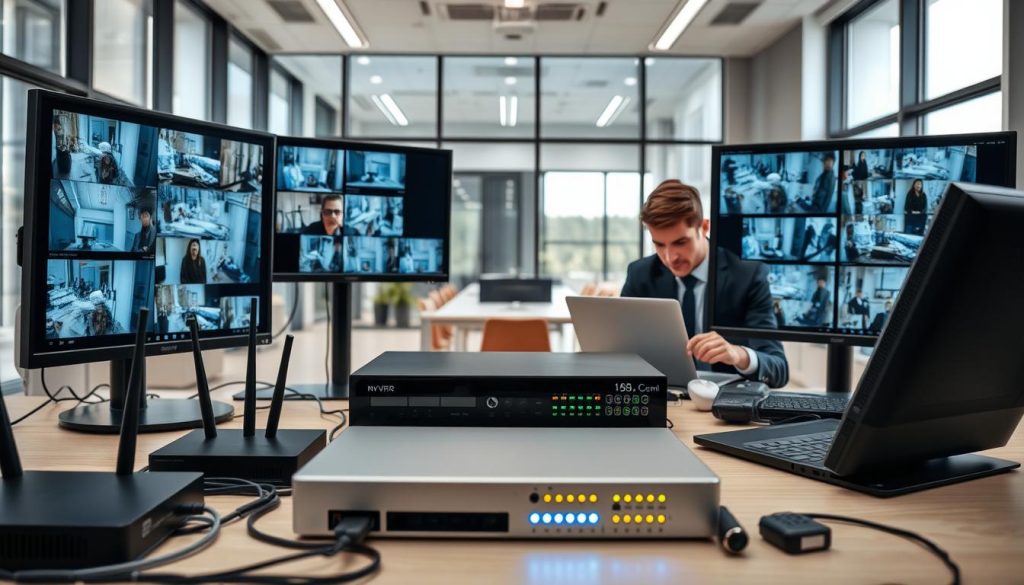
Unlike simple plug-and-play cameras, NVR-based systems offer greater control and storage capacity. They also require more technical configuration for remote access. This section guides you through the essential backend settings.
Configuring DDNS and Port Forwarding Correctly
Your home internet connection receives a dynamic IP address from your provider. This address changes periodically, breaking direct access to your NVR. Dynamic Domain Name System or DDNS solves this problem.
A DDNS service assigns a consistent web address to your NVR. This address automatically updates when your IP changes. Many NVR manufacturers provide free DDNS services within their platforms.
Port forwarding is the next critical step. It tells your router which device should receive incoming connection requests. You must forward specific ports to your NVR‘s local IP address.
Common ports for surveillance include HTTP port 80 and HTTPS port 443. Some systems use manufacturer-specific ports. Always check your NVR manual for exact port numbers.
“Incorrect port forwarding is the leading cause of failed remote connections for NVR systems. Double-check every digit in both the port number and your NVR’s local IP address.”
Log into your router’s admin panel to configure these settings. The process varies by router brand but follows similar principles. Create a forwarding rule that directs external traffic on specific ports to your NVR.
Singaporean users should note that some ISPs block common ports for residential connections. If standard ports fail, try alternative ranges like 8000-8100. Always test your configuration immediately after applying changes.
Checking Encryption and Security Protocol Settings
Opening ports to your network creates potential security vulnerabilities. Strong encryption and proper protocols protect your surveillance feed from unauthorized access. Never sacrifice security for convenience.
First, enable HTTPS encryption on your NVR web interface. This encrypts all data between your device and the recorder. Look for this option in the NVR‘s network or security settings.
Disable outdated protocols like HTTP and FTP for remote connections. These transmit data in plain text that hackers can intercept. Use only modern, encrypted connection methods.
Implement AES-256 encryption for stored video footage. This military-grade standard protects recordings even if someone physically accesses the hard drive. Most modern NVR units support this feature.
Create a strong, unique password for your NVR admin account. Avoid default credentials that come pre-programmed. Enable two-factor authentication if your system supports it.
Consider these additional security measures for your setup:
- IP address whitelisting: Only allow connections from specific trusted IP addresses
- VPN access: Connect to your home network via VPN before accessing the NVR
- Regular firmware updates: Keep your NVR’s software current with the latest security patches
- Disable UPnP: Universal Plug and Play can create insecure port openings automatically
Verify that remote viewing features are enabled within your NVR‘s own menu. Some units disable external connections by default for safety. Check both the device settings and accompanying mobile application.
If network configuration feels overwhelming, seek professional assistance. Many Singaporean security firms offer NVR setup services. Proper configuration prevents exposure to digital threats while enabling reliable remote viewing.
Recognizing Signs of Camera Malfunction Beyond the App
Sometimes, the root of surveillance failure lies not in digital connections but in the physical condition of the equipment itself. Your security cameras endure constant exposure to Singapore’s tropical climate and urban environment.
This reality makes hands-on assessment essential. A comprehensive physical inspection can reveal issues that no app diagnostic will ever detect.
Physical Inspection: Lens Obstruction and Housing Damage
Begin your assessment with a visual examination of each unit. Look for common obstructions that degrade image quality over time. Spider webs, accumulated dust, and tropical grime are frequent culprits.
Condensation inside the lens dome is a particular concern in Singapore’s humidity. This moisture creates permanent blurring if left unaddressed. Gently wipe the exterior with a soft, microfiber cloth to test clarity.
Examine the housing for cracks or compromised seals. Even hairline fractures allow moisture ingress during monsoon rains. Check weatherproofing gaskets around seams and cable entry points.
Follow this practical checklist during your inspection:
- Lens clarity: Remove dirt, cobwebs, or water spots with appropriate cleaning solution
- Housing integrity: Look for cracks, fading, or warping from sun exposure
- Cable condition: Verify no fraying, corrosion, or chew marks from pests
- Mounting stability: Ensure brackets remain tight and properly aligned
- Environmental factors: Clear vegetation that might trigger false motion alerts
Singapore’s unique climate demands special attention. High humidity promotes mold growth on camera surfaces. Regular cleaning prevents this organic buildup from obscuring your view.
Monsoon seasons test weatherproofing to its limits. Verify drainage channels around wall-mounted units remain clear. This prevents water accumulation that leads to internal damage.
Listening for Unusual Sounds from the Camera Unit
Your ears can detect malfunction signs before they become visible problems. Approach each camera during a quiet period and listen carefully. Normal operation is virtually silent.
Abnormal sounds indicate specific mechanical or electrical issues. A constant buzzing often points to power supply problems. This may stem from a failing adapter or internal component.
Grinding noises suggest mechanical failure in PTZ (pan-tilt-zoom) motors. These units move to track motion across wider areas. The sound means gears are wearing out or jammed.
“Regular auditory checks catch problems early. What begins as a faint buzz can become a complete failure if ignored for months.”
Clicking sounds frequently signal a faulty infrared cut filter. This component switches between day and night vision modes. Malfunction causes constant clicking as it tries unsuccessfully to engage.
Inspect cable connections while performing your auditory assessment. Look for corrosion on metal connectors exposed to humidity. Tighten any loose terminations that could cause intermittent problems.
Animal activity presents another concern. Rodents sometimes chew through cables for nesting material. Listen for scratching noises near your devices during inspection.
Schedule these physical checks quarterly for optimal system health. Combine them with your regular digital verification routine. This comprehensive approach ensures both the hardware and software elements of your CCTV protection remain fully functional.
Remember that cameras are electronic devices subject to environmental wear. Proactive maintenance extends their operational lifespan significantly. Your vigilance preserves your property’s security investment.
Leveraging Advanced Features for Smarter Verification
Smart verification goes beyond checking if your camera feed is simply online. Modern security systems offer intelligent capabilities that transform basic monitoring into proactive protection.
These advanced features represent the true value of contemporary surveillance technology. They reduce false alarms and enable real-time interaction with your property.
Testing these functions ensures you receive maximum benefit from your investment. Let’s explore how to verify your system’s smart capabilities effectively.
Using AI-Powered Motion Detection to Reduce False Alarms
Traditional motion sensors trigger alerts for any movement, including leaves or shadows. Modern AI technology analyzes shapes and patterns with remarkable accuracy.
This intelligent motion detection distinguishes between people, vehicles, and animals. It dramatically reduces nuisance notifications while capturing genuine security events.
Test your system’s AI capabilities by walking through detection zones. The app should label you as a “person” in the alert description.
Drive a vehicle past the camera to test vehicle recognition. Your system should categorize this movement differently from pedestrian activity.
Configure detection zones within your camera’s settings. Exclude areas with frequent non-threatening movement like trees or passing traffic.
This targeted approach ensures alerts only for relevant activity. It transforms your monitoring from reactive to intelligently selective.
“Properly configured AI motion detection can reduce false alarms by over 80%, making your security system both smarter and less intrusive to your daily life.”
Review your alert history weekly. Confirm the system correctly identifies different types of movement. Adjust sensitivity settings if needed for optimal performance.
Testing Two-Way Audio Functionality
Two-way audio enables real-time communication through your CCTV system. This feature allows you to speak with visitors or deter intruders remotely.
Begin by testing the microphone function. Stand near the camera and speak at normal volume. Have someone monitor the audio feed through the mobile app.
They should hear clear, undistorted sound without significant delay. Background noise should be minimized by the system’s noise reduction technology.
Next, test the speaker functionality. Use your phone to speak through the camera’s built-in speaker. Stand nearby to assess audio clarity and volume.
Practical applications for two-way audio include:
- Delivery instructions: Guide couriers where to leave packages
- Visitor communication: Speak with guests before answering the door
- Deterrent capability: Announce your presence to suspicious individuals
- Pet monitoring: Calm anxious animals when you’re away from home
Ensure both functions work reliably during day and night operation. Audio quality should remain consistent regardless of lighting conditions.
Checking Cloud Storage and Playback Features
Cloud storage provides off-site backup for your surveillance footage. This protects recordings even if local equipment is damaged or stolen.
Verify your subscription status within the application settings. Confirm storage capacity matches your purchased plan.
Trigger a motion event deliberately to test automatic recording. Check that the incident appears in your cloud storage timeline shortly afterward.
Test playback functionality by selecting recorded events. The video should stream smoothly without buffering or quality degradation.
Key aspects to verify include:
- Recording duration: Events should capture adequate time before and after triggers
- Search functionality: Find specific events by date, time, or motion type
- Download capability: Save important clips directly to your mobile device
- Retention period: Footage should remain accessible for your plan’s duration
Compare cloud storage quality with local recordings. Both should offer similar resolution and frame rates for accurate verification.
Modern systems offer additional advanced features worth testing. Geofencing automatically arms your system when you leave home.
Smart home integration allows voice control through platforms like Google Assistant. Thermal or color night vision enhances low-light monitoring capabilities.
Regular testing of these intelligent functions ensures your CCTV system operates at peak effectiveness. It transforms basic security into comprehensive property protection.
The Critical Role of Regular System Checks and Maintenance
The most reliable CCTV protection comes not from advanced technology alone, but from disciplined, regular care. Your security system is a complex network of hardware and software. Like any sophisticated equipment, it requires consistent attention to perform optimally.
Moving from reactive troubleshooting to proactive maintenance represents a maturity in security management. This shift prevents problems before they compromise your property’s safety. It also extends the lifespan of your entire surveillance investment.
Studies show proactive maintenance prevents 78% of common CCTV failures. A small, regular time investment delivers uninterrupted security and avoids emergency repairs. This section outlines a practical schedule for keeping your system in peak condition.
Scheduling Weekly App and Feed Reviews
Establish a quick weekly ritual to verify your monitoring remains active. This takes just five minutes but provides continuous confidence in your security. Consistency matters more than duration for these regular checks.
Every Sunday evening, open your surveillance app on your primary device. Log in and view the live feed from each camera sequentially. Confirm all streams load without delay or buffering.
Check notification settings remain enabled for motion detection. Test one camera by walking in front of it briefly. Verify the alert arrives on your phone within seconds.
Review your alert history for the past week. Look for patterns of false alarms that might need sensitivity adjustments. This weekly review ensures your system captures genuine events reliably.
Document these checks in a simple digital log or notebook. Note the date, time, and status of each camera feed. This record becomes invaluable for tracking system health over months and years.
“Systems with scheduled weekly verification experience 60% fewer unexpected failures. This simple habit transforms security from an abstract concept into a verified reality.”
Consider setting a recurring calendar reminder for your weekly review. Automation ensures you never forget this critical security habit. The goal is making verification as routine as checking your email.
Performing Quarterly Physical Maintenance on Cameras
Every three months, conduct a hands-on inspection of your cameras and their environment. Physical maintenance addresses issues no app diagnostic can detect. Singapore’s tropical climate makes this especially important.
Begin with a visual examination of each unit’s exterior. Look for accumulated dirt, spider webs, or water spots on lenses. Gently clean surfaces with a soft, microfiber cloth and appropriate cleaning solution.
Check camera housings for cracks or compromised weather seals. Even small openings allow humidity ingress during monsoon seasons. Verify all mounting brackets remain tight and properly aligned.
Follow this quarterly checklist for comprehensive physical maintenance:
- Lens cleaning: Remove all obstructions for clear image capture
- Cable inspection: Look for fraying, corrosion, or pest damage
- Weatherproofing verification: Ensure seals protect against Singapore’s rain
- Surrounding area clearance: Trim vegetation that might trigger false alerts
- Power connection test: Verify stable electrical supply to each unit
Listen for unusual sounds from each camera during inspection. Buzzing may indicate power supply issues. Grinding noises suggest mechanical problems in motorized units.
Document all findings in your maintenance logbook. This record aids warranty claims and professional service calls. It also helps identify recurring issues with specific devices.
Keeping Firmware and Software Updated
Firmware and software updates represent your CCTV system‘s immune system. Developers release patches that fix bugs, close security vulnerabilities, and add features. Outdated systems become increasingly vulnerable over time.
Enable automatic updates for your cameras, NVR, and router whenever possible. This ensures your equipment receives critical patches promptly. Most modern CCTV systems offer this convenient option.
For manual update checks, establish a bi-annual schedule. Every six months, log into each component’s administration interface. Look for available firmware or software upgrades.
Always perform updates during low-activity periods. Schedule them for late night or early morning when monitoring needs are minimal. This prevents disruption to your security coverage.
Security patches are particularly crucial. Hackers constantly discover new vulnerabilities in surveillance equipment. Regular updates protect your entire network from digital threats.
Research shows systems with automated update schedules suffer 75% fewer cyber incidents. This statistic alone justifies the minor effort required. Your vigilance here protects both physical and digital assets.
After any major update, perform a comprehensive system test. Verify all cameras stream properly through your mobile app. Confirm motion detection and alert functions work correctly.
Consider professional verification services for complex systems. Experts can ensure updates integrate smoothly without creating new issues. This peace of mind is worth the investment for critical installations.
This three-tiered approach—weekly, quarterly, and bi-annual—creates a robust maintenance framework. It transforms your CCTV from passive equipment into an actively managed security asset. The small time investment delivers disproportionate returns in reliability and peace of mind.
When to Seek Professional CCTV Support in Singapore
Singapore’s advanced security landscape often benefits from specialized knowledge that extends beyond basic user manuals. There comes a point where engaging certified experts becomes the smartest move for property protection.
This decision protects your investment and ensures uninterrupted surveillance coverage. Recognizing this boundary separates proactive security management from reactive problem-solving.
Many reputable companies offer complimentary technical assistance for initial consultations. This support helps diagnose persistent issues before they compromise your property’s safety.
Identifying Issues Beyond Basic Troubleshooting
Certain problems resist standard solutions and demand expert intervention. Recognizing these scenarios early prevents wasted time and potential security gaps.
Persistent network configuration failures represent a common challenge. If port forwarding, DDNS setup, or router adjustments repeatedly fail, professional help is warranted.
Complex wiring issues in Singapore’s concrete structures often require specialized tools. Professionals handle cable routing through walls and ceilings without damaging your property.
Recurring hardware faults suggest deeper electrical or compatibility problems. Experts diagnose whether issues stem from cameras, recorders, or power supplies.
Suspected cybersecurity breaches demand immediate professional assessment. Unusual login attempts or unfamiliar devices on your network require expert investigation.
Consider professional cctv support when you encounter:
- Intermittent feed loss that persists after all basic troubleshooting steps
- Complex multi-camera system integration that exceeds DIY capabilities
- Legacy equipment modernization requiring compatibility expertise
- Regulatory compliance questions specific to Singaporean property laws
These situations justify contacting local professional support providers. Their experience resolves issues that frustrate even technically inclined users.
The Benefits of Professional Installation and Audits
Expert installation from the beginning prevents numerous future problems. Certified technicians assess your property’s unique layout and security needs.
They identify optimal camera angles to eliminate blind spots completely. Proper placement considers lighting conditions, entry points, and common traffic patterns.
Secure network configuration protects your system from digital threats. Professionals implement encryption, strong passwords, and access controls during setup.
“Professional installation typically includes warranty coverage and ongoing technical support, providing long-term value beyond the initial setup cost.”
Regular security audits evaluate your entire surveillance ecosystem. Experts examine coverage gaps, storage redundancy, and cybersecurity posture.
These assessments identify vulnerabilities before intruders exploit them. They ensure your security measures evolve with changing threats and technology.
Key advantages of professional services include:
- Comprehensive coverage planning that maximizes every camera’s effectiveness
- Proper cable management that prevents weather damage and pest interference
- Integration expertise with other smart home systems and alarms
- Documentation and training for all system users in your household
Singapore-based providers understand local building codes and environmental factors. They account for humidity, monsoon rains, and urban density in their installations.
Reputable companies offer clear service agreements and responsive support channels. For immediate assistance with persistent cctv systems issues, contact established local providers.
Engaging professionals represents smart resource allocation, not personal failure. Their expertise often proves more cost-effective than prolonged DIY struggle or system failure.
Staying Proactive for Uninterrupted Security and Peace of Mind
Your surveillance investment reaches its full potential only through consistent, proactive engagement. Regular verification transforms your CCTV system from passive hardware into an active security partner. This disciplined approach ensures uninterrupted security coverage for your Singapore property.
Establish a simple routine of weekly app checks and quarterly physical maintenance. These habits prevent most common failures before they occur. Your system remains reliable through Singapore’s humid climate and urban challenges.
This proactive philosophy delivers true peace of mind. You maintain confident access to remote monitoring from anywhere. Your security becomes a dynamic, responsive asset rather than a static installation.
FAQ
What are the first signs my security camera system is connected properly to my phone?
The most immediate sign is a clear, real-time video stream on your mobile app. You should also receive timely push notifications for motion alerts. A solid internet connection is the backbone for this remote access to function seamlessly.
Why does my live feed sometimes freeze or lag on the mobile application?
This is often a bandwidth issue. Check your internet upload speed from the camera’s location. You can also adjust the video stream quality within your app’s settings, like lowering resolution, to improve performance on a slower network.
How can I test if my night vision and motion detection are operational?
After dusk, check the live feed for a clear, grayscale image in low light. To test motion alerts, perform a controlled walk in front of the lens. You should receive an instant notification on your smartphone if the feature is active.
My app won’t show any cameras. What basic steps should I take?
A> First, restart both your smartphone and the CCTV system. Then, verify all physical power and network cables are secure. Finally, ensure you’re logged into the correct account on the official app from the Google Play or Apple App Store.
When should I consider calling a professional for my security cameras in Singapore?
Seek expert support for complex network configuration like DDNS, persistent hardware failures, or if you suspect a security breach. Companies like Cisco or professional installers can provide audits and ensure optimal system performance.


