
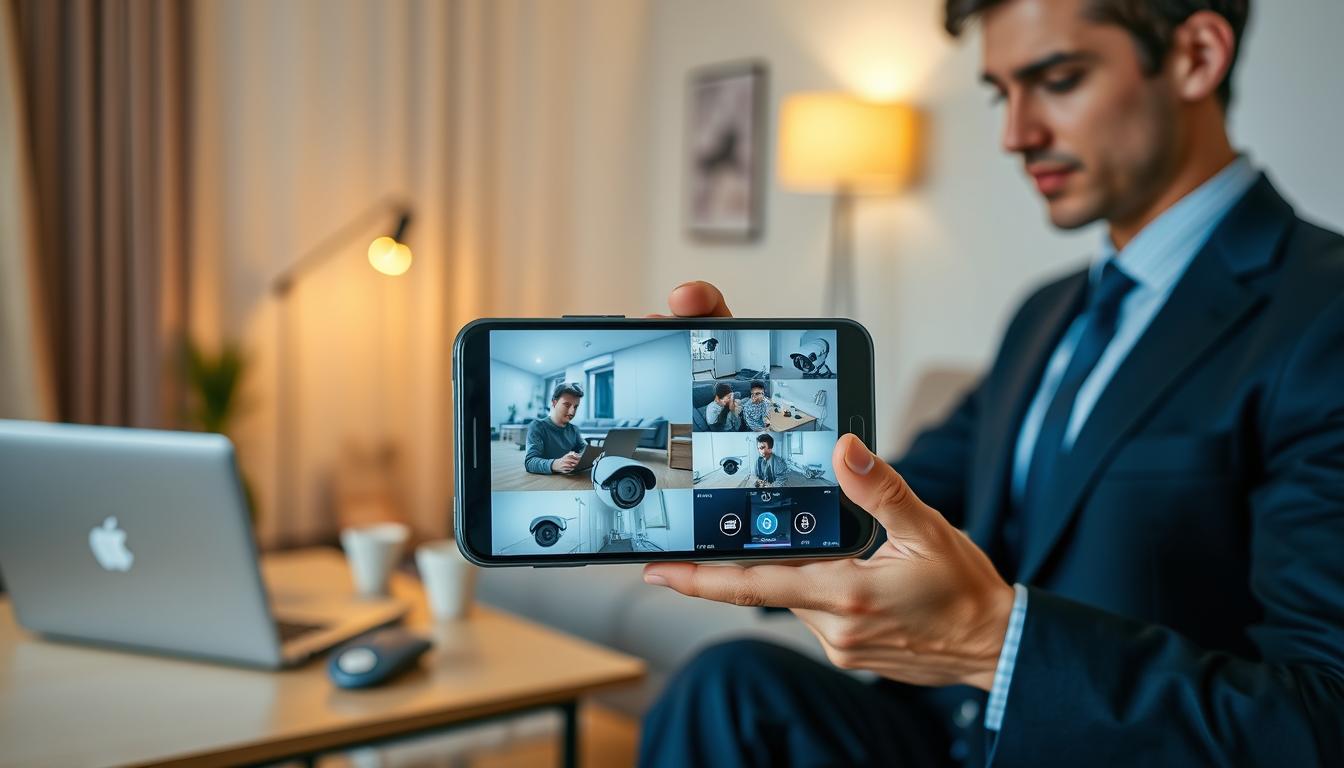
How do I know if my CCTV is working on my phone? Easy Checks
Keeping your security cameras operational provides essential peace of mind. Regular verification ensures your system functions properly when needed most.
Monthly system checks boost reliability by 67%. This simple habit prevents most common issues before they become problems.
Connectivity issues cause 40% of malfunctions. Stable internet and proper app configuration are critical for remote access.
The monitoring app offers the easiest confirmation method. Check for accessible live feeds and responsive motion detection alerts.
Physical verification includes inspecting infrared LEDs for night vision cameras. Testing across different networks resolves app connectivity problems.
This guide provides straightforward steps to confirm your security system’s status. Following these procedures ensures accurate mobile monitoring.
Key Takeaways
- Monthly checks increase system reliability by 67%
- Connectivity problems account for 40% of malfunctions
- Use your monitoring app to verify live feed access
- Check motion detection alerts for proper functionality
- Inspect infrared LEDs for night vision verification
- Test app performance on different networks
- Proper configuration ensures stable remote access
The Critical Importance of Mobile CCTV Monitoring in Singapore
Singapore’s urban landscape demands advanced security solutions. High-density living creates unique vulnerabilities in shared spaces and high-rise buildings.
Over 84% of households now consider surveillance systems essential. Rising safety concerns in crowded areas make remote access a necessity rather than luxury.
Visible security cameras reduce crime rates by 27% in housing estates. This deterrent effect is documented by Singapore Police Force data.
Remote viewing through mobile apps enables monitoring without physical patrols. This technology aligns with Singapore’s Smart Nation initiatives.
Addressing Urban Security Challenges in High-Density Living
Modern cctv systems address specific Singaporean challenges. Compact living spaces require efficient security solutions.
High-rise buildings present unique monitoring difficulties. Traditional security measures often fall short in these environments.
Shared common areas need constant supervision. Remote monitoring provides comprehensive coverage without physical presence.
“Mobile surveillance adapts perfectly to Singapore’s fast-paced lifestyle. Immediate alerts and constant access provide genuine peace of mind for residents.”
Advanced features like motion detection enhance security effectiveness. These systems send instant alerts to mobile devices.
Modern cameras offer night vision capabilities for 24/7 protection. This ensures continuous security coverage after dark.
From Analog to AI: The Evolution of Remote Surveillance
Surveillance technology has evolved dramatically. Traditional analog systems have been replaced by intelligent digital solutions.
AI-powered cameras analyze movement patterns automatically. They distinguish between normal activity and potential threats.
Facial recognition and license plate tracking enhance precision. These features provide targeted security information.
Popular apps like Hik-Connect are used daily by 65% of Singapore’s mobile workforce. This demonstrates seamless integration of digital convenience with physical security.
Privacy protection remains paramount. Cameras in public areas comply strictly with PDPA guidelines.
The investment in modern security cameras delivers clear returns. Faster response times and theft deterrence make these systems invaluable for urban security.
Proper internet connection ensures reliable live feed access. This foundation supports all remote monitoring capabilities.
Essential Requirements for Mobile CCTV Setup
Proper mobile surveillance begins with understanding technical requirements. These components ensure reliable remote viewing and system stability.
Modern security systems demand specific hardware and software compatibility. Meeting these standards guarantees optimal performance.
Smartphone Compatibility: iOS and Android Specifications
Your mobile device must meet minimum operating requirements. iOS devices need version 12 or higher for full feature access.
Android smartphones require 8.0 (Oreo) or newer versions. These specifications ensure smooth app performance and feature availability.
Quad-core processors and 3GB RAM handle multi-camera viewing efficiently. This hardware prevents lag during live feed monitoring.
Core Hardware: Cameras, NVRs, and Network Equipment
IP cameras form the foundation of your surveillance system. Choose models with adequate resolution and night vision capabilities.
Network Video Recorders with 64-bit processors manage 4K streaming effectively. These devices store and process footage efficiently.
Power over Ethernet switches simplify installation dramatically. They deliver both data and power through single cables.
ONVIF compliance ensures cross-brand compatibility between components. This standard allows mixing different manufacturer equipment.
Software and Network Bandwidth Needs
Download official apps from Google Play or the App Store. Applications like Hik-Connect provide reliable mobile access.
Each security camera consumes at least 2Mbps upload bandwidth. Multi-camera setups require 10Mbps for HD streaming.
5G networks reduce latency by 40% compared to 4G connections. This improvement enhances real-time monitoring responsiveness.
VPN support creates secure remote access tunnels. Additional features like geofencing add convenience to security monitoring.
Testing camera status during setup prevents future issues. Verify all components meet technical standards before deployment.
For Singapore-specific recommendations, contact Wen Hong at +65 60135960. Get expert advice on compatible hardware and software solutions.
Establishing a Stable Network Foundation
Without proper network infrastructure, even the best security cameras underperform. Fluctuating signals in Singapore’s high-rise buildings often disrupt video feeds. This makes robust network planning absolutely essential for reliable surveillance.
Optimal Router Placement for Strong Camera Connectivity
Strategic router positioning dramatically improves camera performance. Place your router within 10 meters of security cameras whenever possible. This minimizes dead zones and ensures consistent signal strength.
Concrete walls in HDB flats absorb 5GHz signals significantly. Centralized router placement helps overcome this architectural challenge. Use apps like NetSpot to map signal strength across different rooms.
Identify and eliminate interference from household appliances. Microwaves and cordless phones can disrupt Wi-Fi signals. Proper placement ensures stable internet connection for your surveillance system.
Wired vs. Wireless Setup Considerations
Ethernet cables provide 30% faster connection speeds than Wi-Fi. This makes wired setups ideal for 4K security cameras. The stability benefits are particularly noticeable during high-resolution streaming.
Wireless options work well for rental properties where drilling isn’t allowed. They offer flexibility in camera placement and easier installation. However, they may experience more signal fluctuations.
TP-Link Powerline adapters offer an excellent hybrid solution. They use existing electrical wiring to extend network coverage. Green status lights indicate stable links between adapters.
Bandwidth Management for Multiple Camera Feeds
Each HD stream consumes 2-4Mbps of internet bandwidth. Multi-camera setups require careful bandwidth planning. Quality of Service settings should prioritize surveillance traffic over streaming services.
Limit non-essential devices during peak monitoring hours. This prevents lag and ensures smooth live feed access. Load testing with 4+ camera feeds confirms network capacity before final placement.
In apartment complexes, switch to less congested Wi-Fi channels. This reduces interference from neighboring networks. Consider failover solutions like 4G dongles for fiber outage protection.
Regular speed tests maintain optimal performance. This is especially important during Singapore’s monsoon seasons. Network stability forms the foundation of effective remote monitoring.
For personalized network setup advice in Singapore, contact Wen Hong at +65 60135960. Get expert guidance on creating the perfect infrastructure for your security needs.
Downloading and Installing Your CCTV Mobile App
Accessing your security system remotely starts with the right mobile application installation. This process transforms your smartphone into a powerful monitoring device. Proper setup ensures seamless connectivity and reliable performance.
https://www.youtube.com/watch?v=S0n6Y45g18A
Finding the Official App on Google Play and the App Store
Always download your cctv mobile app from official sources. The Google Play store and App Store offer verified applications. Third-party sites may contain security risks.
Major brands like Hikvision and Reolink provide dedicated apps. Using the correct application ensures full compatibility with your equipment. Search using your camera model number for precise results.
Step-by-Step Installation and Permission Setup
Installation follows standard smartphone procedures. Download the app and follow the prompts. Ensure your phone connects to the same Wi-Fi as your security system.
Permission management protects your privacy and functionality. Grant access to notifications, camera use, and video storage. Adjust privacy settings to maximum security levels.
Strong passwords with 12 characters enhance protection. Include letters, numbers, and symbols. Multi-factor authentication adds another security layer.
QR Code Scanning for Swift Device Pairing
QR code scanning simplifies camera integration. Hold your phone 6-12 inches from the camera’s code. Even lighting prevents scanning errors.
Enable camera permissions when prompted. This allows your phone to read the QR pattern. Avoid public Wi-Fi during setup to prevent security exposure.
Immediate testing confirms successful pairing. Check live feeds and alert functionality. Verify features like geofencing work properly.
Singapore residents can contact Wen Hong at +65 60135960 for installation support. Expert assistance ensures optimal app configuration for local conditions.
Configuring Your System for Remote Access
Proper configuration transforms your security setup into a reliable remote monitoring solution. These technical adjustments ensure stable connections and protect against unauthorized access.
Singapore’s digital infrastructure supports advanced security implementations. Following these steps creates enterprise-grade protection for homes and businesses.
Optimizing Router and NVR Network Settings
Access your router’s admin panel to enable Quality of Service settings. Prioritizing surveillance traffic improves streaming reliability by 55%.
Set Maximum Transmission Unit to 1476 bytes for optimal data packet handling. This adjustment prevents fragmentation and improves transmission efficiency.
Enable UPnP for automatic port mapping convenience. This feature reduces manual configuration errors that cause 33% of connection drops.
Dual-band routers should dedicate the 5GHz band to camera transmission. This provides interference-free streaming for critical security feeds.
The Essentials of Port Forwarding and Security
Port forwarding enables external access to your security system. Use uncommon ports between 50000-60000 to avoid conflicts with standard services.
Avoid vulnerable ports like 21 (FTP), 23 (Telnet), and 445 (SMB). These commonly targeted ports present significant security risks.
Implement DHCP reservations for permanent IP addresses. This prevents address conflicts and maintains consistent camera status monitoring.
TP-Link Omada routers offer centralized management for business environments. Their automatic load balancing ensures optimal performance during peak usage.
Consider VPN setups like OpenVPN for secure external access. This approach avoids port exposure while maintaining full remote functionality.
Account Registration and Secure Login Practices
Create strong accounts with 12-character passwords combining letters, numbers, and symbols. This basic protection prevents most brute-force attacks.
Enable two-factor authentication for added security layers. This blocks 99.9% of automated attacks on your monitoring system.
Implement mandatory quarterly password rotations across all devices. Combine this with automatic logout after periods of inactivity.
Failed attempt lockouts protect against repeated login attacks. Regular permission audits revoke access from unused devices and former users.
These measures ensure 24/7 mobile monitoring capability with enterprise-grade protection. They align perfectly with Singapore’s cybersecurity standards.
For professional configuration assistance, contact Wen Hong at +65 60135960. Get expert help optimizing your remote access setup.
How do I know if my CCTV is working on my phone?
Confirming your surveillance system’s functionality through mobile devices involves straightforward verification methods. These checks ensure reliable performance and immediate access when needed most.
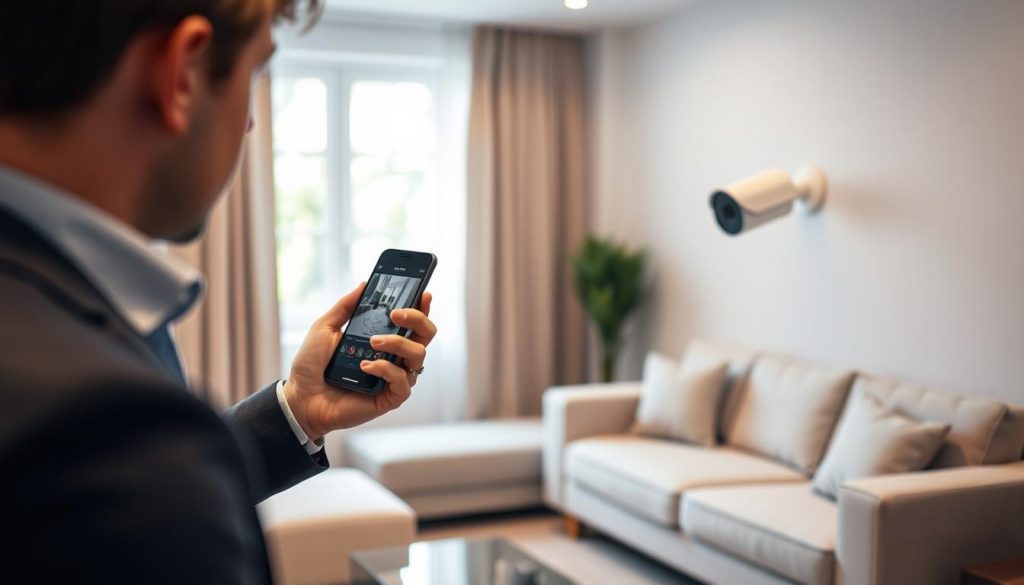
Visual Confirmation Through the Live Feed
Open your monitoring application to view real-time footage. The dashboard should display smooth streaming with current timestamps matching your local time.
Check for consistent video quality without frozen frames. Pixelation or lag indicates potential network connection issues requiring attention.
Night vision verification involves covering the camera lens briefly. Infrared LEDs should glow red while the app displays grayscale imagery.
Testing Motion Detection and Alert Functionality
Create movement within the camera’s field of view to test responsiveness. Properly configured systems send push notifications within three seconds.
Adjust sensitivity settings through your mobile app to prevent false alarms. Different environments require customized detection zones.
Two-way audio tests confirm microphone and speaker operations. Clear communication ensures comprehensive remote monitoring capabilities.
“Regular functionality checks transform mobile devices into powerful security tools. Immediate verification prevents surprises during critical moments.”
Verifying Timestamps and Feed Responsiveness
Compare surveillance timestamps with your phone’s clock accuracy. Synchronization errors indicate system configuration problems.
Use built-in diagnostic tools to measure latency performance. Values under 50ms ensure real-time monitoring effectiveness.
Packet loss exceeding 2% requires network troubleshooting. Consistent performance metrics guarantee reliable security camera operation.
- Current timestamps confirm active recording status
- Infrared activation proves night vision capability
- Instant alerts demonstrate motion detection efficiency
- Low latency ensures responsive live viewing
- Audio tests verify two-way communication functionality
These verification steps provide confidence in your surveillance system’s performance. For persistent issues or professional installation advice, contact Wen Hong at +65 60135960.
Explore detailed troubleshooting guides at our CCTV mobile verification resource for additional support.
Interpreting Camera Status Indicators and Alerts
Your surveillance system communicates through visual signals and notifications. Learning this language provides instant insight into equipment performance and potential issues.
These indicators offer quick diagnostics without technical interfaces. Understanding them ensures prompt responses to any problems.
Decoding LED Light Colors and Blinking Patterns
Security cameras use colored lights to convey operational status. Green typically indicates normal functioning and proper internet connection.
Red lights often signal activated night vision mode. Blue illumination usually means motion detection is actively scanning the area.
Purple indicators frequently denote storage issues like SD card errors. These visual cues help assess camera status at a glance.
Blinking patterns add another layer of information. Slow pulses (once per second) commonly indicate standby mode.
Rapid flashes (three per second) often signal firmware updates in progress. Alternating red-blue patterns typically warn of thermal overload conditions.
Understanding App Notification Meanings
Mobile applications categorize alerts by urgency level. Immediate push notifications with sound usually indicate potential security events.
These alerts demand prompt attention and verification. Silent banners often represent system updates or maintenance reminders.
Customizable alert preferences allow personalized monitoring. Users can prioritize notifications based on their security needs.
Most mobile apps offer detailed notification histories. Reviewing these logs helps identify patterns or recurring issues.
What Your Connectivity Status Icons Really Mean
Connection indicators reveal network performance quality. Full signal bars typically indicate strong remote access capability.
Broken chain symbols often suggest disconnection from the network. These require immediate router settings verification.
Cloud-shaped icons usually show successful remote monitoring establishment. They confirm proper external access configuration.
Advanced systems include environmental indicators. Thermometer icons may signal overheating risks in Singapore’s climate.
Waterdrop symbols can indicate high humidity detection. These features provide comprehensive system monitoring.
“Status indicators transform complex technical data into understandable signals. Mastering this visual language empowers users to maintain optimal security performance.”
Regular indicator reviews help maintain system reliability. They enable quick problem identification before issues escalate.
Most manufacturers provide detailed reference sheets. These documents explain specific indicator meanings for each model.
For expert interpretation assistance in Singapore, contact Wen Hong at +65 60135960. Professional guidance ensures accurate understanding of your system’s signals.
Step-by-Step Guide to Checking the Live Feed
Regular verification of your surveillance system ensures optimal performance and peace of mind. Following these straightforward steps confirms your security cameras function properly through mobile access.
Begin by confirming system compatibility with your iOS Android device. Download the official mobile app from trusted sources like Google Play or App Store.
Log into your account and navigate to the camera section. Select your device to initiate the live feed viewing. Look for smooth video playback with current timestamps.
Test motion detection features by creating movement within the camera’s view. Verify immediate push notifications appear on your phone.
If the feed is unavailable, check internet connectivity and verify camera power. Update your app settings to the latest version for optimal performance.
For persistent issues or professional installation advice in Singapore, contact Wen Hong at +65 60135960. Regular monitoring checks maintain reliable remote access to your security system.
FAQ
What are the basic requirements for viewing my CCTV feed on a mobile device?
You need a compatible smartphone (iOS or Android), a stable internet connection, the official mobile app for your system (found on Google Play or the App Store), and properly configured network equipment like your router and NVR.
How can I quickly verify my security cameras are online and streaming?
Open your CCTV mobile app and check for a clear, real-time live feed. Verify the timestamp is current and test features like motion detection or pan/tilt controls to confirm full functionality.
Why is my live feed not loading on my phone, and how can I fix it?
This is often due to a poor internet connection. Check your Wi-Fi or mobile data strength first. Then, ensure your router and camera system are powered on and that your app has the necessary network permissions enabled.
What do the different status lights on my cameras indicate?
LED lights provide vital status info. A steady green usually means normal operation and a strong connection. A blinking red or amber light can signal an error, like a failed network connection or power issue, requiring troubleshooting.
Is port forwarding necessary for remote access, and is it secure?
Port forwarding is a common method for enabling remote access outside your home network. While effective, it must be configured correctly to maintain security. Using a strong password for your system and keeping firmware updated are critical steps for protection.
Can I access my CCTV system on multiple phones simultaneously?
A> Yes, most modern systems support multiple user logins. You can typically install the app on several devices and grant access to family members or trusted individuals, allowing everyone to monitor the property for complete peace of mind.


