
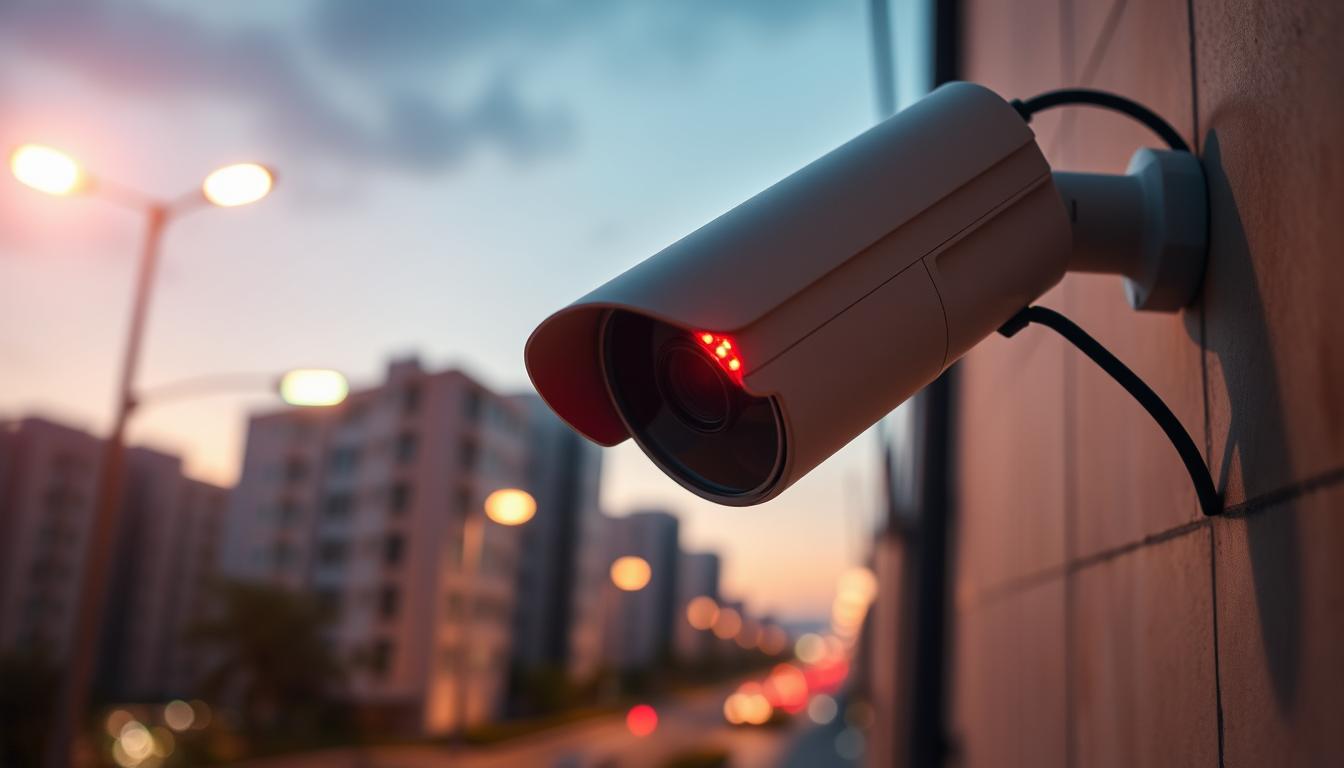
What does the red light on a CCTV camera mean? Explained
That small glowing indicator on your surveillance device can spark curiosity. For many homeowners and business owners in Singapore, it raises questions about their system’s status.
Is the equipment actively capturing footage? Is it simply powered on? Could it be a dummy unit? The truth is more nuanced than a simple yes or no.
These illuminated signals serve as a communication tool. They convey critical information about power, recording activity, and network connectivity.
Understanding these visual cues provides peace of mind. It helps you manage your security effectively and spot potential malfunctions quickly.
This guide will decode various light colors and patterns. We’ll cover verification methods, technical differences between models, and relevant considerations for Singapore.
Key Takeaways
- A glowing red indicator on surveillance equipment does not have a single universal meaning.
- These status lights communicate vital information about the device’s operation to users.
- Different patterns, like steady or blinking illumination, signify different system states.
- Knowing how to interpret these signals enhances security management and provides reassurance.
- Proper understanding helps distinguish between functional units and non-operational dummy cameras.
- Local regulations in Singapore may influence how and when these indicators are used.
Understanding CCTV Camera Status Indicators
Modern surveillance equipment communicates through simple visual cues that anyone can learn to interpret. These small lights serve as the system’s primary way of talking to users. They provide immediate feedback without requiring software access or technical knowledge.
Status indicators translate complex internal operations into understandable signs. They tell you about recording activity, network connections, and power states. This visual language helps you manage your security with confidence.
The Role of LED Lights in Surveillance Systems
LED indicators are integrated into camera design for real-time information. They offer at-a-glance understanding of operational states. This simple interface bridges the gap between technology and user.
These lights convert technical processes into visual signals. Motion detection, video encoding, and network handshaking become colored illumination. A steady glow or blinking pattern conveys specific meanings about system activity.
Manufacturers use different color schemes for their status lights. While many associate red with active recording, this isn’t universal. Some models use it for infrared night vision or simply to show power is on.
Consulting your device’s manual provides precise interpretations. This variability highlights why understanding your specific model matters. Proper knowledge ensures you read the signals correctly.
Why Knowing Your Camera’s Status is Crucial for Security
Correctly interpreting these lights directly impacts protective capabilities. Knowing whether a solid glow means “recording” or “standby” affects your confidence. This understanding forms the foundation of effective security management.
Regular observation allows early issue identification. You might notice a camera with power but no recording indicator. Spotting this gap before exploitation prevents security breaches.
Visible, correctly understood indicators significantly contribute to peace of mind. They reinforce that your security investment is actively functioning.
This knowledge supports proactive maintenance rather than reactive responses. You become an informed participant in your property’s protection. The psychological assurance these lights provide is invaluable for homeowners and business operators alike.
What Does the Red Light on a CCTV Camera Mean?
Many people assume a visible red indicator always means active surveillance, but the reality is far more complex. That crimson glow can communicate several different operational states depending on your specific equipment.
Understanding these variations is crucial for proper security management. It helps you distinguish between normal operation and potential issues.
Solid Red Light: Standby, Power, or Infrared Illumination
A continuously lit red indicator often signifies the device has stable electrical power. This means it’s turned on and ready for operation, though not necessarily capturing footage at that moment.
Many models use this steady glow to show they’re in standby mode. The system is powered but may be waiting for a trigger event before beginning to record.
In darkness, a solid red illumination frequently comes from infrared LEDs. These provide night vision capability without visible white light. The faint glow helps the sensor see in low-light conditions.
This infrared emission is different from a bright status LED. It’s usually softer and emanates from around the lens area.
Context matters greatly when interpreting this signal. A steady red light during daytime likely indicates standby power. The same glow at night probably means infrared night vision is active.
Blinking Red Light: Recording, Error, or a Fake Camera?
An intermittent red signal requires careful interpretation. Some genuine security systems use a blinking pattern to show active recording or data transmission.
This rhythmic flash might occur during motion detection events. It confirms the unit is processing and storing video footage as designed.
However, a persistent, obvious blink often raises suspicion. Many dummy surveillance units feature this trait to imitate real equipment. They aim to deter through visual deception rather than actual monitoring.
A conspicuous blinking red light is frequently the hallmark of imitation security cameras. Authentic professional systems typically have more subtle or configurable indicators.
In some cases, irregular flashing can indicate system errors or connection problems. The pattern might signal failed network handshakes or storage issues.
Genuine cameras from reputable brands usually offer discretion in their indicator settings. Many allow users to disable or customize LED behavior through their software.
How Camera Type and Brand Affect the Indicator’s Meaning
Your equipment’s technology fundamentally influences its visual language. Traditional analog CCTV systems often use different signaling than modern IP cameras.
Pan-tilt-zoom (PTZ) models might have distinct indicator patterns compared to fixed units. Their moving components require different status communication methods.
Manufacturer firmware creates significant variation in what red illumination means. Brands like Reolink, Hikvision, and Dahua each implement their own indicator protocols.
For example, the Reolink Argus PT Ultra with 4K recording may use different signals than basic wired models. Professional IP cameras sometimes employ blue or green lights for recording status instead of red.
Infrared security cameras naturally emit a subtle red glow in darkness from their IR LEDs. This differs from a dedicated status light and indicates night vision functionality.
Always consult your device’s manual for precise interpretations. Manufacturer documentation provides the authoritative guide to your specific model’s visual signals.
This variability underscores why blanket assumptions about red indicators are unreliable. Proper interpretation requires knowing your equipment’s design and configuration.
Mastering this visual language helps you accurately assess your system’s operational status. It also aids in identifying non-functional imitation units that often misuse these signals.
Decoding Other Common CCTV Camera Light Colors
While red gets most attention, other hues provide equally important information about camera operations. A complete understanding requires learning this colorful visual language.
Different LED colors convey distinct status messages about your equipment. Each shade acts as a specific signal for users to interpret quickly.
Mastering these visual cues transforms you from a passive observer to an informed system manager. This knowledge enhances your overall security effectiveness.
Green, Blue, and White Lights: What They Signal
A green indicator typically shows the device has stable electrical power. This color often means the unit is operational and in a ready state.
Many security cameras use green to signify standby mode. The system is powered on but may not be actively capturing video footage.
Blue illumination usually indicates successful network connectivity. Modern IP and wireless models display this when linked to Wi-Fi or Ethernet.
This color can also signal active recording or live streaming sessions. Some brands use blinking blue patterns during data transmission.
White or amber lights are less common but carry specific meanings. They might indicate firmware updates, system initialization, or special operational modes.
These colors sometimes serve as error alerts depending on the manufacturer. Always check your device manual for precise interpretations.
Interpreting Steady vs. Blinking Light Patterns
The behavior of these lights adds crucial context to their color. Steady illumination generally denotes a stable, ongoing condition.
A solid green light confirms consistent power supply to the unit. A steady blue glow means maintained network connection without interruption.
Blinking patterns indicate active processes or transitional states. Rhythmic flashing often means the system is performing specific tasks.
A blinking green indicator could signal boot-up sequence or network search. Intermittent blue flashes frequently show data upload or recording activity.
Irregular blinking sometimes points to error conditions or connection problems. These visual signs help users troubleshoot issues promptly.
Create a simple mental framework for quick diagnosis. Match the color with the pattern to understand your camera’s current status.
This approach works across different brands and system types. It provides immediate insight without technical software access.
Understanding this visual language represents an essential toolkit for owners. It enables more informed management of your entire surveillance setup.
For detailed verification methods, explore our guide on confirming recording status. This resource complements your visual indicator knowledge.
How to Check If Your CCTV Camera is Actually Recording
Knowing your camera’s status light is one thing; confirming it’s truly capturing video requires a more hands-on approach. A systematic, multi-step verification process delivers the most reliable results.
This method moves from simple observation to definitive proof. It empowers all users to confidently manage their security systems.
Step 1: Conduct a Visual Inspection for LED Activity
Begin with a direct look at your equipment. Check for any illuminated status indicators or LED lights.
Remember, a solid or blinking glow may signal recording. The specific color and pattern depend entirely on your camera’s brand and model.
For example, some models use a steady red light for power, while a blinking blue light means active recording. Others might use the opposite scheme.
Consult your user manual to decode your specific device’s visual language. Be aware that many discreet security cameras have no visible LED at all for stealth.
In this case, the absence of a light is not a sign of malfunction. You must proceed to the next verification steps.
Step 2: Observe Physical Movement in PTZ Cameras
Pan-Tilt-Zoom (PTZ) models offer a clear physical sign of activity. Watch for autonomous movement.
This includes scheduled patrols or preset tours where the camera pans across a programmed area. Motion-tracking behavior is another strong indicator.
If the unit smoothly follows a person or vehicle, the system is actively monitoring and likely recording. This physical response is a reliable way to confirm the camera is working.
Note: Some PTZ cameras only move when commanded via software. A stationary unit doesn’t necessarily mean it’s not recording.
Step 3: Use Manufacturer’s Software or Mobile Apps
This step provides incontrovertible proof of operation. Log into your camera’s dedicated application.
Popular apps include Reolink, Hikvision iVMS-4500, or Dahua’s DMSS. Accessing a clear, real-time live feed is definitive confirmation.
While viewing the feed, look for on-screen status icons. A red dot, a “REC” symbol, or a blinking timer are universal signs of active recording within the software.
Viewing the live feed is the single most reliable method for real-time verification. It confirms power, connectivity, and sensor function simultaneously.
If you can see a live video stream, your security camera is operational. This method bypasses any ambiguity from external lights.
Step 4: Review Stored Footage and System Logs
The most conclusive check is to watch the recorded video itself. Access your system’s storage interface.
This could be a Digital Video Recorder (DVR), Network Video Recorder (NVR), or a cloud service portal. Navigate to the playback or event search section.
Find and review footage from the last few hours. Successfully playing back a recent event confirms two critical things:
- The camera is recording footage.
- The footage is being stored correctly on your chosen medium.
Additionally, check the system logs for any error messages related to recording or storage. Clean logs with recent timestamps are a good sign of system health.
Pro Tip: Perform these checks at different times. Test during the day and at night to ensure all recording modes—continuous, motion-activated, and scheduled—are functioning properly. This comprehensive approach guarantees your entire surveillance system is ready when you need it most.
Verifying Power and Connections for Reliable Operation
The most common point of failure for any electronic security system is its power supply. Without stable electricity, all status lights and internal processing become irrelevant. Your entire surveillance network depends on this fundamental connection.
Ensuring unwavering power is the first and most critical step in maintenance. It guarantees your equipment is always ready to capture crucial footage.
Checking Power Cables and Electrical Outlets
Begin with a hands-on inspection of all physical connections. This simple routine can prevent most unexpected downtime.
Examine each power cable for signs of damage. Look for fraying, cuts, or severe bends near the connectors. Pets, weather, and accidental tugs can weaken these lines over time.
Verify the power adapter is the correct model for your camera. Using an incorrect voltage or amperage can damage the unit or cause intermittent operation. The specifications are usually printed on the adapter itself.
Ensure each cable is securely plugged in at both ends—into the camera’s port and the wall outlet. A loose connection is a frequent culprit for a camera not working.
Finally, test the wall outlet itself. Plug in a lamp or phone charger to confirm it’s live. For systems using Power over Ethernet (PoE), check that the network switch is powered on and functioning.
This basic checklist takes only minutes but forms the bedrock of reliable monitoring.
Understanding the Impact of Power Outages on CCTV
Power interruptions are a major threat to continuous surveillance. In Singapore, sudden storms can cause brief but disruptive fluctuations.
A basic security setup without backup will shut down immediately during a blackout. This creates a total gap in your recorded footage—a significant vulnerability.
The duration of the outage directly affects how much evidence is lost. A brief flicker might only cause a reboot gap of a few minutes. A prolonged outage, however, means zero recording during a potentially critical period.
Systems integrated with a DVR or NVR and an Uninterruptible Power Supply (UPS) can bridge short outages. The UPS provides temporary battery power, keeping the recorder and network online.
For comprehensive protection, consider a layered approach. Invest in a UPS for your recorder and internet router. For absolutely critical camera views, explore models with built-in battery backup.
Regularly test your backup power systems. Simulate an outage by unplugging the UPS to ensure it kicks in as designed. This proactive habit is essential for maintaining trust in your security.
By making power verification a routine part of your system care, you ensure it remains a vigilant guardian, day and night.
Using Camera Software to Confirm Status and Settings
Beyond the physical hardware lies a digital dashboard where your surveillance system’s true status is revealed. Manufacturer applications serve as the central command center for your entire security setup.
These software platforms offer the most authoritative information about your equipment. They translate complex internal processes into user-friendly interfaces.
Accessing this digital control panel moves you from passive observation to active management. You gain precise insights that external lights cannot provide.
Accessing Live Feeds for Real-Time Verification
Opening the manufacturer’s app provides immediate confirmation of functionality. Popular platforms include Reolink, Hik-Connect, and Dahua’s DMSS.
Download the correct application from your device’s official store. Log in with your secure credentials to access the system.
The live video feed is the ultimate proof your camera is working. Seeing real-time footage confirms power, connectivity, and sensor health simultaneously.
You can view streams on smartphones, tablets, or computers. This flexibility allows monitoring from anywhere with an internet connection.
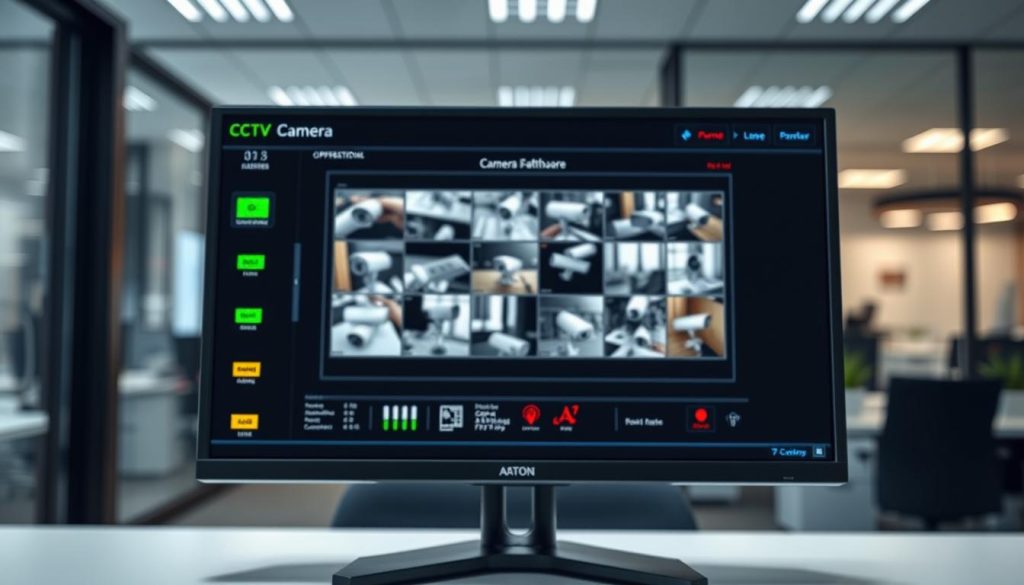
A stable, clear live view means all critical components are operational. Any lag or distortion might indicate network or performance issues.
This method bypasses ambiguity from physical indicator lights. It delivers direct visual evidence of your security camera’s activity.
Interpreting On-Screen Status Icons and Alerts
Software interfaces use universal symbols to communicate system states. Learning this visual language enhances your monitoring capabilities.
A red circle or “REC” text typically means active recording. This icon appears when the system is capturing and storing video footage.
Wi-Fi signal bars show connection strength to your network. Full bars indicate excellent connectivity for reliable streaming.
Storage icons represent your SD card or hard drive status. They alert you when capacity is low or if there’s a storage error.
The software’s alert notifications provide immediate awareness of security events. Motion detection or line-crossing triggers generate pop-up warnings.
Green checkmarks often signify normal operation without issues. Yellow or red symbols usually indicate warnings or errors that need attention.
These digital indicators offer more detail than any physical light. They specify exactly what type of activity or problem is occurring.
Dive into the settings menu to verify your recording configuration. Confirm whether continuous, motion-activated, or scheduled recording is active.
Adjust motion sensitivity and define specific activity zones. This customization ensures your system captures relevant events efficiently.
Review system logs for a historical record of camera performance. Logs show startup times, error messages, and recording triggers.
This diagnostic data is invaluable for troubleshooting. It helps identify patterns that might indicate developing problems.
Regularly checking these software features ensures your surveillance remains effective. It represents the most reliable way to manage your security investment.
For additional insights on status verification, explore our guide on interpreting camera status indicators. This resource complements your software management skills.
Common CCTV Problems and How to Identify Them
Physical connections and camera components represent the most frequent points of failure in surveillance setups. Learning to diagnose these issues yourself can prevent minor problems from escalating into security gaps.
A systematic troubleshooting approach saves both time and money on service calls. This section provides a clear diagnostic framework for common hardware and connection problems.
Signs of Faulty Wiring or Loose Connections
Intermittent power is a classic symptom of wiring issues. A flickering LED indicator or a camera that randomly reboots suggests unstable electrical supply.
Check cable terminations like BNC connectors or RJ45 plugs for corrosion or looseness. These connection points degrade over time due to weather exposure and physical stress.
Video feed problems often trace back to cabling faults. A signal that cuts in and out or displays heavy distortion indicates damaged coaxial or Ethernet lines.
Persistent “no signal” messages on your monitor despite the unit having power point to connection failures. The camera might be receiving electricity but cannot transmit video footage back to the recorder.
Completely dead equipment with no LED glow or warmth is another clear sign. This suggests either total power loss or a severely damaged unit.
Perform a simple cable swap test using known-working components. If the problem disappears with new wiring, you’ve identified the faulty connection.
Methodically checking each physical link in your surveillance chain isolates problems efficiently. Start from the power source and work toward the camera.
Identifying Malfunctioning Cameras or Components
Consistent visual artifacts indicate camera sensor or processor failure. Horizontal lines, washed-out colors, or persistent blurriness don’t improve with cleaning.
Night vision problems often stem from a stuck IR cut filter. This mechanical component should switch between day and night modes automatically.
A malfunctioning filter makes daytime footage appear purple or overly dark. It also prevents proper infrared illumination during low-light conditions.
PTZ mechanisms that groan, stutter, or refuse to move suggest motor or gearbox failure. These moving parts experience significant wear over time.
Overheating cameras feel unusually hot to the touch during normal operation. This thermal stress accelerates component degradation and shortens lifespan.
Isolate camera faults using the swap method mentioned earlier. If a known-working unit functions perfectly on the same cable and recorder channel, the original camera is likely defective.
Other critical components can fail within your security system. A dying hard drive in your DVR or NVR emits warning signs.
Listen for unusual beeping sounds during operation. Experience very slow playback or frequent “disk error” messages on your interface.
Faulty power supply units may overheat or provide inconsistent voltage. This affects all connected equipment and causes multiple simultaneous failures.
Incompatibility between newer cameras and older recorders creates specific issues. Mismatched resolutions or compression formats can cause a loss of color imagery or failed connections.
Regular inspection routines catch these problems early. Check all equipment during scheduled maintenance rather than waiting for complete failure.
This proactive approach ensures your security camera system remains fully operational. It maintains continuous monitoring capability without unexpected gaps.
Understanding these common failure points makes you an informed system manager. You can address minor issues before they compromise your property’s protection.
Spotting the Difference: Real vs. Fake Security Cameras
Distinguishing authentic surveillance equipment from imitation units requires careful observation of specific visual details. Many property owners invest in visible deterrents without verifying their actual functionality.
This verification process protects your investment and ensures genuine protection. Knowing what to look for saves money and prevents false security assumptions.
Visual Clues That Often Give Away Dummy Cameras
Imitation units typically exhibit several telltale signs of their non-functional nature. The build quality offers the first major clue.
Fake devices often use lightweight, cheap plastic that feels flimsy. Seams may be imperfect or poorly fitted together.
Generic branding or complete absence of logos raises suspicion. Look for vague “Security” stickers instead of legitimate manufacturer names.
Examine the lens area carefully through dome covers if possible. Many dummy units lack an actual camera sensor behind the glass.
Cable connections provide another clear indicator. Authentic modern IP security cameras use a single thin network cable for Power over Ethernet.
Fakes may have no cables at all or feature dummy wires that don’t connect properly. These non-functional cables often end abruptly or plug into nothing.
Why Blinking Red Lights Are a Common Fake Camera Trait
A prominent, constant blinking red light strongly suggests an imitation unit. This design choice serves a specific psychological purpose.
Manufacturers of fake equipment use this feature because it’s universally recognized as an “active” symbol. The blinking pattern mimics what people expect from electronic devices.
Implementing a simple blinking LED circuit is extremely cheap and requires minimal components. This makes it cost-effective for mass-produced decoys.
Genuine professional security systems typically employ more subtle status communication. Reputable brands use solid illumination or different colors for their indicators.
The conspicuous blink is often a deliberate design choice for imitation cameras. It creates the illusion of activity without the complexity of actual surveillance technology.
Some authentic models do blink during specific events like motion recording. However, these patterns are usually brief and discreet rather than constant attention-grabbers.
How to Authenticate a Camera’s Brand and Model
Verification begins with examining the physical unit for legitimate identification marks. Look for embossed logos, model numbers, and certification stamps.
Cross-reference any found information on the manufacturer’s official website. Legitimate companies list their products with detailed specifications and images.
Check for a valid serial number on the device or its packaging. Authentic units include unique identifiers for warranty and support purposes.
Research the brand reputation and typical product features. Reputable companies have established histories and customer support channels.
Here’s a practical authentication method using common technology:
- Take your smartphone into a darkened room with the suspected camera
- Point your phone’s camera toward the surveillance unit’s lens area
- Look at your phone screen for a faint red or purple glow
- This glow indicates active infrared LEDs in genuine night vision cameras
This works because most smartphone sensors can detect infrared light invisible to human eyes. It’s a quick field test for functional IR illumination.
Consider the overall value proposition when evaluating equipment. Extremely low prices for seemingly advanced security camera models often indicate imitation products.
Understanding these distinctions helps make informed security decisions. Dummy cameras offer a low-cost visual deterrent but provide zero evidential value.
They cannot capture footage for investigation or prosecution purposes. This creates potential liability if an incident occurs without recorded evidence.
Genuine surveillance systems deliver both deterrence and documentation capabilities. They represent a comprehensive protective solution rather than just psychological reassurance.
Evaluate your specific security needs before choosing between real and imitation units. Consider factors like property value, risk level, and legal requirements in Singapore.
Exploring CCTV Recording Modes and Their Indicators
Legal and Ethical Considerations for Surveillance in Singapore
In Singapore, the use of surveillance cameras is governed by specific regulations that balance security needs with individual privacy rights. Operating these systems responsibly means understanding both technical functions and legal obligations.
Local laws establish clear boundaries for property owners and businesses. They ensure monitoring serves protective purposes without infringing on personal privacy.
This framework creates trust between users of security systems and the community. It transforms surveillance from a purely technical activity into a socially responsible practice.
Understanding PDPA and Surveillance Camera Guidelines
The Personal Data Protection Act (PDPA) is Singapore’s key legislation governing personal information. It applies directly to CCTV footage that can identify individuals.
Capturing recognizable images constitutes collection of personal data under the PDPA. This data must be collected with legitimate purpose and handled responsibly.
Consent is a fundamental requirement under these laws. In public or workplace areas, consent is often implied through clear notification.
Proper signage stating “CCTV in operation” fulfills this transparency obligation. It informs people they are entering a monitored space.
Guidelines recommend positioning cameras to cover only intended areas. Avoid pointing lenses at neighboring properties or private spaces like bathrooms.
Securing stored footage is another critical requirement. Implement password protection and encryption for digital recordings.
Establish a defined retention policy for your surveillance data. Many organizations delete footage after 30 days unless needed for investigation.
This systematic approach ensures compliance with Singapore’s privacy laws. It protects both your property and individuals’ rights.
The Role of Indicators in Transparency and Deterrence
Visible camera status lights serve important ethical and practical functions. They make the act of surveillance more apparent to those being monitored.
These signals contribute significantly to transparency requirements. A glowing indicator clearly communicates active recording or system operation.
When combined with posted signs, lights create a comprehensive notification way. This dual approach leaves little doubt about monitoring activity.
Transparency through visible indicators and signage directly supports the deterrent effect of surveillance systems. Potential offenders are more likely to be deterred when they know they’re being watched.
The psychological role of these visual cues cannot be overstated. They transform abstract monitoring into tangible presence.
For homeowners, best practices include pointing cameras at entry points rather than public sidewalks. Focus on your property boundaries while minimizing public space coverage.
Businesses must ensure employee monitoring complies with workplace regulations. Notify staff about camera locations and purposes through clear policies.
Regularly review your security setup against evolving guidelines. Singapore’s regulatory landscape continues developing alongside technology.
Responsible CCTV operation demonstrates good citizenship. It shows respect for privacy while maintaining effective property protection.
Understanding these considerations completes your knowledge of surveillance systems. Technical mastery combined with legal awareness creates truly effective security.
Essential Maintenance Tips for Your CCTV System
Regular maintenance routines ensure your camera system remains vigilant through Singapore’s tropical climate. Consistent upkeep prevents minor issues from escalating into major security vulnerabilities.
This proactive approach protects your investment and guarantees clear evidence when needed. A simple schedule keeps your entire surveillance network functioning optimally.
Regular Cleaning and Physical Inspection Routines
Dust and humidity quickly degrade camera performance in our environment. Clean lenses every three to six months using proper techniques.
Use a soft, lint-free cloth with lens-specific cleaner. Avoid household glass cleaners that can damage optical coatings.
Gently wipe dome covers and lens housings to remove water spots and grime. Check for spider webs or insect nests that block the view.
External units need extra attention after heavy monsoon rains. Inspect weatherproof seals for cracks that allow moisture inside.
Examine all mounting brackets for tightness. Loose fittings cause camera drift, changing your monitoring angles over time.
Look for cable damage from rodents or weather exposure. Check connections for corrosion at termination points.
These physical checks maintain optimal camera performance. They ensure your security system captures usable footage.
Software Updates and System Health Checks
Firmware updates address critical security flaws and improve features. Hackers often exploit outdated software in surveillance systems.
Schedule updates during low-activity periods to minimize disruption. Always backup configurations before proceeding.
Manufacturer patches fix bugs and add new functionality. They keep your CCTV equipment compatible with modern networks.
Regular system health checks provide early warning signs of potential failures. They transform maintenance from reactive troubleshooting to proactive management.
Verify all cameras appear online in your monitoring software. Confirm recording schedules match your current security needs.
Perform playback tests from each camera location. Check video clarity during day and night time periods.
Review available storage space on your recorder. Modern systems display S.M.A.R.T. data for hard drive health monitoring.
Create a quarterly maintenance routine combining these tasks. Align physical cleaning with software checks for efficiency.
This systematic way ensures your entire surveillance setup remains reliable. Consistent care delivers peace of mind through continuous protection.
Maximizing Your Security with a Well-Informed Approach
Mastering the visual language of your surveillance system transforms you from a passive observer to an active security manager. Understanding those status indicators provides the foundation for true protection confidence.
Remember, light colors and patterns communicate vital information about your equipment. Verification requires multiple methods—visual checks, software confirmation, and playback reviews.
Combine technical knowledge with regular maintenance and proper setup. This holistic approach creates a robust security posture for any property.
The ultimate goal is genuine peace of mind. Know your cameras are present and confidently understand their operational status.
Apply this guide’s steps today. Check indicator lights, log into monitoring apps, and review recording settings. Transform your surveillance investment into maximum security benefit.
FAQ
Is a solid red light on my security camera a bad sign?
Not necessarily. A steady red light often indicates normal operation. For many models, especially from brands like Hikvision or Dahua, it means the infrared LEDs are active for night vision. It can also signal the unit has power and is in standby mode. Always check your device’s manual for the specific meaning.
Does a blinking red light always mean the camera is recording?
No, a blinking red light is not a universal sign of recording. While some systems use this pattern to show active video capture, it can also indicate an error, a boot-up sequence, or network activity. Many fake or dummy surveillance units feature a blinking red LED precisely because people associate it with recording, making visual verification through software crucial.
Can I turn off the status light on my surveillance system?
A> It depends on the brand and model. Many professional security cameras from manufacturers like Axis or Uniview offer a setting in their software or mobile app to disable the physical LED. However, in places like Singapore, consider transparency guidelines under the PDPA; a visible light can act as a deterrent and inform individuals they are being monitored.
My CCTV has a green light. What does that signal?
A green indicator typically represents a positive status. It often means the device has a stable network connection, is functioning properly, or is in a ready state. For example, a steady green LED on a Reolink camera usually confirms it’s powered on and connected to your network without any critical faults.
How can I be 100% sure my security camera is working and saving footage?
To confirm operation, don’t rely solely on lights. Log into the camera’s software via a computer or app like iVMS-4500 for Hikvision. Check the live feed, review the playback from the recorder’s hard drive, and look for recent motion-triggered events. This method verifies both the recording function and storage integrity.
Are cameras with blinking red lights often fake?
Yes, dummy security cameras frequently use a blinking red LED because it’s a widely recognized but non-specific indicator of activity. Authentic units from brands like Annke or Swann rely on more nuanced signals. To spot a fake, look for lack of branding, unrealistic wiring, or the absence of a video feed in associated software.
What should I do if my CCTV camera has no lights at all?
No lights usually point to a power issue. First, check the power adapter and cables for secure connections. Test the electrical outlet. If using Power over Ethernet (PoE), ensure the network switch or injector is functioning. If power is confirmed, the camera or its internal LED may have malfunctioned and require professional inspection.


