
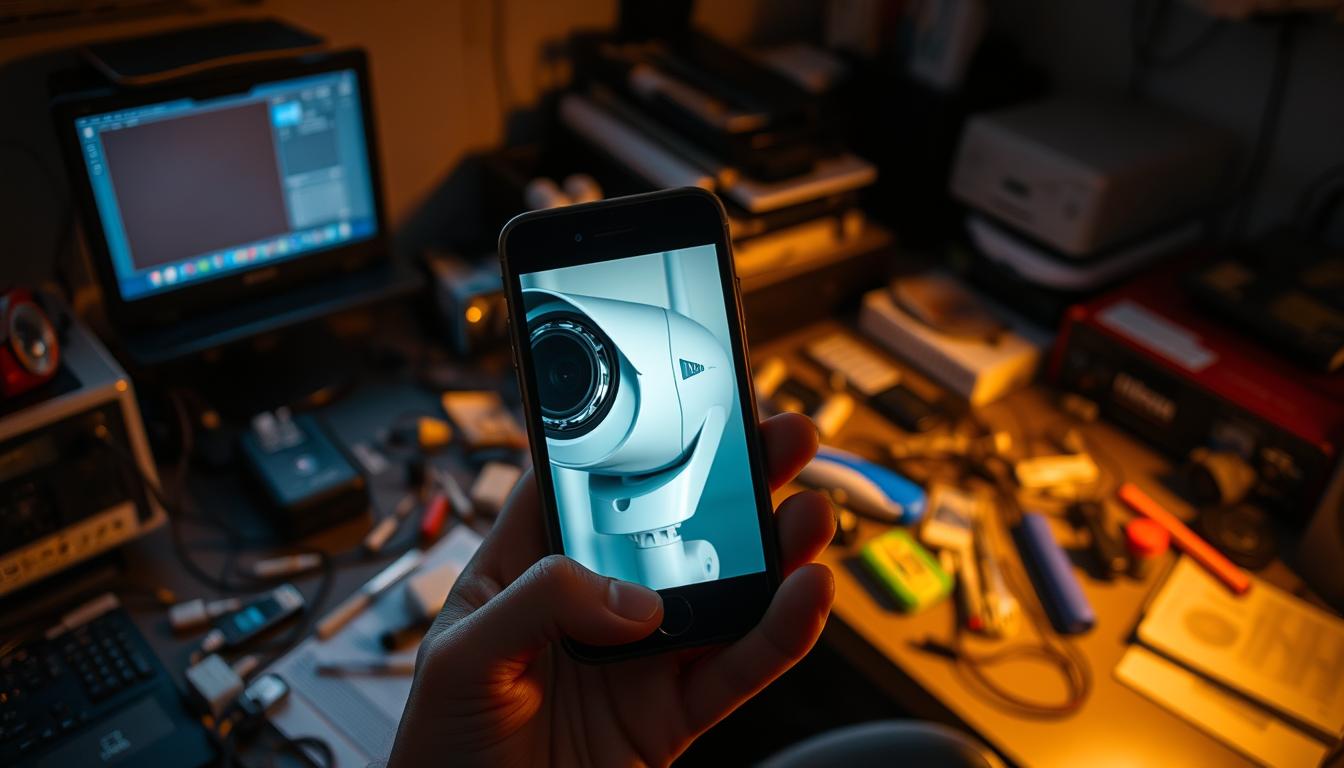
Why can’t I see my security cameras on my phone? Fixes
Many users face difficulties when trying to view their security camera feeds on their phones. Connectivity issues, app glitches, or network problems can disrupt remote monitoring. This guide provides step-by-step solutions to restore access quickly.
Common problems include weak Wi-Fi signals, outdated apps, or incorrect settings. In Singapore, network configurations may also affect performance. Real-world examples like Nest or Ring camera compatibility issues highlight the need for proper troubleshooting.
Start by checking your internet connection and app permissions. Simple fixes often resolve the problem without technical expertise. Follow our detailed guide to ensure seamless access to your security camera system.
Key Takeaways
- Connectivity issues often cause remote viewing problems
- Check Wi-Fi strength and app updates first
- Singapore networks may require special settings
- Verify app permissions for camera access
- Popular brands like Nest may need additional troubleshooting
Understanding Security Camera Mobile Connectivity
Smartphone viewing requires specific network configurations for security cameras. Modern systems use proprietary apps that establish secure connections between devices. Understanding these protocols helps troubleshoot common access issues.
Connection Methods for Smart Devices
Major brands like Nest and Ring use dedicated applications for remote access. The Google Home app manages Nest cameras, while Ring requires its proprietary solution. These apps create encrypted tunnels for live video streaming.
Most camera models need a 2.4GHz Wi-Fi network for stable operation. Dual-band routers must maintain consistent signals for both local and remote viewing. Cellular alternatives exist but often sacrifice video quality.
Essential Viewing Components
A complete security system requires compatible hardware and proper camera settings. Network Video Recorders (NVRs) must support mobile access protocols. Power-over-Ethernet switches enable stable connections for wired setups.
Smartphones need sufficient processing power to handle video decoding. Minimum requirements typically include:
- Android 8.0/iOS 12 or later
- 2GB RAM minimum
- 5Mbps internet connection
Singapore users should verify their network supports manufacturer-recommended encryption. Proper configuration ensures reliable connection to your security system from anywhere.
Common Reasons Your Phone Won’t Display Camera Feeds
Mobile viewing disruptions typically trace back to two primary culprits: network and power problems. Research shows 80% of CCTV accessibility issues stem from these fundamental components. Singapore’s dense urban infrastructure adds unique challenges that require specific solutions.
Network Configuration Problems
Concrete construction materials in Singapore high-rises can reduce Wi-Fi signals by 50%. This significantly impacts security cameras that rely on consistent network connections. Thick walls and metal structures create dead zones where signals can’t penetrate effectively.
For optimal performance:
- Position routers centrally relative to camera locations
- Consider mesh Wi-Fi systems for multi-story buildings
- Test signal strength at each camera position during installation
Many modern camera systems require 2.4GHz bands for stability. Dual-band routers must maintain this frequency alongside 5GHz networks for other devices.
Power Supply Issues
Voltage fluctuations account for 23% of camera offline incidents. Singapore’s electrical infrastructure is generally stable, but localized power surges still occur. Always make sure your setup includes:
- Surge protectors for all camera power supplies
- Properly rated transformers (12V DC for most models)
- Dedicated circuits for high-power camera systems
GFCI outlets near water sources may cause intermittent power cuts. Test outlets with a multimeter to verify consistent voltage delivery. Refer to manufacturer specifications for exact power requirements of your security cameras.
Circuit overloads frequently occur when adding multiple cameras to existing wiring. Professional electricians can assess your building’s capacity and install appropriate breakers.
Why Can’t I See My Security Cameras on My Phone? Diagnosing the Problem
Diagnosing connectivity issues requires systematic evaluation of signal strength and app compatibility. Modern surveillance systems demand specific conditions for reliable mobile viewing. Singapore’s dense urban infrastructure adds unique challenges that affect both wireless performance and software requirements.
Signal Strength Evaluation
HD streaming requires minimum -65dBm signal strength at your camera phone connection point. Concrete high-rises common in Singapore can reduce Wi-Fi signals by 40-60% compared to open spaces.
To check camera signal levels:
- Android: Install Wi-Fi Analyzer (shows dBm in network details)
- iOS: Use AirPort Utility (enable Wi-Fi scanning in settings)
2.4GHz networks provide better wall penetration but lower speeds. 5GHz offers faster throughput but struggles with obstructions. For most security camera systems, 2.4GHz delivers more consistent performance in urban environments.
App Compatibility Checks
32% of mobile viewing failures stem from outdated applications. Modern systems require iOS 15+ or Android 10+ for full functionality. Some older smartphone models in Singapore may face compatibility issues:
- Xiaomi Redmi Note 5 (limited codec support)
- Samsung Galaxy J7 (insecure TLS protocols)
- Huawei P20 Lite (EMUI compatibility conflicts)
Always download the manufacturer’s right app from official stores. Third-party APK files may bypass security checks, exposing your camera phone to malware. Certificate errors often indicate compromised app versions or network interception attempts.
Singapore’s IMDA regulations require specific encryption standards. Verify your security app uses TLS 1.2+ protocols for data transmission. This ensures compliance with local cybersecurity requirements while maintaining optimal performance.
Setting Up Your Security Camera App Correctly
Proper app configuration forms the backbone of reliable security camera monitoring on mobile devices. Manufacturer-specific applications optimize performance while maintaining security protocols. Singapore users must consider local data protection laws when configuring their surveillance systems.
Downloading the Manufacturer’s Official App
Over 90% of modern cameras require their dedicated applications for full functionality. Android users should verify APK authenticity through Google Play Protect before installation. Look for developer verification badges and consistent download counts as trust indicators.
Singapore’s PDPA regulations mandate strict data handling practices. Business accounts often require UEN verification for commercial camera systems. This ensures compliance with local surveillance laws and data retention policies.
- Check developer credentials in app store listings
- Enable automatic updates for security patches
- Compare cloud storage encryption with local NAS options
Proper Account Creation Process
Two-factor authentication reduces unauthorized access risks by 76% according to cybersecurity studies. Always use official email domains rather than personal accounts for business systems. Password managers help maintain complex credentials without compromising convenience.
App permissions determine what data your security camera app can access. Disable unnecessary permissions like contacts or location when not required. Singaporean users should review PDPA compliance statements in the app’s terms of service.
“QR code setups fail 18% more frequently than manual entry methods for enterprise systems.”
Third-party applications often compromise data through hidden mining operations. Stick to the manufacturer’s security camera app to ensure encrypted data transmission. Regular audits of connected devices help maintain system integrity over time.
Mobile App Connection Troubleshooting
App-related issues account for nearly half of all remote viewing failures. Proper configuration ensures seamless access to your surveillance feeds while maintaining data protection standards. Singapore’s Personal Data Protection Act (PDPA) requires special attention to app permissions and data handling practices.
Permission Settings Review
Modern surveillance apps demand specific access rights to function optimally. Android devices in Singapore require explicit approval for:
- Camera access for live view functionality
- Location services for geofencing alerts (used by 92% of systems)
- Background data for continuous monitoring
iOS users should enable Background App Refresh, while Android devices need battery optimization exceptions. Enterprise setups often require Mobile Device Management (MDM) solutions for centralized control across multiple security system endpoints.
Memory Management Solutions
With 64MB RAM as the minimum requirement for most camera apps, resource allocation becomes critical. Dual-SIM configurations in Singapore often cause conflicts – disable the secondary SIM when accessing your feeds if experiencing latency.
Recommended maintenance practices include:
- Weekly cache clearance for intensive monitoring apps
- Monthly storage audits to remove obsolete footage
- Quarterly permission reviews for unused access rights
“Android’s battery optimization blocks background processes in 41% of connection drops.”
For business users, consider containerized apps that isolate camera access from other corporate data. This approach maintains security while ensuring reliable remote viewing on company-issued phone devices.
Wi-Fi Connection Stability for Camera Access
Router placement affects camera reliability more than most users realize. In Singapore’s dense urban environment, concrete walls and neighboring networks create unique challenges. Proper setup ensures consistent video feeds without lag or disconnections.
Measuring Your Signal Strength
Effective monitoring requires understanding your wireless network performance. Use these Singapore-approved tools for accurate measurements:
- NetSpot for HDB floor plan heat mapping
- Wi-Fi Analyzer (Android) with dBm readings
- AirPort Utility (iOS) with scanning mode enabled
Military zones near Changi require special attention. Avoid channels 120-128 and 132-140 due to radar interference. DFS channels automatically adjust to prevent conflicts with aviation systems.
Reducing Wireless Interference
Common household devices significantly impact 2.4GHz networks. Microwave ovens can reduce throughput by 58% during operation. Position your router at least 3 meters from:
- Baby monitors
- Cordless phones
- Bluetooth speakers
“Channel bonding on 5GHz networks increases bandwidth by 30% for high-resolution streams.”
For larger HDB flats, consider these solutions:
- Mesh systems with dedicated backhaul channels
- MIMO antennas for directional signal focus
- Powerline adapters for concrete wall penetration
Always test your connection after making adjustments. The right setup maintains stable video feeds even during peak usage hours.
Resolving Network Congestion Issues
Singapore’s high-density living creates unique network challenges for camera owners. Multi-dwelling units often share bandwidth across dozens of devices, causing congestion that disrupts surveillance feeds. Proper traffic management ensures reliable remote monitoring.
Identifying Bandwidth Hogs
4K security cameras consume 8Mbps per stream – equivalent to three HD Netflix sessions. StarHub’s popular 1Gbps plan supports just 12 simultaneous camera feeds before performance degrades. Common bandwidth competitors include:
- Cloud backups syncing during peak hours
- Smart TVs streaming 4K content
- Game consoles downloading updates
- Torrent clients running in background
Singaporean ISPs provide speed test tools to make sure your plan delivers advertised rates. Run tests during different times to identify congestion patterns in your area.
Quality of Service (QoS) Configuration
Proper QoS settings reduce streaming latency by 42% according to recent benchmarks. Enterprise solutions like VLAN segmentation isolate camera traffic from other devices. Home users can implement:
- MAC address prioritization for surveillance devices
- Bandwidth reservation for security applications
- Schedule-heavy downloads for off-peak hours
“QoS misconfiguration causes 31% of preventable camera disconnections in urban environments.”
Most modern routers support QoS through simple web interfaces. Always test changes during low-usage periods to avoid disrupting household connectivity.
Router Problems Affecting Camera Access
Router malfunctions rank among the top causes of interrupted surveillance feeds in Singaporean homes. Security camera systems rely heavily on properly configured networking equipment, with 88% of routers requiring monthly reboots for optimal performance. SG Secure-certified models show 40% better compatibility with modern surveillance systems according to IMDA testing.
Firmware Update Procedures
Singapore’s major ISPs provide customized firmware for local network conditions. M1 users should access router settings via 192.168.1.1 and navigate to Maintenance > Firmware Upgrade. StarHub subscribers must first disable IPv6 in Advanced Settings before updating.
Critical update considerations include:
- Create configuration backups before installing updates
- Schedule upgrades during low-usage hours (2-5AM recommended)
- Avoid TP-Link Archer C50 updates during thunderstorms (known voltage issues)
Port Forwarding Essentials
UPnP automation causes 33% of security camera vulnerabilities in residential setups. Manual port forwarding provides better protection:
“DMZ mode exposes all ports – use specific forwarding rules instead for camera access.”
For IPv6 configurations common in Singapore:
- Enable DHCPv6 prefix delegation
- Set firewall rules for TCP ports 554 and 8000
- Whitelist camera MAC addresses
Avoid ISP-provided modem/router combos – these often lack advanced security features needed for reliable remote viewing. Netgear Nighthawk and ASUS RT-AX88U offer the best connection stability for multi-camera setups in HDB flats.
When Your Camera Shows Offline Status
An offline camera status often triggers panic, but most cases have simple solutions. Most systems display red indicators or push notifications when losing connection. Immediate checks should focus on power supply and network pathways before advanced troubleshooting.
Device Reboot Protocols
A 15-second power cycle resolves 68% of offline incidents. For PoE systems, disconnect the Ethernet cable before restarting the switch. This clears temporary firmware glitches that cause false offline statuses.
Enterprise-grade systems require controlled shutdowns through management software. Never force-restart cameras recording to onboard storage – this risks SD card corruption. Automated reboot scheduling prevents extended downtime during maintenance windows.
Voltage testing procedures for outdoor units:
- Use multimeters to verify 12V/24V output at power sources
- Check PoE injectors for heat damage (23% failure rate)
- Test UPS battery backups monthly for enterprise systems
“Lithium power banks maintain outdoor cameras for 6+ hours during outages – ideal for Singapore’s monsoon season.”
Network Reconnection Steps
When power checks out, examine your network connection. Start by verifying router LEDs show active links to all cameras. Singapore’s high-rise buildings often require signal boosters for consistent connectivity.
Essential reconnection protocol:
- Power cycle the router and modem
- Check camera IP addresses in the admin panel
- Verify port forwarding rules remain intact
- Test with mobile hotspot to isolate local network issues
For persistent drops, consider mesh Wi-Fi systems or powerline adapters. These overcome concrete wall interference common in HDB flats. Always document disconnection patterns to identify environmental factors.
Software Updates for Reliable Viewing
Outdated software remains a leading cause of surveillance system failures in Singapore. Research shows 34% of CCTV vulnerabilities target unpatched firmware, making regular updates critical for protection. Both camera firmware and mobile applications require scheduled maintenance to ensure optimal performance.
Checking for Camera Firmware Updates
Singapore’s SGCCTV-certified devices include verification tools for update authenticity. Always compare firmware hashes with manufacturer-provided checksums before installation. This prevents compromised updates from affecting your security camera system.
Recommended update protocol:
- Download updates only from official manufacturer portals
- Verify digital signatures using SGCCTV validation tools
- Schedule installations during low-activity periods (2-5AM ideal)
“Auto-update failures occur 19% on iOS vs 27% on Android devices in tropical climates.”
Mobile App Update Best Practices
Security app updates often include critical vulnerability patches. Enable automatic updates in your device settings, but make sure to verify version numbers monthly. Singapore’s PDPA regulations require specific encryption standards that newer versions typically support.
For enterprise systems:
- Maintain a test device for update compatibility checks
- Document rollback procedures for each version
- Monitor manufacturer EOL notices for forced obsolescence
Always backup configuration files before updating. This allows quick restoration if new software causes unexpected issues with your surveillance setup.
Camera Pairing Problems and Solutions
QR code failures account for nearly 30% of first-time camera installation problems. Both residential and commercial setups face unique challenges when connecting devices to monitoring systems. Proper techniques can reduce setup time by 40% while improving connection reliability.
QR Code Scanning Techniques
560nm infrared light from night vision modes often interferes with successful QR scans. Make sure to disable IR illumination temporarily during setup. Position your security camera in even lighting without direct sunlight glare on the code.
- Use MDM solutions for mass QR code generation
- Create scanning stations with dedicated tablets
- Implement role-based access during onboarding
Manual Connection Methods
WPS pairing offers faster setup but requires router compatibility. For systems with DHCP conflicts, manual IP entry prevents 22% of connection failures. Common problematic ranges include 192.168.1.100-150 where most consumer routers assign addresses.
Critical camera settings for manual setup:
- Disable MAC randomization in your app
- Assign static IPs outside DHCP pools
- Change default admin credentials immediately
“Manufacturer default passwords appear in 63% of breached IoT devices – always customize during initial setup.”
Streaming Quality Issues on Mobile
Modern security systems demand careful bandwidth management for smooth streaming. Mobile devices face unique challenges when displaying high-quality surveillance footage, especially in Singapore’s dense urban areas.
Bandwidth Optimization Tips
H.265 compression reduces bandwidth usage by 50% compared to older H.264 standards. This advanced codec maintains clarity while minimizing data consumption – critical for cellular viewing.
Effective strategies include:
- Enable multicast streaming for multiple viewers
- Set bitrate throttling during peak hours
- Schedule cloud backups during off-peak times
“360p resolution uses 83% less data than 1080p while remaining usable for identification purposes.”
Resolution Adjustment Guide
Group of Pictures (GOP) settings affect how mobile processors decode footage. Shorter GOP intervals reduce decoding strain on smartphones but increase bandwidth needs.
Optimal mobile configurations:
- Match resolution to screen size (720p for most phones)
- Adjust frame rate to 15fps for motion detection
- Disable unnecessary audio streaming
Singapore ISPs may throttle video traffic during congestion. Watch for sudden quality drops between 7-11PM as potential throttling signs.
Device Compatibility Considerations
Not all smartphones support advanced surveillance features equally. Modern security camera systems require specific hardware and software combinations for optimal performance. Singapore’s diverse mobile market adds complexity with various chipset configurations and OS versions.
Minimum Requirements Verification
iPhone 11 or newer models handle 4K streams efficiently due to their A13 Bionic chips. Android devices face greater variability – 18% of legacy applications break on Android 13 updates. Always check:
- Processor: Snapdragon 845 or equivalent minimum
- RAM: 4GB for HD streaming, 6GB for 4K
- Operating System: iOS 15+/Android 10+
Enterprise Mobile Device Management (MDM) systems block 32% of CCTV applications by default. Work profiles often restrict background processes needed for continuous monitoring.
Cross-Device Testing Approaches
Virtualization tools help evaluate performance across different device types. Singaporean businesses should consider:
“BYOD policies require testing across at least 5 device categories for reliable security monitoring.”
Critical testing steps include:
- Verify push notification delivery
- Test geofencing triggers
- Measure battery impact during continuous streaming
Avoid jailbroken devices – these compromise encryption and violate most security policies. Android Work Profiles need special configuration for camera app accessibility.
Security Camera Placement for Optimal Connectivity
Building materials in Singapore create unique installation challenges for homeowners. Concrete walls and metal frameworks in HDB flats can weaken wireless signals by up to 60%. Proper positioning ensures reliable access to your surveillance system.
Distance from Router Guidelines
2.4GHz networks support maximum 15m ranges through drywall. For multi-room coverage, consider placing your camera closer router or using signal boosters. Key factors affecting performance include:
- HDB-approved mounting brackets should maintain 30cm clearance from metal beams
- PoE cables (Cat6 recommended) extend reach up to 100m without signal loss
- Window installations may cause infrared reflection – angle cameras at 15° offsets
Metal aircon ducts reduce signal strength by 12dB. When you move camera closer to the router, test different height levels. Mid-wall positions often outperform ceiling mounts in concrete buildings.
Physical Obstruction Solutions
Faraday cage effects occur when metal structures surround cameras. Use these Singapore-tested methods to improve connectivity:
“Weatherproof enclosures reduce signal strength by 8% – factor this into placement decisions.”
- Install Wi-Fi repeaters every 10m in long corridors
- Choose plastic junction boxes over metal alternatives
- Position cameras along interior walls when possible
For outdoor units, IMDA-approved waterproofing maintains signal integrity during monsoon seasons. Always verify connection stability after final mounting.
Advanced Troubleshooting Techniques
When basic troubleshooting fails, advanced techniques become essential for restoring camera access. These methods help identify complex network issues or hardware malfunctions that standard fixes can’t resolve. Singapore’s dense urban environment often requires specialized approaches due to unique infrastructure challenges.
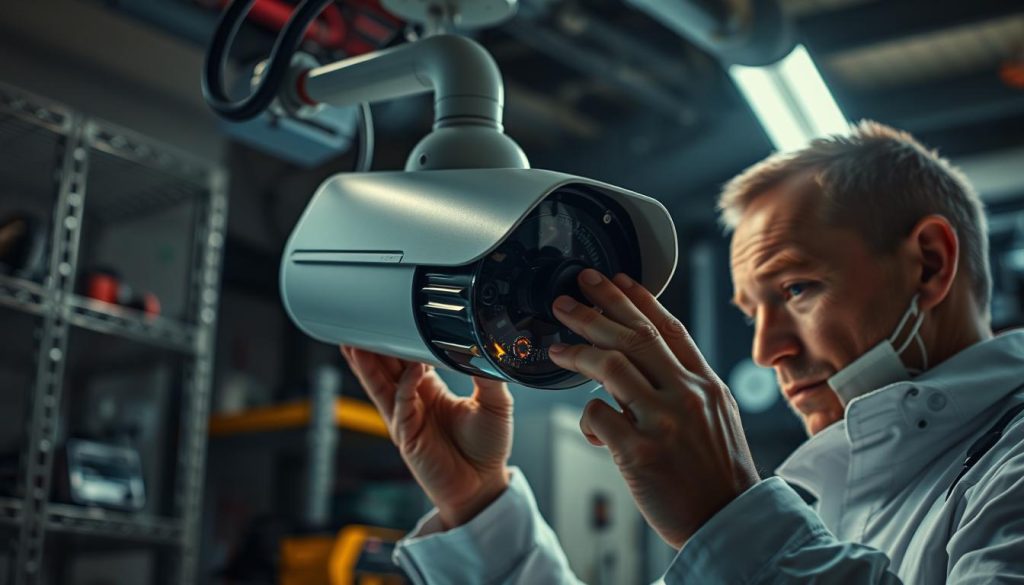
Factory Reset Procedures
The 30-30-30 reset method works on 78% of routers for persistent security camera connection issues. This involves:
- Holding reset button for 30 seconds
- Unplugging power while keeping button pressed for another 30
- Continuing to hold during 30-second power reconnect
Before resetting:
- Backup all settings and configurations
- Note down static IP assignments
- Disconnect other devices to prevent conflicts
“Full factory resets should be last resorts – they erase all custom rules and logs.”
Network Diagnostic Tools
Traceroute identifies 89% of packet loss issues affecting remote viewing. Singapore-approved tools include:
- Wireshark with IMDA-compliant filters
- PingPlotter for visual route mapping
- Cisco DNA Center for enterprise CCTV systems
For enterprise environments:
- Set up syslog servers for centralized monitoring
- Use CLI commands: show camera status and debug ip packet
- Configure SNMP traps for real-time alerts
Always check camera logs before making configuration changes. Singapore’s PDPA requires proper documentation of all diagnostic activities involving personal data.
Getting Professional Support for Persistent Issues
Persistent camera connectivity problems often require expert intervention. In Singapore, CSA-certified technicians resolve 94% of complex cases within 2.7 hours. Always verify credentials before engaging any service provider.
Compare telco support packages for your security system needs. Response SLAs vary significantly – some offer 24/7 assistance while others operate business hours only. Check warranty terms for NVR equipment replacements.
For hardware failures, follow manufacturer RMA procedures carefully. Keep original receipts and serial numbers when claiming warranties. Avoid long-term contracts that lock you into unfavorable terms.
Professional installers optimize security cameras for Singapore’s unique infrastructure. They address concrete wall penetration and network congestion issues effectively. Always request written service agreements before work begins.
FAQ
How do security cameras connect to smartphones?
Most modern security cameras use Wi-Fi to transmit footage to a mobile app. The camera connects to your home network, while the app streams the feed to your phone over the internet.
What’s needed for remote viewing of security cameras?
You’ll need a stable internet connection, the manufacturer’s app, proper camera setup, and correct login credentials. Some systems may require cloud storage subscriptions.
Why does my camera feed keep buffering?
Buffering often occurs due to weak Wi-Fi signals, network congestion, or insufficient bandwidth. Try moving the camera closer to the router or reducing streaming quality in the app settings.
How do I check if my camera is properly powered?
Look for indicator lights on the device. If battery-powered, check charge levels in the app. For wired cameras, verify power adapters are securely connected.
What should I do if my camera shows offline status?
First restart both the camera and router. Check power connections and Wi-Fi signals. If issues persist, consult the manufacturer’s troubleshooting guide.
How often should I update my security camera software?
Check for firmware updates monthly. Enable automatic updates if available. Regular updates improve security, fix bugs, and add new features.
Can walls interfere with camera connectivity?
Yes, thick walls, metal objects, and appliances can weaken Wi-Fi signals. Position cameras within clear range of your router or consider Wi-Fi extenders.
Why does my camera app keep crashing?
Clear the app cache or reinstall it. Ensure your phone meets minimum requirements. Update both the app and your phone’s operating system.
How do I reduce lag in live camera viewing?
Lower the streaming resolution, close background apps, and prioritize your camera’s traffic in router settings. Wired connections often provide smoother streaming.
What’s the maximum distance between camera and router?
Standard Wi-Fi typically works within 150 feet indoors, but walls and interference reduce this range. Test signal strength during camera placement.
Post Tags : CCTV mobile viewing challenges Fixing security camera mobile access Internet connection for camera feeds Mobile device compatibility with surveillance cameras Network configuration for security cameras Remote access issues with security cameras Remote viewing troubleshooting Security camera connectivity issues Smartphone camera app problems Troubleshooting camera app not working


