

Why is my Blink camera blinking red and not connecting?
If your Blink camera is flashing a red light, you might be having connection problems. This red light means your camera isn’t linking up to Wi-Fi. Issues like a low battery, setup problems, or hardware faults could be the cause.
It’s important to know why your camera isn’t connecting. This helps you fix the problem and keep your security system working well.
Key Takeaways
- Blinking red light indicates connection issues with your Blink camera.
- Common causes include low battery and Wi-Fi connectivity problems.
- Proper troubleshooting is essential for maintaining effective security monitoring.
- Understanding LED signals can aid in quick diagnostics.
- Regular maintenance is key to avoiding future connectivity issues.
Understanding Blink Camera LED Indicators
Blink camera users can rely on various LED indicators to check their device’s status and performance. These Blink camera signals give important info about connectivity, battery levels, and more. Knowing these signals helps in fixing LED light issues and keeping the camera working right.
Common LED Signals
Users see several common LED signals on Blink cameras. A blinking green light means the camera is trying to connect to the internet. A solid red light usually shows hardware problems. A blinking red light can mean connectivity issues, low battery, or motion detection alerts.
Meaning of Blinking Red Light
A blinking red light on a Blink camera is key to notice. It means the camera is having trouble connecting or the batteries are low. Knowing this helps users fix problems fast and get the camera working again.
Common Reasons Why Blink Cameras Flash Red
The red flashing light on a Blink camera can mean several things. It might be a sign of a problem that affects how well it works. Knowing what these signs mean can help you figure out what’s wrong.
Internet Connection Issues
One big reason for a red light is a weak internet connection. If your signal is not strong, it can stop the camera from talking to your network. Make sure your internet is strong to fix this.
Low Battery or Power Issues
Low battery or a bad power source can also cause a red light. If your batteries are running low, you need to replace them fast. This keeps your camera working right.
Camera Setup Mode
When you first set up your Blink camera, it might flash red. This is normal as it gets ready to work. After it’s set up, the light should stop flashing.
Hardware Issues
Sometimes, a red light means there’s a problem with the camera’s hardware. You might need to get help to fix or replace it. Catching these problems early can help avoid bigger issues.
Why is my Blink camera blinking red and not connecting?
When your Blink camera shows a red light, it’s trying to tell you something. A red flash usually means it’s in setup mode or having trouble connecting. This often happens because of network issues.
Connectivity problems are a big reason why your camera might not connect to Wi-Fi. A weak signal or a network glitch can cause the red blink. Checking your internet connection is a good first step.
Also, make sure you set up your camera right. If you don’t, it might show a red light. Paying attention to these details can help fix your Blink camera’s issues.
How to Fix a Blink Camera Flashing Red Light
Seeing a red light on your Blink camera can be annoying. But, fixing it is easy with a few steps. Here are some simple ways to get your camera working again.
Check the Internet Connection
First, make sure your internet is strong. A weak connection can cause red light problems. Check your Wi-Fi router to see if it’s working right.
Also, make sure your Blink camera is close enough to your Wi-Fi. Moving the camera a bit might help it connect better.
Replace or Recharge Batteries
If it’s not the internet, check the power. Try new batteries or charge the ones you have. A dead battery can make the red light blink.
New batteries can make your camera work better. This is a simple fix that often solves the problem.
Restart the Camera
Lastly, try restarting your Blink camera. Turn it off for a few minutes, then on again. This can fix small software issues.
Adjusting Motion Detection Settings
Setting up your Blink camera’s motion detection right is key to avoiding too many alerts. By tweaking the sensitivity, you can make sure you only get notifications when there’s real movement. This helps cut down on the red light that shows there’s a problem.
Modifying Sensitivity
Changing the sensitivity of your Blink camera’s motion detection can make it work better. If it’s too sensitive, it might pick up on small things like leaves moving or cars passing by. This can lead to too many alerts.
To change the sensitivity, go to the settings in the Blink app. Pick a level that works for you. Choose a lower setting in busy areas to avoid false alerts.
Cleaning the Camera Lens
Keeping your Blink camera clean, like the lens, is important. Dust, dirt, or smudges can mess with how well it detects motion. This can cause wrong alerts and a flickering red light.
Use a soft cloth to gently clean the lens. A clean lens means better detection and fewer alerts. This keeps your camera working well.
Resetting Your Blink Camera
Resetting your Blink camera can solve many problems. This includes issues like constant connectivity issues or error messages. By resetting, you can return your camera to its original settings. This might fix any camera troubles you’re facing.
How to Perform a Factory Reset
To start the factory reset, find the reset button on your camera. It’s usually on the back or bottom. Press and hold it until the LED light starts flashing.
This means the camera is resetting. Wait until the light stops blinking and stays steady. This shows the reset is done. Now, you can set up your camera like it’s new.
When to Reset Your Camera
Reset your camera if you keep getting error messages or if setup fails. You might also need to reset it when changing network settings or if it stops working. These problems often require a camera reset to solve them.
Importance of Firmware and Software Updates
Keeping your Blink camera in top shape is more than just setting it up right. It’s key to update the firmware and Blink app regularly. This keeps your camera working well. If your software is outdated, you might face issues like connectivity problems. These can show up as a red light that won’t go away.
Checking for Updates
For the best performance, always check the Blink app for updates. This simple step can stop problems and keep your camera system reliable. Here’s how to do it:
- Open the Blink app on your device.
- Navigate to the settings menu.
- Select the option to check for firmware updates.
- Install any available updates right away.
Benefits of Keeping Software Updated
Getting the latest firmware and Blink app updates has many benefits. Here are a few:
- Improved Security: Updates often fix security holes, making your camera safer.
- Enhanced Features: New updates can bring cool new features that make using your camera better.
- Better Performance: Keeping your software up to date can fix bugs and glitches. This ensures your camera works as it should.
Monitoring Your Wi-Fi Signal Strength
It’s important to know and keep an eye on your Wi-Fi signal strength. A strong connection is key for your Blink camera to work well. It helps your camera run smoothly without any problems.
Checking your Wi-Fi signal can help you find ways to make your Blink camera better. This means your camera will work even better.
Ensuring Strong Connections
To get a strong Wi-Fi connection, follow these steps:
- Place your camera near your Wi-Fi router for a better signal.
- Stay away from things that block Wi-Fi signals, like walls and big furniture.
- Check your internet speed and stability with different devices to see how well it works.
Utilizing Wi-Fi Extenders
If you have trouble with your Wi-Fi, try using Wi-Fi extenders. They make your Wi-Fi signal stronger, covering more area. Here are some tips for using them:
- Put the extender between your router and camera for the best coverage.
- Make sure the extender gets a strong Wi-Fi signal itself.
- Check if the extender works well with your router for easy setup.
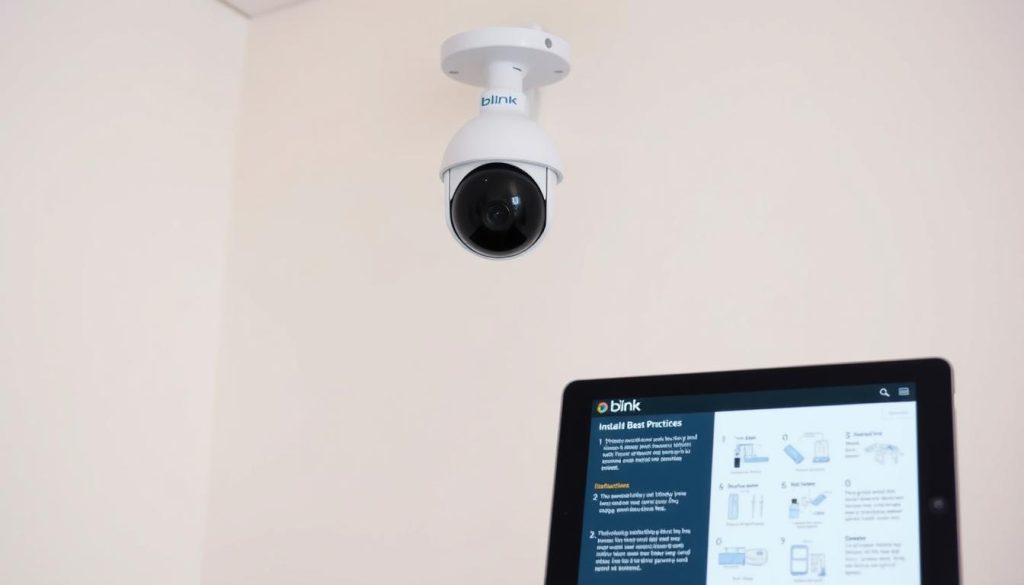
Best Practices for Blink Camera Setup
Setting up your Blink camera right can make it work better and last longer. By following the best steps, you’ll get the most from your device. It’s important to place your camera and sync module well and manage their functions.
Optimal Placement of Camera and Sync Module
Choosing the right spot for your cameras and sync modules is key. Remember these sync module tips:
- Put the Blink camera 3-10 feet off the ground for a wider view.
- Avoid putting the camera behind things like trees or furniture to avoid signal problems.
- Make sure the sync module is close to your Wi-Fi router and cameras for a strong connection.
- Think about the camera’s motion detection when placing it to cover important areas.
Using the Blink App Effectively
Getting used to the Blink app is important for good app use. Here are some tips to help you:
- Always check for app updates to use the newest version.
- Use the app’s settings to change notification preferences to fit your needs.
- Keep an eye on camera status and battery levels in the app to keep everything running smoothly.
- Check out the app’s features to set up schedules and adjust camera settings easily.
Contacting Blink Support
If your Blink camera keeps having problems, it’s time to contact Blink support. Before you reach out, make sure you have all the details about your camera’s issues. This includes any error messages or strange behaviors it’s showing. Having this info ready can help solve your problem faster.
Blink support has different ways to help you, like phone support and online guides. If you like to fix things yourself, the Blink website has lots of helpful guides. These cover many common issues.
If you need personal help, Blink support has you covered. Their team is ready to help with any Blink camera problems. They’ll make sure you get the most out of your security system.
FAQ
Why is my Blink camera blinking red?
A blinking red light on your Blink camera usually means there’s a problem. It could be with the connection, the battery, or even the hardware. It’s key to find and fix these issues to get your camera working right again.
What do the different LED indicators on the Blink camera mean?
Blink cameras use LED lights to show their status. A green light blinking means it’s trying to connect to the internet. A steady red light might show a hardware problem. And a blinking red light often means there’s a connection issue, low battery, or it’s detecting motion.
What can cause my Blink camera to lose connection?
There are a few reasons why your Blink camera might lose connection. It could be a weak internet signal, Wi-Fi disconnection, low battery, or hardware problems. Checking your internet and battery can help fix these issues.
How can I troubleshoot my Blink camera’s connection issues?
To fix connection problems, make sure your router is working well and close enough. If issues continue, try changing the batteries or restarting the camera. This often fixes small problems.
How can I adjust motion detection settings on my Blink camera?
You can change motion sensitivity in the Blink app settings. Adjusting this can help avoid false alerts. Also, keep the camera lens clean to prevent unnecessary alerts from dirt.
What steps should I follow to reset my Blink camera?
To reset your Blink camera, press the reset button until the light shows it’s ready. Reset if you keep getting error messages or if setup fails.
Why is it important to update my Blink camera’s firmware?
Updating your Blink camera’s firmware is vital for it to work well. Old software can cause connection issues, like a red light. Updates also improve how your camera functions.
How can I monitor Wi-Fi signal strength for my Blink camera?
To get a strong Wi-Fi signal, place your camera near the router or use Wi-Fi extenders. Checking the signal strength can really help your Blink camera work better.
What are the best practices for setting up my Blink camera?
For the best results, place your Blink camera and sync module where they have a clear path to the router. Use the Blink app to manage settings and keep an eye on your camera’s status.
How do I contact Blink customer support for assistance?
If you can’t solve the problem yourself, contact Blink customer support. Have all the details about your camera and any error messages ready to help them fix the issue faster.


